

Tickets
Day-to-day operational cockpit: bugs, improvements, support, and tasks — with SLA, owner, contract consumption, and billing on the same screen.
What you find on this screen
A portrait of the screen, read from the screen itself — it changes when the screen changes.
Form fields
Título*Resumo curto da demanda.
DescriçãoDetalhe o que precisa ser feito, contexto e critérios de aceite.
TipoTipo da demanda: define workflow, status inicial e exigências.
ClienteDe quem é o chamado. Para trocar, use o combo Cliente da aba Contexto — só ele limpa contrato, produto e pack do cliente anterior.
StatusSituação atual da demanda no fluxo de trabalho.
Aberto porQuem abriu o chamado. Somente leitura: a origem é fato histórico.
PrioridadeOrdem de atendimento.
SeveridadeGravidade técnica do problema (S1 = mais grave).
ImpactoAbrangência do efeito no negócio do cliente.
UrgênciaQuão rápido precisa ser resolvido.
OrigemDe onde a demanda se originou.
CanalCanal por onde a demanda chegou.
AmbienteAmbiente onde ocorre (ex.: Produção, Homologação).
Versão informadaVersão do produto informada pelo solicitante.
Story pointsEsforço relativo estimado.
EstimativaHoras estimadas para concluir.
PrevisãoData prevista de entrega.
EntregaData efetiva de entrega.
Prev. de entregaCalculada na abertura (início + horas de SLA pelo calendário da empresa) e recalculada a cada pausa/retomada. Não se digita.
ResponsávelUsuário responsável pelo atendimento da demanda.
+ 13 more fields
Start here
What you do here
Create and track tickets of any kind: bug, improvement, support, task. Each ticket carries classification (type, status, priority), planning (owner, sprint, deadline), execution (time entries, checklist, comments) and the financial side (budget, contract consumption, billing).
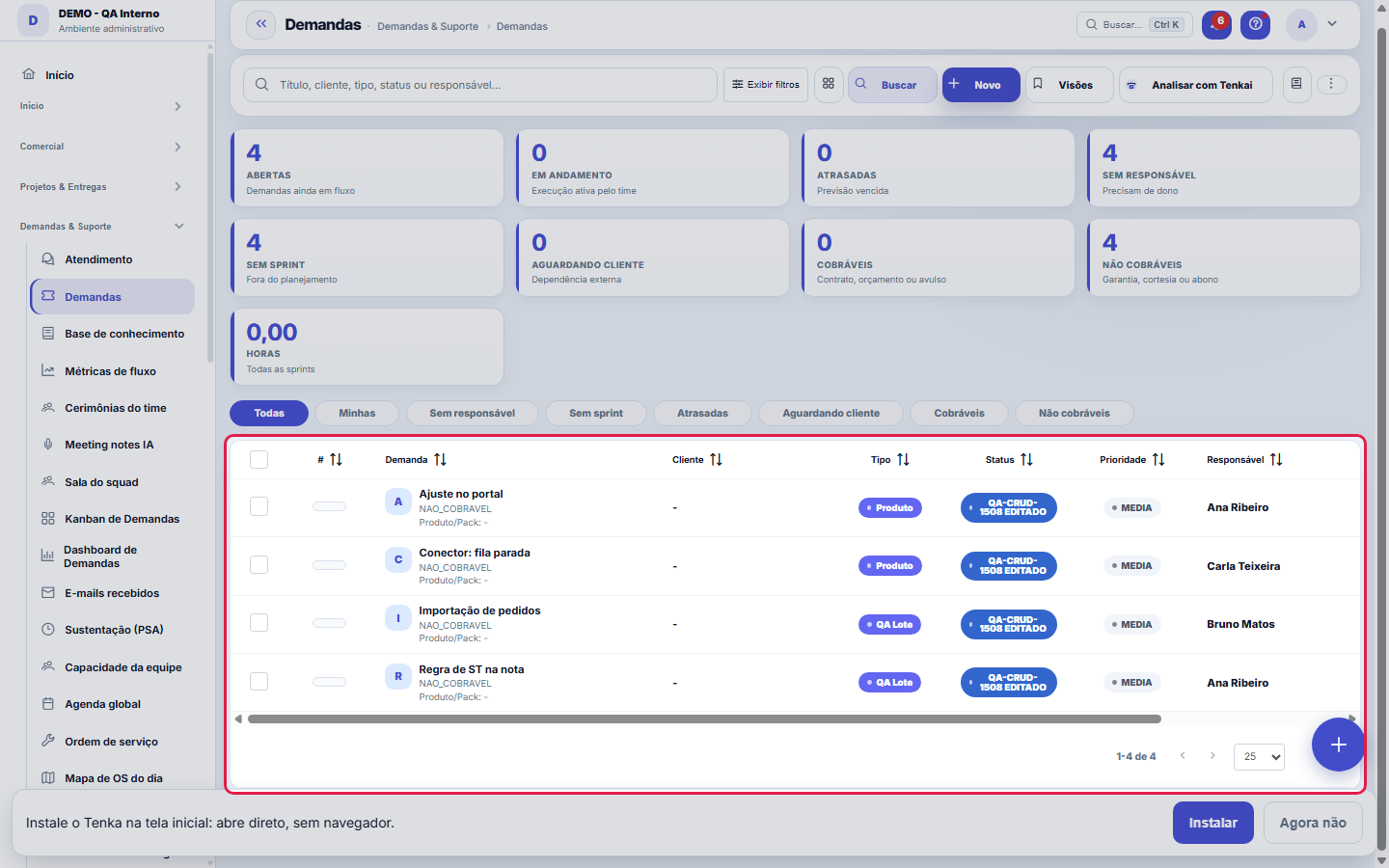
The cards summarize the queue; the list details it.
O que esta tela responde
The complete record of a request: type, priority, owner, hours and conversation. The status comes from the configured WORKFLOW, so the list of possible statuses changes according to the type. Completing records WHEN it was completed — it is this date that supports resolution time and SLA, and that is why it cannot be edited by hand.
How to
Rascunho automático
While filling out a new ticket, the system keeps a local draft. If the page reloads, use "Recover" in the yellow notice so you don't lose what you typed.
A resolved ticket can become a help item
In the ticket's menu (⋮) there is "Turn into help item (draft)": the customer's question becomes an INACTIVE draft in the "Answers born from tickets" collection. Complete the answer in help curation and activate it — only then does it appear to anyone. Good habit: every ticket whose answer would serve other customers deserves the click.
Faturável, consome contrato, gera cobrança: três chaves, três perguntas
The billing switches answer different questions. "Billable" says whether this work can be charged to the customer. "Consumes contract" says where it comes from: the logged hours deduct from the linked contract's allowance — this is what feeds the support calculation. "Generates charge" says whether the request triggers its own charge, according to the chosen billing policy. And "Requires quote" makes the work conditional on prior approval of a quote. Marking wrong gives no error at the time — it shows up later, on the invoice that came out too high or the allowance that vanished.
O que o cliente vê — e o que fica em casa
The request has two faces: the internal status (the team's workflow) and the "Status for the customer", a simplified reading for those on the outside. "Visible to customer" controls whether the request appears to them; in comments, the internal × visible to customer marking decides sentence by sentence what crosses the counter. The practical rule: write every comment visible to the customer as if they were going to read it right away — because they will. And what is internal diagnosis, keep internal: the two coexist in the same request without leaking.
Rules
The SLA counts from opening
The response and resolution deadlines come from the applicable SLA policy (by type/priority). Tickets with the SLA about to breach appear highlighted — overdue is different from waiting on client (the clock pauses according to the policy).
Política de cobrança
Every ticket is born with a billable or non-billable policy (inherited from the type/contract). Hours on a billable ticket become contract consumption and can be invoiced; non-billable ones only enter the cost.
Mudança de status segue o workflow
The allowed transitions (e.g.: Open → In Progress → Resolved) are those of the configured ticket workflow. It's not possible to skip steps that the flow doesn't allow.
A request born from an e-mail carries the conversation inside it
When a request comes in through the e-mail inbox, it gets an "E-mails" tab with the entire conversation — what the client wrote and what was replied, in order. Replying through this tab sends a real e-mail to whoever wrote in, with the request number in the subject: that's what makes the client's next reply go back to the SAME request instead of opening another one. Attachments that came with the e-mail stay in the Documents tab, like any other attachment.
A visão salva guarda busca, filtros, colunas e ordenação
When you save a view with the Views button, it stores four things: the search text, the applied filters, which columns appear (and in what order) and which column the list is sorted by. Applying the view restores everything at once — including resetting the sort and the page you were on, so the result is exactly what the view describes. Views saved before this version remain valid: whatever they didn't store simply doesn't change when applied.
O erro de preenchimento aparece no campo, ao sair dele
Nas fichas, sair de um campo já dispara a conferência do que dá para conferir na hora: campo obrigatório deixado em branco e e-mail mal formado. O aviso aparece embaixo do campo e desaparece quando você começa a corrigir. Campo numérico não precisa de aviso: ele simplesmente não aceita letra enquanto você digita. Isso é conforto, não a validação final: ao salvar, o sistema confere tudo de novo do lado do servidor.
Timer from the row menu
In the row actions menu, "Start timer" begins counting your time on that ticket. While it runs, the same item shows "Stop timer", which ends it and logs the time entry. It is the same timer as My Schedule. To use it, your user must be linked to an employee record.
The row with an unsaved draft
Started editing a record and left without saving? Its row is highlighted in amber in this list, with an unsaved draft notice. Open the record: the form offers to continue where you left off or discard the draft.
SLA as a badge and columns that fit on the screen
The SLA column shows the time left in a colored badge: green on time, yellow attention (close to due) and red overdue. A request with no SLA rule or due date has no badge. The list opens with the columns that fit on the screen; the others are in Columns, unchecked, and are included in exports. When you choose columns in Columns, your choice applies, even if the table needs to scroll.
Comentário pode ser corrigido e removido
The comment list has edit and delete actions on each row. It is worth using them instead of writing a second comment correcting the first: the customer reads the whole history, and a wrong comment left behind confuses more than the right text.
Excluir comentário não volta atrás
Deleting a comment asks for confirmation and is permanent — there is no recycle bin for comments. Before deleting, think about what the record proves: a comment is the memory of the service, and deleting a passage can leave the conversation making no sense for whoever reads it later. If the intention is to fix a typo or complete some information, use the pencil (edit) instead of the trash can. Take extra care with comments marked as visible to the customer: what they have already read on the portal does not disappear from their memory.
Uma anotação pode virar demanda
In the record's activity panel, each note has "Turn into request". The click creates a ticket with the note's text, who wrote it and the link to this record — nothing is retyped. Use it when the note is a request for action ("someone needs to review this"); the note stays where it was. The button only appears once the record has been saved; a read-only session (demo) doesn't create one.
A especificação do chamado: o que é, como nasce e por que nasce PROPOSTA
The specification is three blocks — user story, business rules and acceptance criteria — stored as versions. It can be written by hand or distilled from a request in natural language (a WhatsApp audio, a message). When it is distilled, what the request did not say becomes an open QUESTION, never a rule: a requirement the model filled in on its own enters the scope looking like an agreed requirement. That is why it is born as a PROPOSAL and only takes effect when someone accepts it. Each new version keeps what came in and what went out compared with the previous one, and it is this list that answers "what changed in what we agreed?". The developer can read the specification from within their editor, through the account's MCP key, in Markdown and with the flow in mermaid.
Record page quick settings
The gear at the top of the record page keeps three choices, only for you and only on this screen: the form columns (1, 2 or 3), the summary fields shown under the name (with none checked, the strip goes away) and which tabs stay in the row (unchecked ones go to More). Apply redraws the page right away. Field order, hidden fields and the other options are under More settings.
Create a tab and move a field on the record page
In More settings (at the bottom of the record page gear), under Your tabs, type a name and click Create tab. Then choose a form field, the destination tab and click Move. The field stays the same: it is saved in the same record, with the same validation; only the tab where it appears for you changes. Choosing Data as the destination puts the field back where it was, and the X next to the tab removes it. The record page reloads on each change, so save what you are editing first.
Record page More settings
At the bottom of the gear, More settings opens the full setup of the record page, only for you and only on this screen. Choose 1, 2 or 3 columns and see the preview next to it. Drag a field by its handle to change the order within the group, or use the arrows. Unchecked, the field is hidden only for you. Each field says whether it comes from the system or from the company (custom field), and the filter at the top shows only one kind. Fields that are not in any section appear under Fields without a tab. Under Your tabs you create a tab and move fields into it. To change a label, help or required setting for the whole company, or to create custom fields, use the shortcuts at the bottom (shown to those who can).
Tab order on the record page
In More settings, under Tab order, drag a tab by its handle, or use the arrows, to put first the tab you use the most. Apply saves it. The tab row follows the new order only for you and only on this screen. A tab that appears later goes to the end.
Frequently asked questions
Who can access this screen
Operational profiles (Developer, PM, Administrator). The visibility of financial values inside the ticket depends on access to the Financial module.
Como descobrir quem mudou um campo desta ficha?
Open the record and look at the Timeline on the right: it shows each change as "from one value to another", with the person and the date. When there are many changes, use the two filters at the top of the timeline — one by field, the other by person. The search runs in the database, so old changes show up just the same. You can also ask Tenkai: "who changed contract 482?".
Qual a diferença entre "Prev. de entrega" e a previsão que eu digito?
The delivery forecast is CALCULATED: opening plus the SLA deadline, counted by your company's business hours and holidays, and recalculated every time the ticket is paused and resumed. It is the promise the contract makes. The forecast you type still exists and is your planning estimate — the two coexist because they answer different questions: one is what was promised, the other is what the team expects.
Cliquei em Pausar e nada aconteceu — o que falta?
Pausing moves the ticket to a status marked "Freezes the SLA", and the account needs to have one. Every account now starts with "Waiting for customer" already marked, but if it has been deactivated or renamed without the flag, the button has no destination and warns on screen. Check it in Records ▸ Ticket status: exactly one active status must have "Freezes the SLA" checked, and it cannot be a final status — otherwise pausing would close the ticket.
Why did the spreadsheet row come back with "repeated name"?
The owner’s name belongs to more than one person registered in the company, and the import does not choose for you. Replace the name with the person’s e-mail in the Owner column and import again; rows already imported show as duplicates and are not repeated.
In which status does an imported task start?
In the status given in the spreadsheet. With no status, it starts in the first status of its type’s flow; if the type has no flow, in the company’s first open status.
Why is the task no longer shown as "no owner"?
A task counts as "no owner" only when it has nobody: no user and no employee. An imported spreadsheet usually links the task to the employee, who counts as owner in the task list, in the indicator and on the Squad room card.
Why do some statuses show in another language?
The standard statuses (Open, In progress, Waiting for customer, Resolved, Closed, Canceled) follow the language you read. A status your company created or renamed shows exactly as it was written, in any language. To change a status name, edit it in the statuses list.
My timer stopped on its own. Why?
When someone sends a request with a running timer to the trash, the timer is closed right there and the hours up to that moment are saved as a time entry, going through approval and contract consumption like any other hour. Whoever had the timer running gets a notice in the bell with the request and the hours. If the request comes back from the trash, start a new timer.
Why does a portal request already come with contract, owner and sprint?
Because it inherits from the client's active contract: the contract (consuming its hours), the request owner set on the contract, the product when the contract has only one, and the sprint in progress today (the request's project sprint, if any). Nothing the request already brought is replaced. If the client has more than one active contract, they choose in the portal; if they don't, or have no active contract, the request arrives as before and you complete it in "Classify and Assign Fields". The same applies to requests that come by email.
What happens to the timer if the request goes to the trash?
It stops right away, as when the request is completed: the hours counted so far are saved in the time entry, go to hours approval (when your company requires approval) and are deducted from the request's contract. If the request comes back from the trash, the timer does not restart by itself: start it again if you are still working on it.
Why does the request status appear in color on the list?
The color is the one set for the status: whoever configures the statuses picks a color for each, and the list paints the cell with it so you can spot at a glance what is stuck, in progress or waiting for the client. A status without a color shows as before, with no background.
Why do the numbers at the top change when I filter?
The cards at the top count the same as the list shows: the chosen view, the filters and the search. With a sprint view on, "open" and "late" are that sprint's. To see the whole company, clear the view and the filters. The table footer says how many demands the list has.
Why do Next and Previous only go through the demands I filtered?
The record moves within the list you came from, in the same order: the view, the filters and the search still apply, and "n of N" counts only those. If you opened the demand from a link, the search or another screen, the record moves through all of them. In a very large view, it moves through the first 2,000; filter further to reach the others.
Is it recorded who imported a spreadsheet?
Yes. After you confirm an import, the system keeps in the audit trail who imported, when, how many rows and the file name. In the preview, scroll sideways to see all columns.
Why can't I click a step of the request?
The workflow of the request type defines where it can go from the current status. A greyed-out step is not allowed now: go through the enabled step first or ask an administrator to adjust the workflow in Operations › Workflows. If the company has no workflow, all steps are enabled. When closing, the system asks for the written solution (when the workflow requires it) and the estimate (when the request requires it).
How do I see who sent a record to the trash?
In each list's trash, the "Deleted by" column shows who deleted and when. Use Restore to bring the record back, or Undo right after deleting. Records deleted before 10/28/2026 may show without the name of who deleted them.
Why can't I delete a time entry?
When the hours of the entry are already counted in the contract usage, deleting requires the delete permission in Contracts: whoever logs hours does not undo on their own what the contract has already counted. Ask the account administrator. If the hours have already been invoiced, nobody can delete the entry: reverse the invoice first.
Por que o Cliente aqui em cima não deixa trocar, e o da aba Contexto deixa
The Customer field in Identification is a read-out: it answers "whose ticket is this" without you having to go looking. The change happens on the Context tab because there the field is chained with contract, product, pack and environment — when the customer changes, it clears the previous customer's links. If the change were allowed here, the ticket would point to the new customer with the old one's contract, with no warning, and the hours report would add up on the wrong contract.
Why doesn’t the Customer/pack link show the links of the customer I just chose?
The Customer/pack link options (and the Environment, which comes from it) are those of the customer saved on the ticket. Changed the customer? Save: when the ticket reopens, the field shows the new customer’s links. If the chosen link belongs to another customer, the ticket is not saved and the message says it is the Customer/pack link field that must be changed or left blank.
Why does Save light up when I change only the customer, the contract or the product?
Because changing one of these fields is already a change to the ticket: Save lights up, the screen does not reload and the other fields stay as they are. Nothing is saved until you save. On saving, the ticket checks that the contract belongs to the customer and the pack to the product; if not, the message says which field to change. The same check applies to tickets opened by Tenkai or by an integration.
I can’t find an old contract in the Contract list. Why?
The ticket’s contract list shows the company’s 2,000 most recent contracts. When the company has more than that, the record warns right below the Commercial context, and an older contract is not offered.
Connected screens
Visualiza emKanban de DemandasAs mesmas demandas em quadro kanban (arrastar muda status).Mede emDashboard de DemandasIndicadores de SLA, fila e carga por responsável.Consome horas deApontar horasHoras apontadas na demanda alimentam consumo de contrato e rentabilidade.Regido porPolíticas de SLAA política de SLA define os prazos da demanda.ConsomeContratosDemanda cobrável debita horas do contrato do cliente.
Was this article helpful?
In the same module: Today's work21
ConversationsThe conversation hub: reply to portal customers, talk to colleagues (internal chat), and in groups. Everythin…Base de conhecimentoOs artigos que respondem antes de o chamado existir — e o número que mostra quantos chamados isso evitou.InboxYour personal inbox to jot down anything without classifying it at the moment of capture.Team ceremoniesWhere the team's meetings are recorded — planning, daily, review and retrospective — with the agreed duration…ChamadosOs atendimentos de sustentação dos seus clientes, com o relógio do SLA, a previsão calculada e as ações da li…Ticket dashboardManagement view of the service desk: SLA, queue by status and type, workload by owner, and resolution time.Company documentA certificate, policy, power of attorney or license with the validity at the center: status, notice to the pe…Documents (GED)The company's living archive: certificates, policies, powers of attorney, contracts and licenses with control…
Tenka Academy
Explore the AcademyStep-by-step learning paths for your industry, inside the platform.