

Conversations
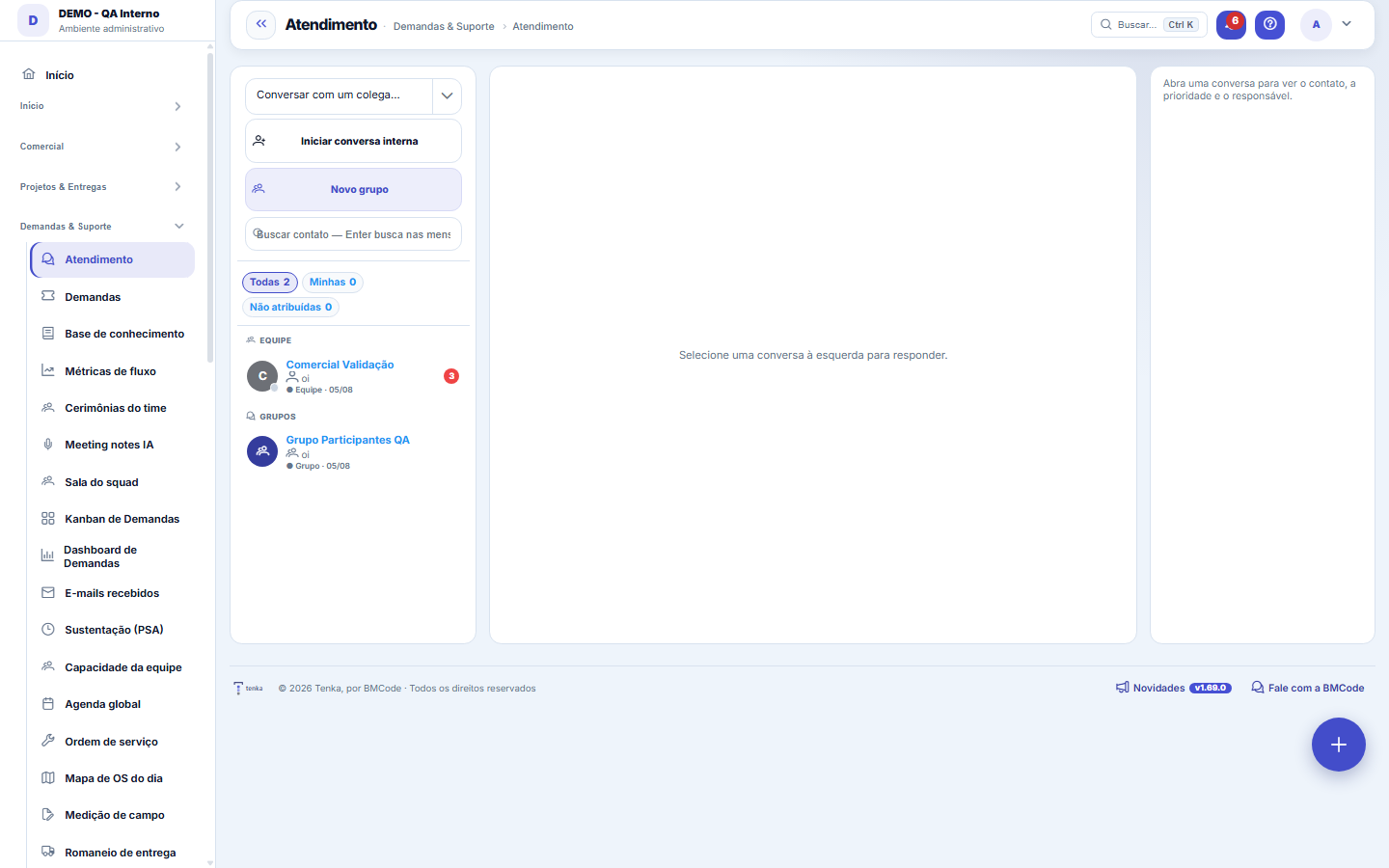
The conversation hub: reply to portal customers, talk to colleagues (internal chat), and in groups. Everything grouped by person, with online status, unread counts, and delivery/read receipts.
The screen
The real screen, in the theme you picked above.
What you find on this screen
A portrait of the screen, read from the screen itself — it changes when the screen changes.
Available actions
Start internal conversationNew groupTake overTenkai summaryParticipantsResolveReopenSendRecord noteAssign to meCancelCreate group+2
Form fields
Todas as conversasQuantas conversas existem na caixa de entrada, sem filtro de responsável.
Minhas conversasQuantas conversas estão sob a sua responsabilidade.
Não atribuídasConversas abertas que ninguém assumiu ainda.
PrioridadeGrau de urgência definido para a conversa.
Situação da conversaEstado da conversa: aberta, em andamento ou resolvida.
MensagensTotal de mensagens trocadas na conversa.
ParticipantesQuantas pessoas fazem parte do grupo da conversa.
Aberta emData e hora em que a conversa foi iniciada.
Última interaçãoQuando foi a última mensagem trocada na conversa.
CanalMeio pelo qual a conversa chega: interna, portal ou WhatsApp.
Contato desdeDesde quando aquela pessoa é contato cadastrado.
Start here
What you do here
A single place for all communication: client conversations (opened from the Portal or from "Help for this screen"), internal conversations with colleagues and groups. The inbox on the left groups by person/group, shows who is online and an unread-message badge; the thread on the right shows the history with receipts (✓ sent, ✓✓ read).
How to
Start an internal conversation
Use "Talk to a colleague" / "Start internal conversation" to speak 1:1 with someone on your team. Only users from your company appear.
New group
"New group" creates a conversation with several participants. In the group, receipts are per participant (you see who has already read it). Members can be added later — always from the same company.
Buscar no conteúdo + Resumo IA
The search at the top looks inside the messages (Enter). "AI summary" condenses the conversation; "Finish" closes the service when resolved.
As três filas do topo da lista
All = everything you see (customers, team and groups). Mine = customer conversations in which YOU are the person in charge. Unassigned = customer conversations without anyone in charge. The numbers do NOT change when you click a queue (they always count the whole), so you can glance and compare. Internal conversations and groups appear only in "All" — a queue is for service triage, not team chat.
A coluna da direita: contato, prioridade e responsável
When you open a conversation, the right column shows who is on the other side (phone, email, ID, how long they have been your customer and when they were on the portal), the conversation's priority and the person in charge. "Assign to me" makes you the person in charge in one click — the conversation enters your "Mine" queue and leaves "Unassigned", which prevents two agents from answering the same customer. On a narrow screen this column moves down to the footer instead of squeezing the conversation.
What this screen answers
Above the text box there are two tabs. Reply sends to the customer through the conversation's channel. Internal note records an annotation that only the team sees — it is where you write what the next person needs to know ("already complained about this in March", "waiting for finance"). The note appears highlighted in the conversation, with the name of who wrote it.
Resolve and reopen
Resolve, at the top of the conversation, marks the service as resolved in one click (it is the old "Finish"). The status is visible next to the name: Open, Resolved or Closed by the customer. Reopen sets the conversation back to open — including when it was the customer who closed it on the portal.
Rules
Isolation per company
You only see and open conversations from your company. Trying to open a conversation from another company via a direct id (URL) shows nothing — the system validates ownership.
Grupo: só participantes
A group is only visible to those who are active participants. Even colleagues from your company who are not in the group cannot open it.
Não-lidas e recibos
Opening the conversation marks the client's messages as read. The red badge counts unread messages; in a group, reading is tracked per person (the cache avoids locking up under load).
One layout per role, not one layout per person
The note is saved marked as internal and the filter sits at the SOURCE of the query, not on each screen: it doesn't go out through the conversation's channel (including WhatsApp), doesn't appear in the conversation the customer reads on the portal, doesn't appear in the site chat and doesn't count as an unread message for anyone. Even so, the golden rule of customer service applies: a note is a work record, not venting — it stays in the conversation's history and can be read by any colleague with access to this screen.
Frequently asked questions
Who can access this screen
Service/operations profiles (typically Support/CS, PM, Sales and Administrator). Access to the screen is by permission; the content is always scoped to your company.
Quem está esperando resposta agora?
That is the question this screen answers. Use the Unassigned queue, at the top of the list: these are the customer conversations nobody has taken yet. The number next to it is the size of the backlog — if it is at zero, nobody is waiting without an owner.
Abri a conversa e ela continua marcada como não lida. O que era isso?
It was a defect, fixed in September 2026, and it applied only to messages coming from the customer through WhatsApp or the Portal. Those arrive without a system user behind them, and the routine that marks them as read compared the author with you — a comparison that, against nothing, is never true. The conversation was opened, read, and the unread mark remained. If you have old conversations in that state, just open them once: the mark is now cleared.
How do I know a client wrote in the portal?
A client message in the portal chat creates a notice on the bell for the person responsible for the conversation. If the conversation has no one responsible yet, everyone with access to Support is notified. The notice opens the conversation. If the client sends several messages in a row, you get only one notice every 10 minutes per conversation. On the other side, the client sees in red, in the portal, how many of your replies are still unread; the number goes away when they open the conversation.
Connected screens
Converte emDemandasConversa que vira trabalho com prazo/custo vira demanda.Vem deClientesAs conversas de cliente pertencem aos clientes do cadastro.
Was this article helpful?
In the same module: Today's work21
Base de conhecimentoOs artigos que respondem antes de o chamado existir — e o número que mostra quantos chamados isso evitou.InboxYour personal inbox to jot down anything without classifying it at the moment of capture.Team ceremoniesWhere the team's meetings are recorded — planning, daily, review and retrospective — with the agreed duration…ChamadosOs atendimentos de sustentação dos seus clientes, com o relógio do SLA, a previsão calculada e as ações da li…Ticket dashboardManagement view of the service desk: SLA, queue by status and type, workload by owner, and resolution time.TicketsDay-to-day operational cockpit: bugs, improvements, support, and tasks — with SLA, owner, contract consumptio…Company documentA certificate, policy, power of attorney or license with the validity at the center: status, notice to the pe…Documents (GED)The company's living archive: certificates, policies, powers of attorney, contracts and licenses with control…
Tenka Academy
Explore the AcademyStep-by-step learning paths for your industry, inside the platform.