

Customers
Central registry of who you serve. It gathers contact and document data, the customer's access to the Portal, and the basis for contracts, billing, and margin analysis.
What you find on this screen
A portrait of the screen, read from the screen itself — it changes when the screen changes.
Form fields
Nome*Nome do cliente.
CPF/CNPJOpcional no cadastro. É exigido na hora de emitir nota fiscal, gerar cobrança ou faturar contrato deste cliente — cadastre agora só o que você tem em…
Razão socialRazão social (PJ).
E-mailE-mail do login principal do portal.
TelefoneTelefone de contato.
AtivoClientes inativos não aparecem na listagem nem no portal.
Verificação em 2 etapas (e-mail)Exige código por e-mail no login do portal. Desmarque p/ destravar quem não recebe o código.
Último acesso ao portalQuando o cliente acessou o portal pela última vez.
Acessos ao portalTotal de acessos ao portal.
Limite de créditoAté quanto este cliente pode dever: o que está em aberto mais os pedidos confirmados ainda não faturados mais o pedido novo. Passou, o pedido não é c…
SegmentoRamo/segmento de atuação do cliente.
Nome do contatoNome da pessoa de contato no cliente.
SiteSite do cliente.
UFEstado (UF) do cliente. Filtrável — e é a chave do recorte geográfico por link: ?fd_uf=CE abre a lista já recortada.
LinkedInPágina ou perfil do cliente no LinkedIn.
InstagramUsuário (@) ou link do Instagram.
Código ERP
Prioridade de atendimentoCliente-chave passa na frente quando falta estoque (se a regra da casa for "cliente-chave primeiro").
Start here
What you do here
Register and maintain your operation's clients: registration data (name, legal name, CPF/CNPJ, address), contacts, and access to the Client Portal (email + password). It is from the client that contracts, tickets and invoices are born.
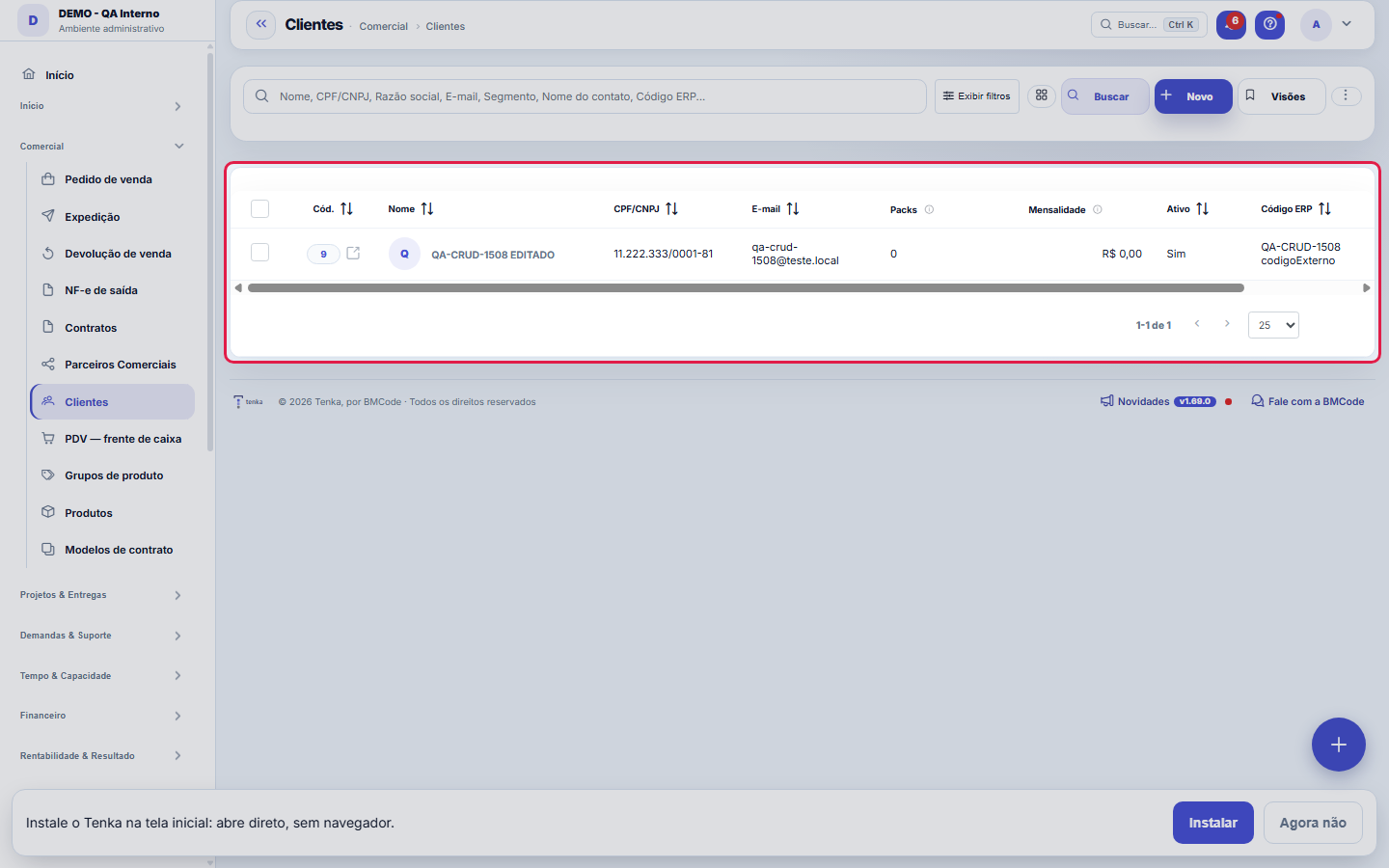
The client portfolio — the root of contract and billing.
A mistyped token gives no error — it just puts the token on the page
The customer record is the root of contracts, billing and service: getting the tax ID or the financial contact wrong here shows up weeks later as a rejected invoice. A customer can have more than one contact, and it is the FINANCIAL contact who receives the billing — not necessarily whoever signs the contract.
Para que esta tela existe
Customer form — this is the role of the "Customers" screen within the platform.
How to
Good practices
Use the search at the top and the filters (Show filters) to find things quickly; save frequent combinations as Views. Deleted records go to the trash and can be restored.
Step by step: find a customer and open their record
- Open the list. Menu ▸ Customers. The table already comes with the portfolio your profile can reach.
- Filter by typing. The list search looks up name, tax ID and nickname. If you arrived through a link with a filter (for example ?q=acme), the list opens already narrowed — and the total in the footer is the total of the selection, not of the whole portfolio.
- Open the record. Click the row to see the full record; from there you reach Customer 360, which brings together contracts, finance and service.
- Take it outside. The export button generates the list as it is on screen — with the same filter and the same sorting.
Company fields in the list
The fields your company created in this table show as columns (the gear shows or hides each one), as filters in the side panel — text by "contains", the rest by value — and go out in PDF, Excel and CSV exports. A link with ?fd_cc_= opens the list already filtered.
Simple mode and "Show all"
The form opens with the essentials: name, tax ID, email, phone and segment. The "Show all" button opens the optional fields and the advanced tabs (address/tax, group, API credentials, products, monthly fee, partners, users and portal). Your choice is remembered. A field your company marked as required appears in simple mode anyway — hiding a field that Save requires would be asking the impossible.
Packs, monthly fee and portal access
"Packs" shows what the customer has contracted; the Monthly fee tab adds up those links and shows the monthly amount — the value columns follow the "View Values" permission of your profile. In "Portal access" you invite the contact by link or create the access with a password right away, resend the invitation and deactivate/reactivate each login; "Last portal access" and "Portal access" in the list come from there. Two-step verification by email is configurable per customer.
Company fields on the form
The "Company fields" section brings the fields created under Settings ▸ Company fields. Required will not save empty; sensitive shows as ••• to anyone without "See Values". In Preferences each person hides the ones they do not use (required ones always stay).
Customer type and Relationship
The type says how the customer buys: retail, reseller (buys to resell, comes on an excursion), wholesale or shopkeeper. The Relationship tab keeps the birth date, consent to receive on WhatsApp and the piece, color and size she wanted; that is where the Customers to contact today list comes from.
Rules
Required fields
The essential thing to create a client is the name — the CPF/CNPJ is no longer mandatory at creation, precisely so the record doesn't get stuck when the document isn't in hand yet. Legal name, email, phone, segment and state (UF) can be completed later, in the form itself; it's worth completing: segment and state feed the filters and the client map, and the email is what allows granting portal access. When the CPF/CNPJ is provided, it is validated normally.
Plan customer limit
Client creation respects the limit of your plan. Upon reaching the limit, the system blocks new registrations and guides you to upgrade the plan (the message shows the current limit).
Portal access
When setting the portal password, the system stores only the hash (the password is never readable) and can send it to the client by email. The client's public identifier (for chat/API) is generated automatically and is not sequential — protection against enumeration.
A visão salva guarda busca, filtros, colunas e ordenação
When you save a view with the Views button, it stores four things: the search text, the applied filters, which columns appear (and in what order) and which column the list is sorted by. Applying the view restores everything at once — including resetting the sort and the page you were on, so the result is exactly what the view describes. Views saved before this version remain valid: whatever they didn't store simply doesn't change when applied.
O erro de preenchimento aparece no campo, ao sair dele
Nas fichas, sair de um campo já dispara a conferência do que dá para conferir na hora: campo obrigatório deixado em branco e e-mail mal formado. O aviso aparece embaixo do campo e desaparece quando você começa a corrigir. Campo numérico não precisa de aviso: ele simplesmente não aceita letra enquanto você digita. Isso é conforto, não a validação final: ao salvar, o sistema confere tudo de novo do lado do servidor.
Deleting a customer can now be undone
Since 1.77.0 a deleted customer goes to the recycle bin instead of disappearing: the notice with Undo appears right after deletion, and afterwards the customer stays in the list's own bin (the recycle bin shortcut). From there you can restore it, or delete it permanently when that is the intention.
Import customers from a spreadsheet
In ⋮ More actions ▸ Import spreadsheet, download the template, fill it in and upload. The preview checks every row before saving: NEW goes in, DUPLICATE already exists (by tax ID, ERP code or name) and INVALID shows the column and the reason. Only Name is required. One e-mail per row: several addresses in one cell make the row invalid — keep the main one (it is the portal login) and add the others in the customer record. If a row fails while saving, the message says which one, why and how many already went in; fix the spreadsheet and upload again — the ones already saved show as duplicates.
Your list preferences work on any computer
Tamanho da página, quebrar linhas, linhas distribuídas, modo compacto e a largura das colunas que você arrasta no cabeçalho ficam gravados na sua conta, por tela. Entrando de outro computador, a lista abre como você deixou. "Restaurar o padrão" no diálogo de Preferências volta tudo, inclusive as larguras.
A gear on every table and actions in the row menu
As tabelas fora da lista principal também têm a engrenagem de preferências (colunas, ordem, densidade), ao lado do botão de CSV. Na lista, as ações raras, destrutivas ou de detalhe ficam no menu ⋯ da linha; continuam como botão direto só as de estado visível e uso repetido, como marcar como lida, ligar ou pausar.
Exporting on an account under evaluation
On a Free account, an account under evaluation or one created less than 30 days ago, list exports (PDF, Excel and full CSV) have a daily limit per account: 20 per day, adding up all the account's users. Whoever goes over the limit sees a notice and can export again the next day; paid plans have no limit. Every file exported in this phase is marked with its origin — account, user and date — in the PDF title and on the last line of the CSV, where it does not get in the way of whoever imports the spreadsheet. If the mark or the count cannot be checked at that moment, the export goes out anyway.
O CPF/CNPJ deixou de ser obrigatório para criar o cliente
You create the customer with just the name. The tax ID became required only at the moment it is really needed: issuing an invoice (service or product), generating billing, invoicing a contract, splitting billing by tax ID and granting an API license. At those moments the system says exactly what is missing and opens the record for you to complete. The reason for the change: the tax ID is not always at hand at first contact, and blocking creation because of it pushed the record out of the system — into the spreadsheet, from which it never comes back.
The detail tabs unlock after saving
Products/Packs, Monthly fee, Partners, Users and Portal access are tabs that depend on the customer already existing: on a new record they appear disabled until the first save. This is not a bug — the links need a record to hang on. In simple mode these tabs are hidden; use "Show all" to see them. Save the basic data first and then complete the links, on the same screen.
Uma anotação pode virar demanda
In the record's activity panel, each note has "Turn into request". The click creates a ticket with the note's text, who wrote it and the link to this record — nothing is retyped. Use it when the note is a request for action ("someone needs to review this"); the note stays where it was. The button only appears once the record has been saved; a read-only session (demo) doesn't create one.
Credit limit
Enter how much this customer can owe. When confirming an order, Tenka adds what the customer has open, the orders already confirmed but not yet invoiced and the new order: if it goes over the limit, the order is not confirmed and the message shows each part of the calculation. Leave it empty to sell without a limit.
Customer credit and advance payments
On the Vouchers and benefits tab, Customer credit is what the store owes them: exchange vouchers, returns as credit and advance payments still within validity. It pays orders with the Customer credit method. Record an advance payment registers an amount the customer paid beforehand: it becomes their credit, with no expiry, and an obligation to fulfil (not revenue).
Field explanations in your language
The ⓘ next to each field and the "Yes/No" in lists appear in the language chosen in your preferences. If your company rewrote a field’s explanation, its text prevails.
Tenka score: the sentence and the factors
The Tenka score tab sums up the customer’s credit in one sentence (average delay, 60-day trend, suggested limit) and shows the four factors of the chance of a delay over 30 days, each with its weight. With fewer than 3 paid invoices there are no factors: assess case by case.
When the Save button looks light
Save only lights up after you change a field. While nothing has changed it stays light and No changes yet appears next to it. When you change a field, the button lights up and the title shows Unsaved changes. This applies to every record screen in the system. Long record names wrap onto up to two lines before being cut off; hover over the name to see it in full.
Frequently asked questions
Who can access this screen
Profiles with permission in the Commercial module (typically Administrator and Commercial). Those without permission don't see the screen in the menu and are blocked when trying the direct URL.
Como descobrir quem mudou um campo desta ficha?
Open the record and look at the Timeline on the right: it shows each change as "from one value to another", with the person and the date. When there are many changes, use the two filters at the top of the timeline — one by field, the other by person. The search runs in the database, so old changes show up just the same. You can also ask Tenkai: "who changed contract 482?".
Qual a diferença entre cliente INATIVO e cliente na LIXEIRA?
They are different things and stay separate on purpose. Inactive is a business decision: the customer exists, counts in the history and in past reports, it just does not appear in day-to-day choices. In the recycle bin is a registry decision: it was deleted and can come back. Marking as inactive never sends anyone to the recycle bin, and restoring from the recycle bin does not change whether the customer is active or not.
Can my buyer see her purchases?
Yes, through the buyer bag: she opens the bag page, enters the mobile number that is on the customer record and the code that arrives on WhatsApp, and sees the orders, the purchases with the items, the reservations, what she still owes and the fair days of each stall where she bought. For your stall to show up, her mobile number must be in the WhatsApp or Phone field of the record, with area code. On the Balcão plan the stall already shows up; on other plans, turn on "Shows in the buyer bag" in Parameters. She only sees her own purchases, and each stall only shows what is its own.
Can I ask Tenkai which customers stopped buying?
Yes. Ask "which customers stopped buying?". Tenkai looks for those who bought in at least 3 different months of the previous 6 and have not bought for 60 days (or the number of days you say), shows the last purchase and links each name to this list. The clienteling list of the day is still under "who do I message today?".
Can a reseller resell what she bought at my stall?
Yes, through the resale showcase in the buyer bag: she picks pieces she bought, writes her own description and price and sends the link on WhatsApp. The showcase shows only the piece photo, the description and the price SHE set. Your stall name, your cost and your wholesale price never appear, and you do not see the price she charges either. Only pieces she really bought at the stalls shown in the bag can go in.
Register the delivery address in simple mode
Open the customer record and go to the Delivery address tab. Type the ZIP code if you know it (it fills in the rest) or write street, number, district, city and state. Without the street, the sale is saved but does not enter tomorrow's delivery — the WhatsApp sale warning brings the link to this tab. Tax details stay in the full record (Show all).
Why is a button blocked for me?
Because your access group does not have, on this screen, the permission the button needs: "Add" to create, "Edit" to change an existing record, "Delete" to remove. Whoever only has "View" can look up and filter the list, but saving stops on the click with the notice that the screen is read-only, and nothing is saved. Ask an administrator to open Access, choose your group, find this screen and tick the missing permission; it applies on the next click, without logging out. If the blocked button is export on an account under evaluation, the reason is different: the daily export limit, explained in the rule "Exporting on an account under evaluation".
Can I open the row's actions menu with a right-click?
Yes. In any list, right-click anywhere on the record: the same menu as the row's three dots opens, with the same options you are allowed to use, right where the cursor is. To see the browser's menu (copy, open link in another tab), right-click on a link or hold Ctrl. In the trash, where rows have no three dots, the right-click is still the browser's. With the keyboard, reach the three dots with Tab and press Enter to open; Esc closes the menu and focus goes back to the three dots.
Why do some customer tabs load only when I click?
The Relationship, Vouchers and benefits, Tenka Score and Group tabs load when you click them. This way the record opens faster, and what you don’t look at costs nothing.
Connected screens
OriginaContratosContratos são firmados com um cliente deste cadastro; vigência e parcelas geram o faturamento.Fatura emMovimentação FinanceiraOs títulos (a receber) dos contratos do cliente aparecem na movimentação financeira.Analisa margem emRentabilidadeA rentabilidade cruza o faturado do cliente com o custo real das horas para mostrar a margem.Atende emDemandasDemandas (tickets) abertas pelo cliente ou em nome dele ficam na central de demandas.
Was this article helpful?
In the same module: Sales24
Online sales channelsCatalog feed, order webhook and fetching from Shopify and Nuvemshop.EDI com o varejistaO pedido do grande varejista que entra pela VAN, o de-para dos GTIN, o aviso de embarque com os SSCC e a fatu…ExcursõesO ônibus de sacoleiras: agência, guia, poltronas, quem veio, o que comprou, os volumes etiquetados e a comiss…Sales FunnelsThe rails of your sales process: each funnel has stages with probability and a "rot" deadline — the foundatio…Product groupsProduct grouper (one level above the product) to see revenue, margin, and P&L by group — not just by product.Loja virtual e liveA sua loja na internet sem taxa por venda e o pedido-relâmpago da live: link público, estoque ao vivo, reserv…Team targets and commissionsSalespeople and reps side by side: target, sold, attainment, the tier that applies and the month’s projected …Minhas lojasTodas as lojas numa tela, ao vivo: venda do dia, ticket, caixa aberto, vendedora contra a meta, estoque que v…
Tenka Academy
Explore the AcademyStep-by-step learning paths for your industry, inside the platform.