

Contracts
The commercial heart: contracts with customers, term, amounts, adjustment, addenda, and electronic signature. This is where recurring and milestone billing is born.
What you find on this screen
A portrait of the screen, read from the screen itself — it changes when the screen changes.
Available actions
RevenuesExpensesConsolidatedActApplyApply allEditGenerate finance entriesAsk TenkaiClear filter
The list shows
ContractCustomerNºDelivered onQuantity deliveredOrderWhy it was not billedForecastPrice adjustmentMonthly amount
Form fields
Número*Número comercial do contrato.
StatusSituação do contrato.
Início*Início da vigência.
Exige aprovação do JurídicoSe ligado (padrão), o contrato de despesa só gera financeiro depois do aval do Jurídico. Desligue para os contratos que não precisam dessa aprovação.…
Fim*Fim da vigência.
Valor mensalMensalidade do contrato (MRR).
Horas inclusasHoras inclusas no plano mensal.
Reajuste (%)Percentual aplicado no reajuste.
Periodicidade do reajusteFrequência do reajuste.
Índice de reajusteÍndice de referência.
Último reajusteData do último reajuste aplicado (carimbada ao reajustar).
Dia de vencimentoDia do vencimento das cobranças.
Tipo de título (padrão)Tipo de título usado ao gerar o financeiro.
Natureza financeira (padrão)Natureza financeira usada ao gerar o financeiro.
Gerar financeiro automáticoGera as cobranças automaticamente por competência.
Exige aprovação financeiraCobranças passam por aprovação antes de emitir.
Exige NFS-e no pagamentoExige NFS-e para liberar o pagamento.
Exige assinaturaContrato exige assinatura digital.
Status da assinaturaSituação da assinatura digital.
Renovação automáticaSe ligado, o contrato renova sozinho ao fim da vigência. É o que dispara os avisos de "renova sozinho em Xd" — sem preencher, a plataforma não tem co…
+ 3 more fields
Start here
What you do here
Register service and product contracts: parties, validity period, value, billing method (recurring, by milestone or one-off) and linked products/packs. Track status, adjustments and amendments throughout the contract's life.
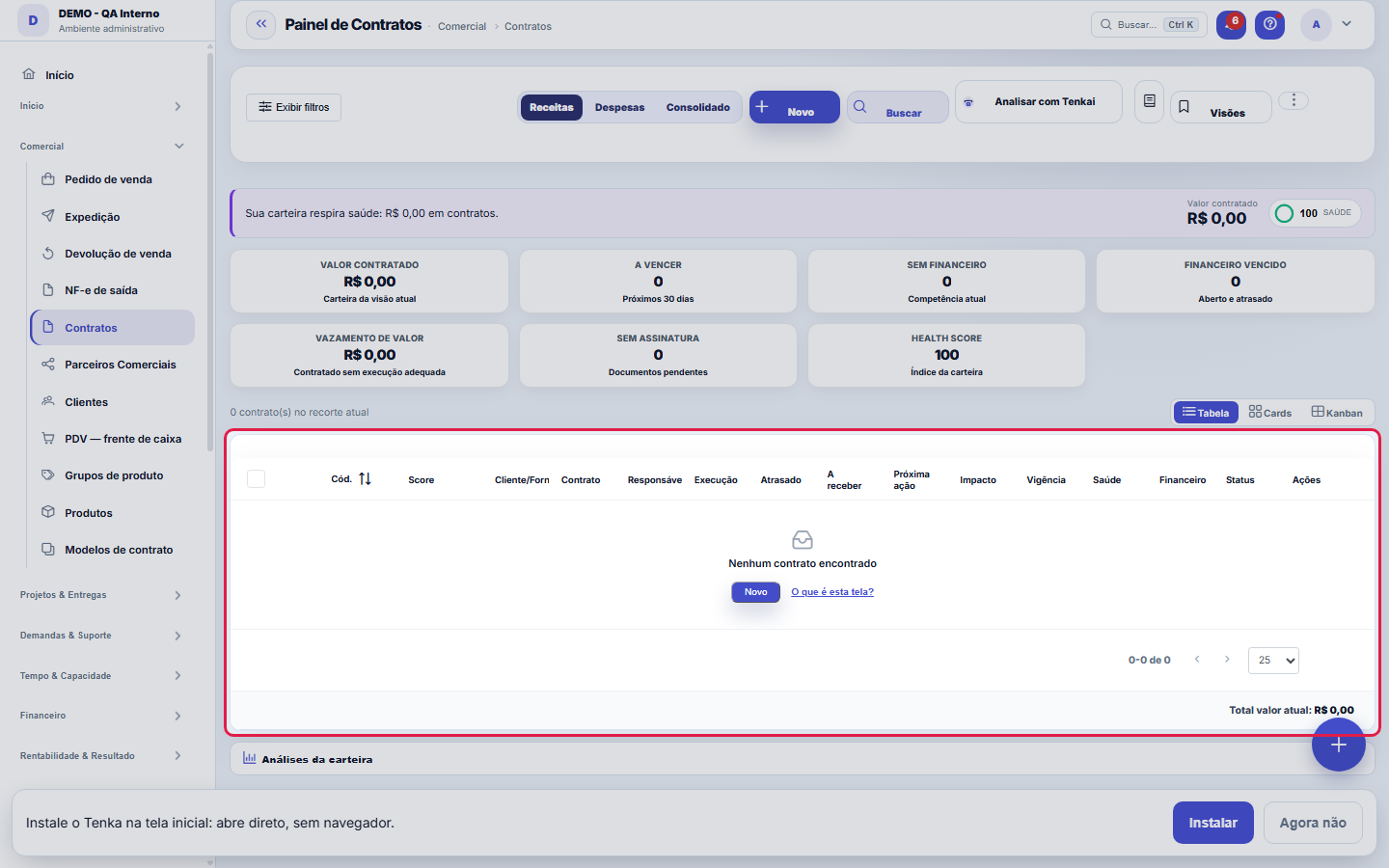
The portfolio, contract by contract.
The trash shows how many contracts are inside
In the "More actions" menu, the item appears as "Recycle bin (3)" when there are deleted contracts, and it is highlighted. Deleting a contract here is reversible: it goes to the recycle bin, leaves the lists and totals, and can be restored. PERMANENT deletion exists only inside the recycle bin and cannot be undone.
Por que aparece "•••" na coluna de impacto
Because your access group has "View Values" turned off (Settings → Access). It is not a calculation error nor a contract without an amount: the number exists and is protected. A contract that really has no monthly amount entered appears empty, not masked.
Dashboard on top, list below — the same set
The KPI strip follows the view (revenue, expenses or consolidated, on the bar) and each card narrows the list; the "needs you" queue says why each item is there and leads to the action. The list below shows exactly the contracts the KPIs counted — when a filter or card changes the cut, both change together.
What this screen answers
The contract defines what will be billed, to whom and with what adjustment. The monthly amount is the SINGLE source of recurring revenue: finance is born from it, so changing it here changes future billing. Ending a contract does not erase history — the invoices already generated remain, because they already happened.
How to
Step by step: track the contract portfolio
- Open Sales ▸ Contracts. The portfolio appears with term, amount and status.
- Start with what is expiring. Sort by end date to see what requires a decision this month — renew, adjust or end.
- From contract to money. Opening a contract takes you to the invoices it generated; an active contract that did not generate an invoice in the month is usually a billing configuration issue, not a system failure.
The contract dossier in the row's eye
The eye on the row opens the peek: the contract data, attachments and notes, and below the dossier — billing of recent months, installments, execution (hours, received, overdue), packs, prices, transactions and history. From there, Edit, Generate billing and Ask Tenkai about THIS contract.
Find the contract by its number
Type in the search the number shown in the contract column (for example 413, or #413): the contract appears. The number matches whole — 41 does not bring 413. Text keeps searching the customer and supplier names, the manually typed number, status, nature, owner, history and attachments.
Contract with volume and delivery call-offs
For supplying yarn or knit by volume, open the customer contract and use the Volume and delivery call-offs tab: save the total volume, unit, item and price. Each Call off delivery records how much and by when; Tenka shows what was called, delivered, still to deliver, the % consumed and the balance to call, and refuses a call-off above the balance. Record the delivery when it arrives or cancel the call-off with a reason.
Licensor language
On the License and royalties tab, choose the licensor language. The Report to the licensor button downloads the period spreadsheet (style, units sold and returned, gross and returned sales) with title and columns in that language; empty, it uses the company language.
Uniforms: kit and named list
Turn uniforms on in the settings and open the contract with the company or school. On the Uniforms tab, register the kit per role or grade (the piece, how many per person, the contract price, whether it uses the top or bottom size and whether it carries an embroidered name; use * for everyone) and the named list. Create order from the list saves the order for everyone not yet served and opens the production order for what is missing. People who left are marked as such and stay out of the next order. The names table exports to a spreadsheet for labels and embroidery.
1. The kit per role
On the contract Uniforms tab, build the kit for each role or grade: the item, the quantity per person and the price. The kit is what becomes the order later. Turn on "Uniforms" in Parameters first.
2. The name list
Register who wears it: name, ID number, role or grade and the top and bottom sizes. The list is personal data of your customer’s people: the customer owns it; Tenka keeps it to deliver the uniform. Whoever leaves the company leaves the list with Deactivate.
3. The order comes from the list
With the kit and the list ready, Create order from the list adds kit times people per size and creates the customer sales order at the contract price, with the production order for what is missing in stock.
4. Replacement through admission in the portal
The company HR or the school office registers the new hire in the customer portal (B2B order): role, sizes and embroidered name. The replacement is created automatically: the person’s order from the role kit. Give the customer portal access during onboarding.
5. The embroidered name
Each person’s embroidered name goes from the name list to the production order and to the embroiderer shipment, through the item embroidery design. Check the shipment labels on the Uniforms tab before sending.
An amendment changes the contract value
Registering an amendment changes the contract's current amount from the date entered — the history of the previous amount stays visible, and removing the amendment restores the amount from before.
Clauses read from the PDF
Under Clauses read from the PDF, upload the signed contract: Tenkai reads term, start and end, adjustment index and percentage, penalty, automatic renewal with notice period and venue, and shows them next to what is in the record. Apply to record only fills what was read with certainty; a null field does not overwrite. A penalty or adjustment above the company's clause policy is flagged. A contract with automatic renewal ending in 60 days becomes a Surveillance finding.
Rules
Reajuste por índice
The contract can have index-assisted adjustment (e.g.: IPCA/IGP-M): the system calculates the update on the anniversary date and records the calculation memory. Contracts without an adjustment for a long time appear as a money-on-the-table alert.
Amendments
Contractual changes (value, scope, term) must enter as an amendment, preserving the original contract's history — never overwrite the base value directly.
Assinatura eletrônica
The contract can be sent for electronic signature; the signature status is tracked right on the contract screen.
Faturamento automático de marcos
A completed delivery milestone can invoice automatically; reopening the milestone reverses the generated invoice. A closed contract does not generate new invoices.
Contract margin
The margin shown uses the real cost-per-hour (salary + payroll charges) of the hours logged. A contract may look profitable by value and be in the red because of hour consumption — check profitability before renewing the price.
"Import spreadsheet" has moved
It left the top bar and moved to the "More actions" menu (the three-dot button on the right), which is where it lives in the other lists of the system. The import screen is the same: it accepts XLSX and CSV, shows a preview before saving, detects duplicates and has a template to download.
Na exclusão em lote, confira o número da confirmação
When you select several rows and send them to the recycle bin, the question now says how many contracts are going ("Send the 12 selected..."). Before, it did not. Read that number: the selection survives changing pages in the table, so it is common to have more rows selected than the ones you see on screen.
As três visões são três leituras diferentes
Revenue shows the customer portfolio: hour bank usage, overdue, receivable and margin. Expenses shows the commitments with suppliers: adjustment, termination window and overdue payables — without margin, because expense has no such concept. Consolidated groups by COUNTERPARTY: who comes in, who goes out, the net — and whoever is a customer AND a supplier at the same time appears as BOTH, a candidate for netting of accounts.
A fila "precisa de você"
Deterministic rules on the portfolio — no opinion: termination window closing, automatic renewal approaching, renewal with pending items on the table, overdue invoices and adjustments due. Each item has the "why? ✦" with the calculation record (the numbers that triggered the rule) and a button that runs the action that already exists on the screen. At most 4 items: more than that becomes a list nobody reads.
Janela de rescisão: a data que importa num contrato de despesa
Fill in automatic renewal and notice period (in days) on the contract. The window shown is the end of the term minus the notice: after it, terminating costs a penalty or another cycle. A blank field means "not informed" — the screen shows a dash and NO alert considers the contract, on purpose: inventing a value would be asserting what nobody checked.
Execução em horas (o antigo Acompanhamento de contratos)
The execution bar shows the consumption of the hour bank: contracted × consumed, with the excess in red. The old monitoring screen was absorbed by this one: the old link opens the Execution view (consolidated, active only, numeric columns and totals in the footer). The numbers are the same — hours logged in projects and tickets, and finance per contract (received, receivable, overdue).
Dossiê na linha, cards e kanban
The little arrow at the start of each row opens the dossier: billing for the last 6 months, upcoming installments with their status, execution and the action buttons — including "Ask Tenkai" about that contract. The selector at the top of the list switches between Table, Cards and lifecycle Kanban (Draft → Active → Expiring → Expired → Ended; in Expenses: Window closing and Renews automatically). In the kanban you do not drag cards: changing column means changing a contract's status or term, which has financial consequences — you open the contract and change it there.
Governança de valores
Whoever does not have "View Values" in their profile sees the whole screen WITHOUT money: count KPIs, a queue with no impact in R$, reading by counts. This is not a bug — it is the same rule across the whole platform.
A visão salva guarda busca, filtros, colunas e ordenação
When you save a view with the Views button, it stores four things: the search text, the applied filters, which columns appear (and in what order) and which column the list is sorted by. Applying the view restores everything at once — including resetting the sort and the page you were on, so the result is exactly what the view describes. Views saved before this version remain valid: whatever they didn't store simply doesn't change when applied.
O erro de preenchimento aparece no campo, ao sair dele
Nas fichas, sair de um campo já dispara a conferência do que dá para conferir na hora: campo obrigatório deixado em branco e e-mail mal formado. O aviso aparece embaixo do campo e desaparece quando você começa a corrigir. Campo numérico não precisa de aviso: ele simplesmente não aceita letra enquanto você digita. Isso é conforto, não a validação final: ao salvar, o sistema confere tudo de novo do lado do servidor.
Dashboard filters on the rail, a search that reads everything
The filter rail has the dictionary ones (customer, supplier, status, signature, readjustment index…) and the dashboard ones: company, owner, product, pack, counterparty type, billing status, period and due date. The search looks in the number, the parties, the nature, the owner, the history and the documents. A saved view keeps both kinds of filter.
Royalty to a licensor abroad
Mark the licensor abroad, the country and the contract currency. The minimum guarantee and the per-piece royalty are in that currency and turn into reais at the day rate registered in Exchange; without the rate, booking and closing refuse and say which is missing. Each amount abroad creates three payables: to the licensor the net (gross minus the withheld income tax, which they do not receive), the income tax by DARF on the day the royalty is credited (when the payable is created) or remitted, whichever comes first (Law 11,196/2005, art. 70, I, a; RIR/2018, art. 767) and the CIDE on remittances by DARF by the 15th of the next month. Rates come from the legal table with the source; a treaty with the country may reduce the income tax (the company parameter overrides). The 25% withholding tax for a country on the favored-taxation list, PIS/COFINS on imports and the estimated IOF are in the item "Taxes that depend on the country and the service".
Volume amendment and billed delivery
On the Volume and call-offs tab, the first volume is set directly; after that, change it through the Volume amendment (new volume, effective date and reason) — it takes the next contract number, shows on the Amendments tab and never leaves the volume below what was already called. Removing the amendment restores the previous volume. When you record a call-off delivery, the order is created with the contract volume item and price, leaves the warehouse holding the item and is billed. With no item or price on the contract, the delivery is recorded without an order and the screen warns; a delivered call-off without an order has the Create order, invoice and bill button.
Taxes that depend on the country and the service
With the licensor abroad, the withholding tax is 15%, or 25% when their country is on the Federal Revenue favored-taxation list (IN RFB 1,037/2010, art. 1, as amended by IN RFB 2,265/2025; Law 9,779/1999, art. 8). Enter the country by name or by its two-letter code (KY, IE, HK): the statement preview says which rule applied and why. The treaty rate (company parameter) only applies outside the list. If the contract includes technical assistance or service, tick "The remittance includes a linked technical service": PIS on imports (1.65%) and COFINS on imports (7.6%) are also created by DARF, on the day of credit or remittance, on the share that is service (empty = the whole remittance, as the Federal Revenue requires when the contract does not split it) plus the ISS entered (Law 10,865/2004). A royalty with no service has no PIS/COFINS on imports (COSIT Ruling 71/2015). The exchange IOF (3.5%) shows only as an estimate: the bank charges it. Left to your accountant: privileged tax regime (it depends on the legal form of the licensor company), tax treaty with the country, municipal ISS and what applies from 2027, when Law 10,865/2004 ceases to apply.
Amendment with customer acceptance in the portal
If the contract customer has portal access (own password or a contact with a password), the volume or price amendment starts as "Awaiting the customer": the contract does not change until they accept it on the contract page in the portal, and they are notified. If they decline, the reason shows on the Amendments tab and the contract stays as it was. The Customer acceptance column shows who decided, when and the reason; the contract audit also keeps where from. Without portal, the amendment applies at once. If the customer accepted outside the system (e-mail, signed paper), use Confirm on behalf of the customer on the Volume and call-offs tab and write the evidence: it is recorded as an internal confirmation with your name. Only one amendment of each type waits at a time.
Price adjustment by amendment with effective date
On the Volume and call-offs tab, the price adjustment is the Price amendment: new price, the date from which it applies and the reason. It takes the next contract number and shows on the Amendments tab and in the tab price history. Each recorded delivery uses the price in force on the delivery date (the latest amendment in force up to it; before the first, the volume price), and the Price column of the call-offs shows the price used. A delivery that already became an order keeps the price it was billed at. After the first delivery, the volume price is not changed directly — only by a price amendment. A price amendment already used by a delivery cannot be removed: make a new one.
Unbilled contract deliveries
The board appears at the top of the contract list when a recorded delivery did not reach the invoice and the receivable: contract, customer, call-off number, date, quantity, order (if any) and why it was not billed. Whoever reaches the sales order list gets the bell alert once per delivery. To fix it, open the contract: on the Volume and call-offs tab the call-off has the Not billed tag and the button to create the order, invoice and receivable again (after fixing the item, price or stock); or bill from the order screen. Once billed, the delivery leaves the board and the alert leaves the bell. The tab filter "Only deliveries not billed" shows just those call-offs.
How the embroidered name cost is estimated
In the Tech sheet, Embroidery tab, register a design for the lettering (the font and letter height) and enter in stitches how many stitches ONE character has. On the kit piece that has the name embroidered, choose that design. Name stitches = characters without spaces × stitches per character ("Enf. Ana" has 7 characters). The cost uses the design cost per thousand stitches (or, for an in-house machine, machine time × cost per minute). It is an estimate: the embroiderer charges by the file.
Documents and attachments: the file shows in the list
After uploading a file on the Documents/Signature tab (or in the Attachments panel), it appears in the list with name, size and who uploaded it. If it does not appear, it was not saved — and the screen tells you why. It is worth checking the list before leaving the screen: up to this version there were places where the file was uploaded and nothing was saved, silently.
Contract pack: choose the product first
In the pack dialog, choosing the product loads its available packs and the dialog stays open with what you have already filled in. Then choose the pack and enter the price charged in this contract, which may differ from the list price.
O que você digita é salvo sozinho, a cada 20 segundos
While the form is open, what you fill in is being saved on the server — not in the browser. If the session expires, the system restarts or the tab closes, when you come back to this same screen and this same contract the "there is a draft" banner appears: you choose to recover or discard it. Saving the contract deletes the draft, because from then on the record is the truth.
O rascunho é do REGISTRO, nunca da tela
The draft of contract 123 is only offered on contract 123 — never on top of another one. It seems obvious and it is not: storing the draft per screen would make the text of one contract be offered inside another, and accepting it by mistake would overwrite one customer's data with another's without any error showing up. That is why the key is (you, screen, record), and that is why the draft lives on the server: whoever started on the desktop continues on the laptop.
Uma anotação pode virar demanda
In the record's activity panel, each note has "Turn into request". The click creates a ticket with the note's text, who wrote it and the link to this record — nothing is retyped. Use it when the note is a request for action ("someone needs to review this"); the note stays where it was. The button only appears once the record has been saved; a read-only session (demo) doesn't create one.
The thread of this sale: what each link means
The thread shows the five points the sale goes through: the opportunity (the negotiation), the accepted proposal (the scope the customer agreed to, and the acceptance date), the contract (the pivot), the delivery (service orders for services, project for projects) and billing (the entries linked to the contract). The contract declares ONE output: if service orders and a project appear at the same time, it is worth checking whether that is intentional.
After-hours multiplier: what it does
It is how much an hour worked outside business hours, on the weekend or on a holiday is worth for THIS contract: 2 means double, 1.5 means time and a half. Leaving it empty means an hour outside business hours is worth the same as a normal hour — which is how every old contract keeps working. The system automatically separates the part of the work that fell outside business hours, in the exact proportion, and applies the multiplier only to it. The hours considered are your company's, configured in Parameters (SLA.EXPEDIENTE), with the holidays from the Calendar.
License and royalties tab: how the royalty is calculated
For the contract with the licensor (supplier, expense): the period royalty is revenue sold minus returned times the %, or pieces sold minus returned times the amount per piece. The minimum guarantee becomes payables and is an advance: royalties are recouped from it before becoming excess. Returns are reversed — if a return comes after payment, the period goes negative and becomes a credit with the licensor. Licensor abroad: withholding tax and CIDE appear in the statement using the company percentages (check the country’s treaty).
Frequently asked questions
Who can access this screen
Whoever has permission to view this screen in their profile — and the account's plan needs to unlock the module, because the two locks are independent. Within the screen, the verbs are separate: create, edit and delete are granted per profile, so it's possible to open the portfolio without being able to touch it. The amounts in R$ obey the "View Values" permission: without it, the amounts appear masked — and they also come out masked in the export.
Como descobrir quem mudou um campo desta ficha?
Open the record and look at the Timeline on the right: it shows each change as "from one value to another", with the person and the date. When there are many changes, use the two filters at the top of the timeline — one by field, the other by person. The search runs in the database, so old changes show up just the same. You can also ask Tenkai: "who changed contract 482?".
Can I ask Tenkai which customers have no contract?
Yes. Ask "which customers have no active contract?". Tenkai lists the active customers without a current contract, with each one’s last purchase, says how many there are and links each name to the customer list to check. An expired or closed contract does not count as current.
Why didn't the contract ask for Legal approval?
Because the Requires Legal approval field was switched off on this expense contract. With it off, the payables are generated without waiting for approval. To see who switched it off and when, open the record history and filter by the field. Only people with authority (edit permission on Approval limits) can switch it off, and a contract Legal rejected is never waived: it does not generate payables until Legal reviews the decision. To require approval again, switch the field on and save.
Who can see my draft?
Only you. The draft is saved under your user and never appears to anyone else, not even to whoever administers the account. It also falls under the house retention policy — it disappears along with the rest when the record is purged —, which is exactly what a draft stored in the browser did not allow: form content usually has names, documents and salaries in it.
Why does the thread of my old contract show incomplete?
The link between proposal and contract started being stored on 09/12/2026. Earlier contracts, contracts entered by hand and expense contracts have no source proposal — and the link is NOT guessed from similarity of customer and amount, because a wrong thread that looks right is worse than a blank space. To link an old contract to its proposal, open the contract and enter the source proposal.
Why do the contract hours look different on each screen?
There are three counts: logged hours (all time worked), the ones that enter Profitability (only approved entries with a collaborator and a date, because the cost depends on the collaborator) and the ones consumed from the contract (what is deducted from the package and the customer sees in the portal; warranty, internal work and requests that do not consume the contract are not deducted). The Requests tab shows the three side by side and, on each row that does not match, the reason. Fix what is wrong there and the three will match.
When should I use Recalculate contract hours?
Use it when the hours consumed on the contract do not match the logged ones, for example after fixing old time entries or moving a request to another contract. The button is in the Requests tab: it rebuilds the consumed hours from today’s time entries, in the order they were made, and shows what it was and what it became. What was already billed does not change.
Why are the logged hours in Profitability higher than the cost hours?
The Logged hours card adds up every hour on the contract’s requests, approved or not, so it matches the Requests tab. The Profitability cost uses only the hours that already count toward the margin: approved, with a team member and a start time. When the two numbers differ, the card shows right below how many hours went into the cost. Approve the pending hours so they start to count.
How do I read the contract hours burndown?
The dashed line is the plan: the agreed balance spent evenly to the end of the period. The solid line is actual: the balance after each contract consumption, on the day of the time entry. The dotted line is the trend: the pace so far carried to the end. If it ends below zero, the balance runs out early and the block says on which day. Contracts with a monthly or quarterly cycle show the current cycle.
What is the contract's "Request owner" for?
It is who handles the contract's requests. When the client opens a request through the portal or by email, it is created with this person as the responsible employee and goes to their schedule. It is different from the "Owner" just above, who looks after the account and the contract. With no one selected, the request arrives without an owner and goes to triage.
The recalculation said nothing changed. What now?
Recalculating hours is all or nothing: if one request could not be redone, nothing changes and the notice says which one. Open that request, check its time entries and recalculate again.
The contract request owner was not being saved. What changed?
When editing an existing contract, the Request owner, Automatic renewal, Notice period and After-hours multiplier went back to the previous value after saving. This was fixed: choose the values, click Save and they are kept. If you changed any of these fields before this version, check the contract and save it again.
How do I hide a bill from the client in the portal?
On the contract Finance tab, the Portal column shows what the client sees of each bill. With no choice made, income shows and expenses do not, so the partner commission does not reach the portal without you doing anything. Turn the switch off to hide an income bill, or on for the client to see an expense. The contract value in the portal is income minus expenses of the visible bills. An expense never becomes a charge for the client: it does not appear in the portal Finance page and has no pay button.
How do I read the contract hours chart month by month?
The chart starts at the total hours of the term: the packs' hours per month added over all months. The dashed line, Contracted, falls month by month by the contracted hours. The solid line, Consumed, shows actual consumption up to the end of each past month and today's point. The dotted line, Trend, carries the average pace since the start to the end of each coming month and tells how the contract will finish. If the trend goes over the contract, the summary turns red. Hover a point to see the month's hours. The client sees the same chart on the portal contract.
What does the contract Profitability tab show?
The Profitability tab breaks down the contract margin from the start up to today. At the top, billed minus labor and other costs gives the margin, the same as the Overview. Below are the hours: contracted for the term, logged, and how much each hour brought in and cost. The Month by month table shows each period with the month margin and the cumulative one. By person shows each person’s approved hours, average hourly cost and cost. If the warning about hours with no salary in force appears, complete the person’s salary in their record. Other costs, line by line, lists the costs posted to the contract projects and the contract expenses in finance, such as the partner commission. These expenses count in the margin, the same as on the Overview and the cockpit.
How does the pack hours cycle work?
On the contract pack, the Hour bank is the number of hours and the Hours cycle says how often it renews: Monthly, Quarterly, Half-yearly or Yearly, counted from the pack start. A yearly pack that starts in March renews in March. Within the cycle, logged hours beyond the bank become overage; in the next cycle, the balance starts full again. With no cycle, the hours are valid for the whole pack term. The client portal shows the current cycle's consumption, and the month-by-month hours chart spreads each pack's hours over its cycle.
Approved project hours now use the contract hour bank
Approved hours on the projects linked to a contract now use the hour bank, like ticket hours. They count in the balance and in the month-by-month chart and, above the cycle limit, become overage. A pending hour is only used once approved, and a rejected hour is not used. On the contract record, the new Projects tab shows each project with approved hours, pending hours, what went into the bank and the overage. On the portal, the contract page lists the projects with their approved hours. Each hour counts only once: a ticket that belongs to a project still counts as a ticket.
Contract summary: value, hours and profitability in one panel
On the contract Overview, one panel shows the contract in three columns, always in the same order: contracted, used and balance. Value shows the contracted amount for the term, what was already billed and what is still to bill. Hours shows contracted hours, used hours (tickets and projects) and the balance, with the trend. Profitability shows billed, cost and margin. The contracted value comes from the contract products and prices; without them, from the monthly value on the Data tab. If both are filled in and differ, the panel says which one applies.
Why does a logged project hour not use the bank yet?
A project hour only uses the contract’s hour bank after it is approved. While it waits, the Contract summary panel shows in the Hours column how many hours are in that situation — so the balance does not look bigger than it will be. The hour counts in the month it was worked, not on the approval day: in Profitability, the balance, the overage and the portal.
Why is the contract total in the portal different from Billed?
The portal shows the customer the revenue minus the expenses they can see; the partner commission stays hidden. If an entry was marked visible or hidden in the portal (the contract’s Financial tab), the portal total changes — and the Contract summary shows, below Billed, the number the customer sees.
Where do I see each hour that used up the contract?
In the Time entries tab. It lists the hours worked in two groups: those from work orders and those logged straight on requests, each with date, consultant, whether approved and whether it already drew down the hour bank. Project hours stay in the Projects tab. Month-by-month overage appears in the Contract summary: hours for everyone and the amount for people who can see values.
Can the quantity in a contract price have decimals?
Yes. In a price on the contract’s Prices tab, Quantity accepts up to three decimal places — you can charge 2.5 hours, 0.125 kg or 1.333 units. The final price is the base times the quantity, rounded the same way on screen and in what is saved, and the Qty column shows the number without extra zeros (2.5, not 2.500).
Connected screens
Vem deClientesTodo contrato pertence a um cliente do cadastro.UsaModelos de contratoModelos aceleram a criação de contratos padronizados.Gera fatura emMovimentação FinanceiraParcelas e marcos viram títulos a receber na movimentação financeira.Analisa margem emRentabilidadeFaturado × custo real das horas do contrato.IncluiProdutosProdutos/packs contratados compõem os itens do contrato.
Was this article helpful?
In the same module: Contracts and billing2
Tenka Academy
Explore the AcademyStep-by-step learning paths for your industry, inside the platform.