

Ticket kanban
The visual ticket board: columns by status, drag and drop to move the work, with filters, saved views, and AI analysis.
What you find on this screen
A portrait of the screen, read from the screen itself — it changes when the screen changes.
Available actions
FilterViewsSave current viewApply filtersClear filtersClose
Form fields
Demandas no quadroTotal de demandas exibidas no quadro com os filtros aplicados.
Demandas na colunaQuantidade de demandas paradas naquele status do quadro.
Limite de WIPMáximo de demandas que a coluna deveria conter ao mesmo tempo; acima disso a coluna sinaliza excesso.
PrioridadeClassificação de urgência da demanda exibida no cartão.
Situação do SLASituação do prazo da demanda em relação à previsão: no prazo, em risco ou vencido.
Horas realizadasHoras já apontadas na demanda.
Estimativa de horasHoras previstas para a demanda; base da barra de consumo do cartão.
Sprints da demandaEm quantas sprints a demanda já entrou, indicando arrasto entre ciclos.
SprintSprint que define o recorte das demandas do quadro.
ProjetoProjeto que define o recorte das demandas do quadro.
ClienteCliente que define o recorte das demandas do quadro.
ResponsávelResponsável que define o recorte das demandas do quadro.
Start here
What you do here
Track the workflow in columns (one per status). Drag the card to change the ticket's status — the same workflow rule applies: only allowed transitions. Use "Show filters" to refine by type, project, sprint, client or workflow.
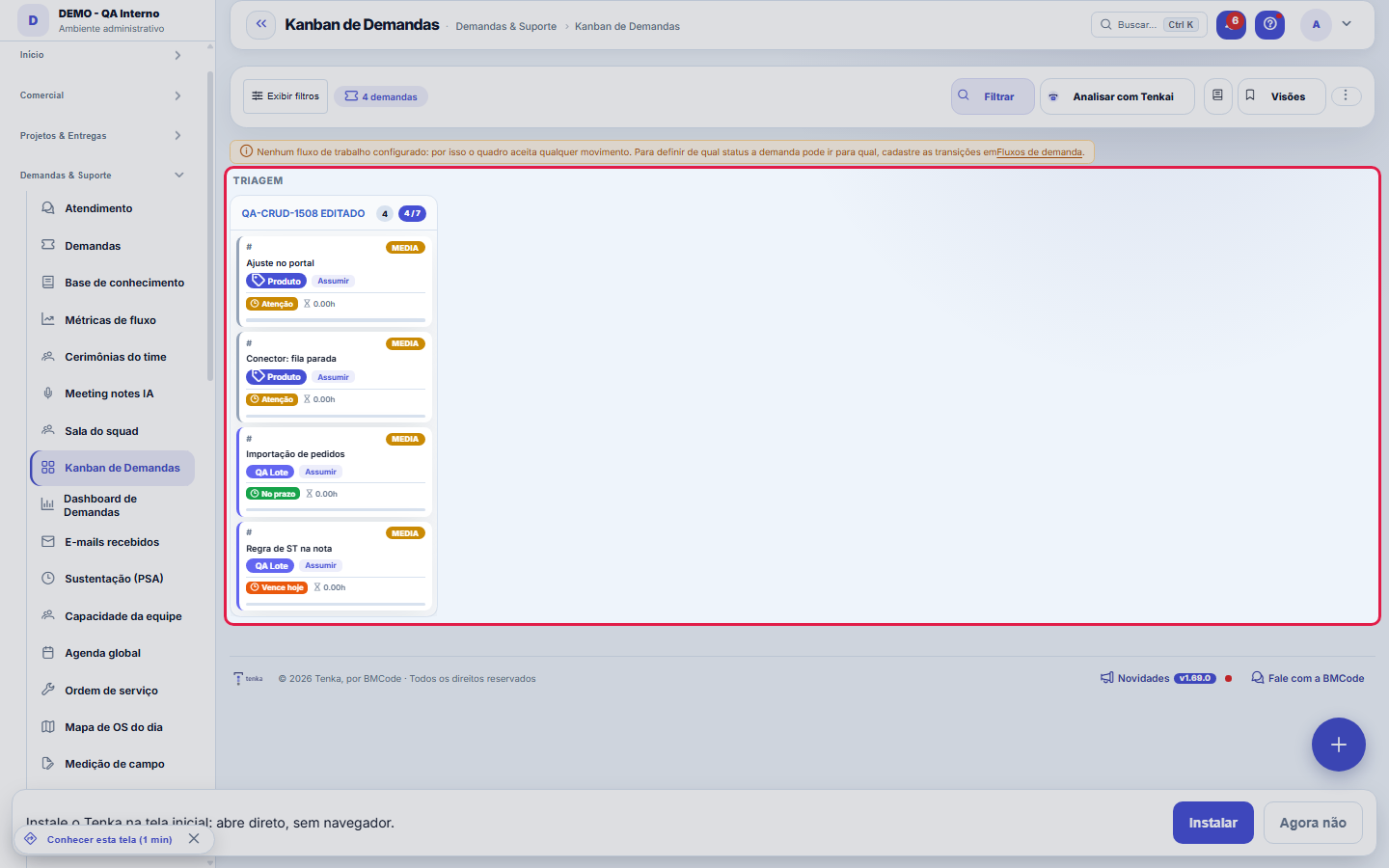
Each column is a status; dragging moves the ticket.
O que esta tela responde
Where each operations request is, right now. Each column is a status; dragging the card between columns really changes the request's status, instantly, for everyone.
How to
Views and AI
Save filter combinations as Views (Views button) and use Analyze with AI for a flow diagnosis (bottlenecks, load concentration). Export to PDF in the ⋮ menu.
O quadro guarda onde você estava
Moving a card reloads the board. The scroll position (the column you were looking at and the point in the list) is preserved — before, it went back to the start with each card moved, which in practice forced you to look for the column again all the time.
Rules
Dragging follows the workflow
The board is born from the workflow: the columns are the statuses configured in the ticket type's flow, grouped by stage (triage, execution, waiting, finished, canceled), and the Workflow filter switches the set of columns shown. Dragging a card performs the same status change as the ticket screen — it's not a parallel path without rules. The WIP limit appears in the column header, which visually flags when the team exceeds the agreed amount. With no flow configured, the board warns and points to the Ticket Workflows screen.
Why the board lets you drag to any column
Because your company hasn't declared a workflow yet. The system only refuses a move when there is an ACTIVE workflow with transitions registered for that request's type — then it starts allowing only the declared paths and returns the card to its place with an explanation. With no workflow registered, everything is allowed, and the board warns about it at the top. To define the paths: Operations → Request workflows.
Taking it over fills both owners of the request
The take-over button records you as "Responsible" (the login account) and also as "Responsible employee" (the payroll person). Both fields exist because they feed different things: the first is who works on the screen, the second is who counts in capacity, cost and the Team Calendar. If your user has no linked employee, the system records what it can and warns you — otherwise the request would silently stay out of the per-person panels.
The board sections come from the classifications
Each section of the requests Kanban is an active classification from the Status classification screen, in the order set there, with its name and color. Each status appears as a column in its classification section; a status whose classification is not active goes to the Others section. To create, rename or reorder sections, use the Status classification screen. To hide a section just for you, use Kanban preferences.
Frequently asked questions
Who can access this screen
Whoever has permission to view the Ticket Kanban in their access profile — granting it is done by the account's administrators on the Access screen, and the contracted plan must include the ticket module (profile and plan are independent locks). Seeing the board isn't the same as being able to do everything in it: actions on the ticket still obey the permissions and the workflow — the board is a window, not a free pass.
I changed the status on the request screen and the board still shows the old one
This happened when going back with the browser's Back button: it returns the page kept in memory, a frozen snapshot of the moment you left — the board wasn't even requested from the server again. As of this version the screen detects that return and reloads itself.
Why did the card go back to the column it came from?
Status changes follow the same rules everywhere: the workflow of the request type (where it can go from now), the estimate (when the request requires one), the written solution (when the workflow asks for it on completion) and the done checklist of the stage it is leaving. If any is not met, the card goes back and the message says which one. The same rule applies in My Agenda, the timer and the integration.
Does the Kanban filter disappear when I leave the screen?
No. Your last filter (text, type, owner, project, sprint, customer, workflow, only mine and only open) is saved for you and comes back on refresh, on leaving and returning, and in another browser. To start over, use Clear. Saved views work as before.
Connected screens
Detalha emDemandasClique no card para abrir a demanda completa.Regido porWorkflows de DemandaAs colunas e transições vêm do workflow de demanda.
Was this article helpful?
In the same module: Today's work21
ConversationsThe conversation hub: reply to portal customers, talk to colleagues (internal chat), and in groups. Everythin…Base de conhecimentoOs artigos que respondem antes de o chamado existir — e o número que mostra quantos chamados isso evitou.InboxYour personal inbox to jot down anything without classifying it at the moment of capture.Team ceremoniesWhere the team's meetings are recorded — planning, daily, review and retrospective — with the agreed duration…ChamadosOs atendimentos de sustentação dos seus clientes, com o relógio do SLA, a previsão calculada e as ações da li…Ticket dashboardManagement view of the service desk: SLA, queue by status and type, workload by owner, and resolution time.TicketsDay-to-day operational cockpit: bugs, improvements, support, and tasks — with SLA, owner, contract consumptio…Company documentA certificate, policy, power of attorney or license with the validity at the center: status, notice to the pe…
Tenka Academy
Explore the AcademyStep-by-step learning paths for your industry, inside the platform.