

Tenant settings
Your account's control panel: company data, visual identity, integrations (payment, NFS-e, e-mail), AI, and localization.
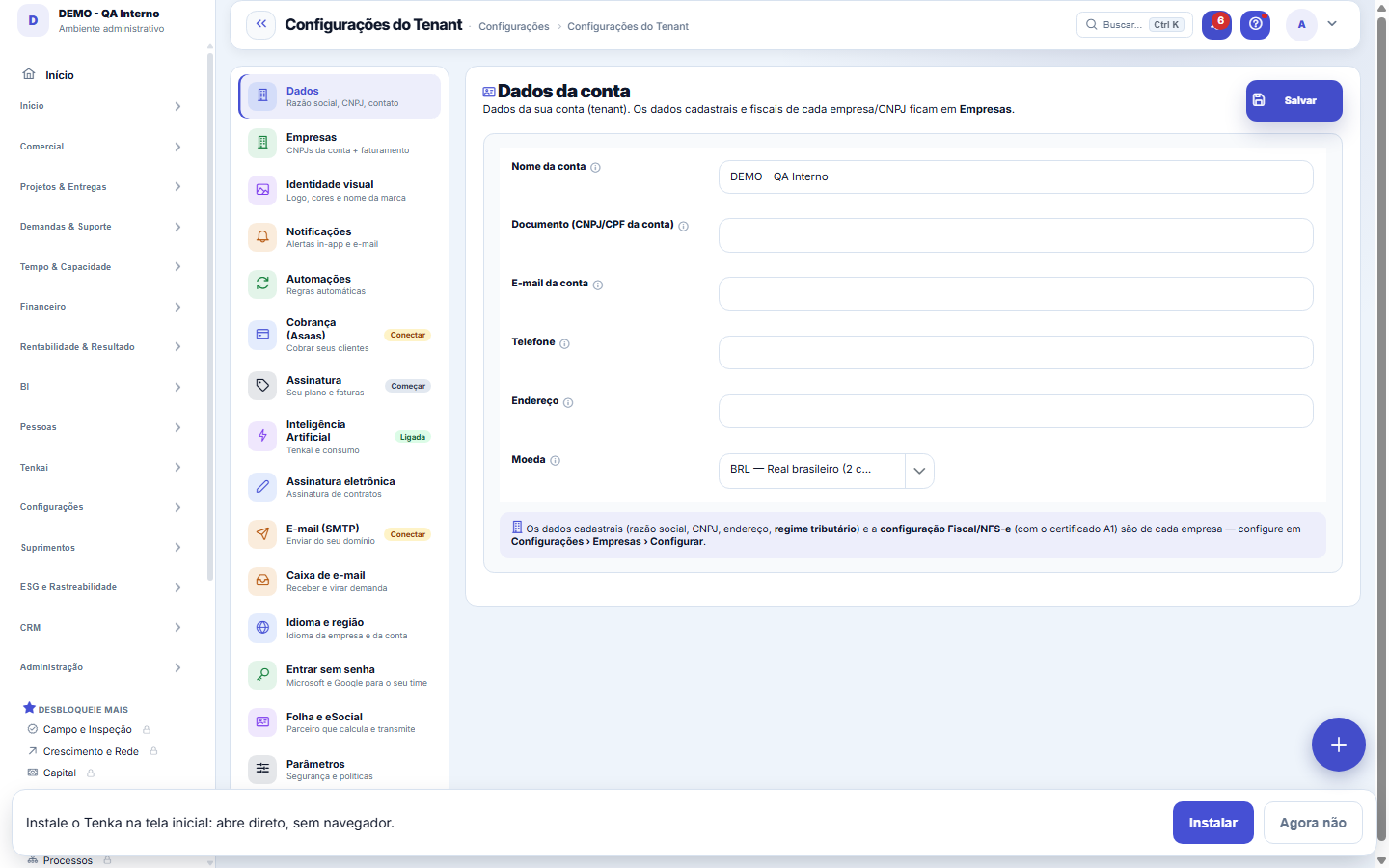
The screen
The real screen, in the theme you picked above.
Start here
What you do here
Centralizes your account's settings: registration data and logo, integration keys (Asaas, PlugNotas/NFS-e, SMTP), AI parameters (model, token cap, BYOK) and localization (timezone, language, currency). Organized in tabs.
How to
O campo que mais importa é o Ambiente
It starts in HOMOLOGATION: the calculation really comes from the partner, and eSocial does NOT count as a submission to the government. Only switch to PRODUCTION after checking a payslip with the accountant. And note: only the word PRODUCAO written out in full leaves homologation — an empty value, an old one or one with a typo stays on the safe side, on purpose.
Width in the grid
It sends an EMPTY period to the partner. It's the most honest test possible: it exercises URL, token and path without touching real payroll. The partner will answer "no items" or refuse because of the empty list — both answers prove the credential works. What you want to find out here is a 401 or 404, which without this button would only appear on closing day.
Modo da IA: licença BMCode ou chave própria
Under Artificial Intelligence, the Mode field decides both: who pays for consumption and through whose account the data travels. "Platform license" is the easiest start and doesn't read images. "Own key" asks for the key of the provider you contracted, enables reading photos of bank slips and invoices, and keeps retention under your contract with the provider.
A coluna "domínio" e por que alguém aparece destacado
The list shows the email domain of each person, and highlights whoever is outside the company's domain — an external accountant, a partner with their own address, a consultant. That isn't an error: these people sign in normally, but with the Microsoft account **from their own domain**, and whoever authorizes the application in that case is that other company's IT, not yours. Knowing this beforehand avoids the "only so-and-so can't sign in" ticket.
Each payment method goes through the cheapest gateway
You choose HOW to pay; the system chooses the route. Credit cards go through the card gateway (which handles domestic and international cards); PIX and bank slips go through the PIX/bank-slip gateway, whose fixed fee is cheaper for charges in reais. Routing is automatic and the account owner can change it by parameter, without depending on a deploy.
Parâmetros: grupo, subgrupo e blocos que se recolhem
In the Parameters tab, each block is a group with its name on the border and can be collapsed by clicking the name — useful because the list is long. Inside some groups there are subgroups (CRM ▸ Persona, Sales ▸ Saleswoman) separating topics. Fields are in two columns on the computer and one on mobile. The badge next to the label says the value's reach: account, company or platform.
Tenkai credits: allowance, wallet and price
Tenkai is measured in credits. Each interaction is worth a fixed amount: question and answer 2, fill-in suggestion 2, summary 5, analysis 5, document extraction 5, agent step 10, generated document 20. Your plan has a monthly credit allowance that refills every month and does not accumulate. Beyond the allowance, each extra credit uses the account wallet, which you top up by buying packs under Settings ▸ AI; purchased credit arrives when the invoice is paid and does not expire while the contract is active. When allowance and wallet run out, Tenkai warns and stops until the month turns or a new purchase. Ask Tenkai "how many credits do I have?" to see allowance, usage and balance right away.
Textile value-chain link
In the textile vertical, say which link the company is: spinning, knitting, garment or vertically integrated (spins and sews). The link decides the role-based home (spinning sees cotton, energy, yield and complaints), the lean-menu journey and the app shortcuts. Empty stays as garment.
Turning on the benefits program (points or cashback)
Under Advanced ▸ Parameters ▸ Sales are the BENEFICIO.* settings: turn on "Benefits program active", choose the mode (Points per real or Cashback) and fill in, for example, 1 point per real, point value 0.10 and 180 days of validity. Save stores only what you changed, and the history beside it shows from → to. If the company uses the ERP with the program view, the initial balance load is done in Integrations ▸ Orders sent to the ERP ▸ Check program.
What changes in the Free plan
In the Free plan Tenkai answers questions and queries but does not perform actions (create, post, send). When you ask for an action, it says so and shows the way to change plans. In the other plans, actions follow the access governance of whoever is asking, as always.
Rules
Save per tab
Each tab saves independently. Secrets (API keys) are encrypted in the database and never shown again in plain text — to change one, paste the new key.
AI key (BYOK)
The own AI key (BYOK) belongs to the COMPANY and applies to all of its users: once configured, AI calls start going out through your account with the provider, with your own limit and your own bill — and features that require an own key, such as sending a document photo for AI reading, start working. The key is stored encrypted and is not shown again after being saved. Without an own key, the company operates in BMCode license mode, consuming the plan's AI credits.
Folha e eSocial: o que é nosso e o que é do parceiro
Payroll lives in Tenka — period, items, pay codes, cost by center in the income statement, provision at closing. The legal calculation (INSS, IRRF, FGTS) and the eSocial transmission stay with the certified partner. The reason is straightforward: the table changes by provisional measure and a wrong event generates a fine for YOUR company, not for us. A young in-house calculation is an asymmetric risk.
Conta de treino não fala com o parceiro
If the company is in training mode (sandbox) or is a training copy, both the calculation and the transmission are BLOCKED and recorded on the sandbox screen. This exists because transmitting eSocial from a copy would create a real event with the government — and an undue event is fixed by rectification, with the clock ticking.
Your sector's vertical on the invoice
Your vertical's module (textile, health, legal, field or family) is an add-on to the base plan, at the list price, on the same invoice. If your account predates this version, the module shows at zero price and your total does not change.
Foto de documento só vai para a IA com chave própria
When the account uses the platform's AI license, Tenkai does NOT send images to the model — and says so instead of pretending it read the document. The reason is whose ACCOUNT the document passes through: with your own key, your supplier's bank slip travels through your account, with the provider you chose; with the shared license, it would travel through ours, and the decision about third-party data would become ours. Text keeps working normally, including PDFs that have a text layer.
A máscara de dados pessoais protege o TEXTO — não os pixels
Before any question goes out to the model, CPF, CNPJ, email, phone and salary are replaced by placeholders. This protection covers what is text: the question, the screen and the supporting material — including PDFs that have a text layer. What is drawn inside an IMAGE it can't reach, and that's exactly why images have their own rule.
Entrar sem senha: três passos, e só um é seu
**1. The platform** — the platform team registers the application once, for all customers. You see its status at the top of the tab: if Microsoft and Google appear as available, this step is done and you don't need to do anything. **2. Your company's IT** — an administrator of YOUR company's Microsoft authorizes, once, the application to read the basic profile of whoever signs in. The tab builds the address ready for you, already with your company's domain; just open it and confirm. In many companies this isn't even necessary: if the policy allows it, the first person who signs in authorizes it on their own, on the spot. **3. You, per person** — register each person in Access with the SAME email as their Microsoft or Google account. From then on they sign in by clicking the button, with no password.
O acesso sem senha NÃO cria usuário — e é de propósito
Signing in with Microsoft or Google recognizes whoever **already exists** in this account, matching by email address. Whoever isn't registered is refused. It could be different: it would be enough to create the person automatically on first access. We don't do it because that would mean anyone with an email address would get into your account without anyone having decided anything. Who gets in remains your choice. 🪤 The practical consequence, and it's the most common question: **the address has to match exactly**. Someone registered as `nome@suaempresa.com.br` who clicks with a personal account gets "not registered" — and now the message shows which address was used, precisely so that person realizes they picked the wrong account in the browser.
Crédito entra na carteira só com o pagamento confirmado
Buying the pack creates the invoice and the payment link, but the balance does NOT change right away: the wallet is credited when the payment settles (gateway webhook or manual settlement by the platform team). It's the same rule as any platform invoice — money promised isn't money.
O preço de lista anda sozinho; a margem, nunca
The list price is the model owner's standard value and is updated daily at the day's exchange rate — always opening a new validity period (the cost of what you've already used is never recalculated). Three locks protect the number: with no dollar rate for the day, nothing changes; a suspicious jump (more than 3×) isn't applied and becomes an alert; and the margin only changes by a human decision of the platform team.
Faturamento reúne plano, pagamento e histórico
The Billing tab brings together what used to be scattered: your plan and monthly amount, the AI credit balance, the accepted payment methods and the full payment history. It's the screen for answering "how much I pay, how I pay and what I've already paid" without going anywhere else.
A taxa do gateway aparece — bruto, taxa e líquido
Every gateway deducts a fee: the payment lands NET and the fee is a cost. In the history, each charge shows the amount paid (gross), the fee the gateway charged and the net that entered the account. That fee is also posted as an expense in the platform's books, so the results reflect what actually landed — not inflated revenue.
Enabled models: nothing checked means EVERYTHING allowed
The "Enabled models" field is your account's short list on top of the model catalog, which updates itself every day. Leaving it empty does NOT turn AI off: it means the account hasn't restricted anything and the default model keeps answering, exactly as before. Ticking is a voluntary act — it's for standardizing (only the models the company has approved), for controlling cost (leaving out the most expensive) or for privacy (only providers under contract). A model that leaves the catalog because it was discontinued still appears ticked while it's saved, so you don't untick it without noticing.
Roteamento automático de modelo e o placar de economia (aba Inteligência Artificial)
On by default (IA.ROTEAMENTO_AUTOMATICO parameter): the platform chooses the model by the size of the request — a short question goes to the cheapest among the account's enabled models, a long generation goes to the strongest, the rest stays on the default. You can pin which model is the "fast" one and which is the "strong" one (IA.MODELO_RAPIDO / IA.MODELO_FORTE) or leave them blank and the choice comes from the catalog price. The "routing savings" card shows the result for the month; "credits this month" shows consumption in credits, the unit the team understands.
Lean menu for the industry: just the journey, or everything
An account created in an industry with its own journey (Textile & garment) sees in the sidebar only the journey's screens — item register, bill of materials, piece price, rolls, cutting, production order, pieces per seamstress, outsourcing, order, packing list, month's cash and finance. The rest of Tenka is still there: the "Show all (N)" link at the end of the menu brings the other screens for this session. For a permanent full menu, turn off the MENU.ENXUTO_RAMO parameter in Settings ▸ Parameters. No permission changes: the lean menu only decides what the sidebar shows.
Search by meaning: when it turns on and what changes
The "Search by meaning in the knowledge base" parameter lets Tenkai and the help find the right article even when it does not repeat the word in the question ("how do I settle a bill" finds "Settlement of payables"). Both searches work together: the article found at once by keyword and by meaning comes first. It needs the installation to have an AI key with an embedding model — the line right below the switch says whether it does. Until then, Tenkai and the help search by keyword, with no error at all, and search by meaning starts working by itself once the key is set. The base is indexed gradually and only what changed is sent again.
How many tools Tenkai offers the model
Tenkai has more than 200 ready-made queries. Some AI providers accept at most 128 per question (OpenAI, for example). With those, Tenkai sends only the ones related to the question — always the help search and the free record lookup, then the ones the question mentions and their neighbours on the same subject — without going over the limit. The others still exist and come in on the next question that needs them. Providers without a limit (Anthropic, Gemini) receive all of them.
How much Tenkai your plan includes
Each plan comes with a monthly allowance in credits: Free 50 (queries only), Essential 500, Enterprise 3,000. Each interaction costs credits — question 2, summary 5, document 20. When the allowance runs out, Tenkai tells you and you buy a 1,000-credit pack here in the AI tab; the pack price follows the real cost of the previous month and is shown before you confirm. Purchased credits are added when payment is confirmed and do not expire at month end.
Activities and verticals
The Activities and verticals tab keeps what the company does: the country, the tax ID, the official activities (Look up the tax ID again brings them back), the verticals in each country of operation and which one is the main one. Tick, untick, search by a word from your business or choose from the list, and save. The package alongside shows what Tenka does for that choice in the country. The vertical suggests the package: what unlocks screens is still the plan and the profiles.
Accounts payable approval policy
Four fields in the Finance group: mandatory approval above (amount), categories that always need approval (category codes, children included), blocked suppliers and released suppliers (tax IDs separated by commas). In the payment file, blocked is stopped; above the amount or in the category goes to the approval queue; released pays without a touch, unless there is a fraud signal.
Automatic Pix charge
Turn on Pix charge created automatically on receivables and set how many days before the due date it is created. It needs THE COMPANY’s own Asaas account connected in Integrations (the key is theirs; the platform uses no credential of its own) and the webhook registered in the Asaas panel. Up to 50 bills a day; a bill without a customer with a tax ID is skipped and the reason is logged.
Plan quotas and the 80% warning
In the Subscription tab you see how much of the plan quota you have used: users, companies, space and API calls per day. At 80% the bar turns yellow and the warning appears; at the limit the new record is refused with a message saying which quota ran out. To expand, talk to sales.
Parameter lists and Save
In Advanced › Parameters, each choice field shows the option name (for example, "Simulator — training" for the register card machine). If an old value is no longer in the list, it shows as it is, so you can change it when you want: Save never changes a value on its own. When you save, the notice in the corner of the screen says how many parameters changed — or that none did.
Each tab's Save
Each tab on this screen has its own Save: it stores only what is on that tab, and the result shows right away — the notice in the corner of the screen when it worked, or the message at the top saying what was missing. A field from another part of the screen no longer blocks saving.
Notices to customers, leads and partners
Every notice the account sends to someone outside it (customer portal, e-mail, WhatsApp, phone) goes through a single door. It respects the record (a customer who does not want e-mail gets no e-mail), the unsubscribe (whoever left the campaigns or sent STOP on WhatsApp) and a limit: at most 5 automatic notices per person in 24 hours, adding up every routine. Change the number in the parameter "Notices: maximum per customer or partner in 24 h". Overdue charges, ready reports, sent proposals and documents sent on the spot always go out. To know what happened to a notice, ask Tenkai: "did the customer get the notice?".
Refer and earn
On the Subscription tab, the account administrator ticks the acceptance and creates the referral link. Send the link to another stall. When the new account created through the link pays its first monthly fee, you get a bonus in days of your own monthly fee; after that, a share of every monthly fee it pays, for some months. The card shows the new accounts through the link, how many have paid, the credit earned, what has been deducted and what is still to be deducted.
Frequently asked questions
Who can access this screen
This screen belongs to account administration: whoever administers the tenant — the profiles with edit permission on Company Settings — sees and edits it; other profiles only see it if access was granted on the Access screen. Don't confuse it with My preferences, which every user has: here the choices (data and branding, billing, subscription, AI) apply to the whole COMPANY, not to one person. If you need to change something here and can't see the screen, the path is to ask whoever administers the account.
A rate with no benchmark never shows as "ok"
Yes, and it's the common case: in a multi-CNPJ group, each company is often with a different accounting firm. The configuration is per company. Whoever has a single partner for the group fills it in the same way in all of them.
Does turning on passwordless access turn off the password?
No. The two paths coexist: whoever prefers to keep signing in with email and password keeps doing so. The "how they sign in" column shows who has already tried passwordless access and who still uses a password. That's intentional. Switching everyone at once would turn a comfort gain into a work blocker on the day the provider went down.
Como funcionam os créditos de IA?
The monthly allowance comes from the plan. If it runs out, the account can buy credit packs in the AI (Usage) tab: the invoice is issued immediately (PIX/bank slip) and the balance enters the wallet ON CONFIRMATION of payment — never before. Usage is deducted first from the allowance and only then from the wallet; credit doesn't expire and, if the account is closed, the balance offsets the last invoice. Whoever configures their own AI key (BYO) doesn't use credits — the allowance is suspended while the own key is active.
De onde vem a lista de modelos de IA — e o preço ao lado?
The "Default model" field list is LIVE: a daily load queries the public model catalog (and the providers where the platform has an account) — a new model appears on its own, a discontinued one leaves the options. The price shown is for YOUR mode: using credits, it's the table with the margin (what you pay); using your own key, it's the provider's table (you pay them directly). A model outside the catalog is still accepted — with the warning that its cost stays at zero until the platform prices it.
A opção de cartão não aparece — por quê?
Card payment depends on the card gateway account being active. While it isn't configured, the platform keeps charging by PIX and bank slip normally, and the card line appears marked as "coming soon". Nothing is blocked — only the card method waits for activation.
Marquei vários modelos. Onde o usuário escolhe?
In the Tenkai chat footer, where before there was only the name of the model in use. With more than one enabled, that text becomes a selector and the choice applies to the conversation — including questions about your data, which make two trips to the provider. With a single model enabled, the footer remains text: a selector with one option is a click that decides nothing. Whatever the person chooses is always revalidated on the server against the account's list.
O que é a degustação do Tenkai na conta de demonstração?
It's the permission for the test-drive visitor to really chat with Tenkai, with a limited number of questions and the counter in sight. It applies ONLY to the demo account (the one pointed to by the TESTDRIVE.EMPRESA parameter) and uses the platform's AI key; the per-visitor cap and the whole account's daily cap are platform parameters (IA.DEGUSTACAO_PERGUNTAS and IA.DEGUSTACAO_PERGUNTAS_DIA). If the server doesn't yet have the platform key configured, Tenkai says so plainly instead of suggesting registering an own key — in a read-only account, that advice would send the person to press a button they don't have.
Troquei o idioma e parte do texto continua em português — por quê?
Language applies in four tiers, in this order: your user, the company, the account and, lastly, Brazilian Portuguese. Changing it on your user changes the system's frame right away — menu, buttons, labels and messages — because that comes from the translation files. The text that is STORED in the database (each screen's name and description, the help, the release notes) only appears translated when there is a saved translation for that record in that language; when there isn't, the system shows the original text on purpose, instead of leaving the space blank. Today the screens, the help titles and the release notes are translated into all 10 languages; the body of the articles is being translated and may still appear in Portuguese. None of this is a configuration error on your account: it's content still to be translated, and the Diagnostics ▸ Translation coverage screen shows exactly how much is ready in each language.
As notas de versão também estão traduzidas?
They are. The whole history — 562 titles and 712 descriptions — exists in all ten languages, so the What's New screen changes along with the language you chose. What's still in progress is the body of the help articles: in them, the title already comes out translated and the long text may come in Portuguese. When a text's translation doesn't exist, the platform shows the original on purpose — a blank screen would be worse than a screen in the wrong language. In Diagnostics ▸ Translation coverage you can follow how much is missing in each language.
O menu e os eixos também mudam de idioma?
They do. The six axes (Know, Collect, Sell, Improve, Deliver, Grow), the names of the sections within each one and the groups on the Records page come out in the chosen language, along with the question and the description line at the top of each axis's hub. There are two mechanisms, and the difference matters if you're going to customize: the short LABEL (the axis name, the section name) comes from the platform's translation files, because it's a small, closed set; the axis PHRASES (the question and the sub-descriptor) come from the translations table, like the help and the release notes. When a text's translation doesn't exist, the platform shows the original on purpose — a blank screen would be worse than a screen in the wrong language.
What if my vertical does not show up?
Search by a word from your business (Tenka looks in the name and synonyms of each vertical). If nothing shows up, pick the one closest to your operation from the list, or use Skip and choose later: the account is created as usual, and the choice stays in Settings › Company › Activities and verticals. Whatever is coming soon in your country can be requested on the Verticals screen.
How the 24-hour salesperson works in the subscription
In the Subscription tab, the 24-hour salesperson card shows the price table by customers served in the month (prices are provisional), how many customers the store has served on WhatsApp or Instagram this month and which band that falls into. The administrator turns it on or cancels there. Each month's invoice charges the band of customers served in the previous month; a month with no customer served is not charged; the top band is agreed with the sales team. Without it, customers' messages go to a person from the store in Conversations. Free plans cannot turn it on: subscribe to the store's plan first.
Why don't I see spinning in the menu?
Because of the experience profile (Identity tab). In Essential, industry screens (spinning, knitting, weaving, dyeing, chain cockpit and large retail) leave the menu, search and Most viewed. The decision order is: your choice in the avatar menu, then the company's, then Automatic. Automatic looks at what the company does: the entry plan, apparel, sewing contractors and stores stay in Essential; spinning, knitting, weaving, dyeing and vertically integrated mills stay in Complete. No permission changes: the screen still opens by its address.
When does the referral credit reach the invoice?
On the next invoice issued after the referred account has paid. The credit never takes the invoice below the minimum billing amount; whatever is left goes to the following invoice. The referrer never sees the referred account data: only that it joined through the link and whether it has paid.
I created the account with my phone. Where do I add the company ID and e-mail?
Here, in Company settings: the company ID goes in when you need to issue invoices, and the e-mail is optional. The "Counter" profile keeps only the five everyday screens in the menu; choose "Essential" or "Complete" to see more.
What do I fill in under "Unregistered item invoice"?
These are three fields in Parameters, PDV group, used for the item sold by price alone in the phone register: NCM (8 digits), CFOP (4 digits) and CSOSN or CST. Knitwear usually has an NCM from chapter 61 (e.g. 6109.10.00, cotton knit T-shirt) and woven garments from 62; those who make what they sell usually use CFOP 5101, resellers 5102; under Simples an empty CSOSN follows 102. Choose with your accountant. Without the NCM or the CFOP, the sale is saved and that item's invoice stays pending, saying what is missing. None of them comes pre-filled: a wrong code on the invoice is a problem with the tax authority.
The customer portal in your company colors
The customer portal now uses your company’s registered colors, the same as the system: buttons, links, tabs, the current page of lists and highlights. With no color registered, the portal keeps the default colors. The color is changed in the company record and applies to both.
Connected screens
Gerencia acesso emUsuários e grupos de acessoUsuários e grupos de acesso da conta.Mede IA emConsumo de IAO consumo de IA configurado aqui é acompanhado no financeiro.
Was this article helpful?
In the same module: Platform and security38
Connected help screenAnchor screen of the detail dictionary. Does not appear in the menu.Platform accessThe record of when the platform's support team accessed your account, what they did and with what authorizati…White-spaceSee what's left to sell to those who are already customers — by cross-referencing the installed base with wha…Template itemAnchor screen of the detail dictionary (template items). Does not appear in the menu.Assistente fiscalQuatro passos para a nota sair do Tenka: estado, regime, código de segurança (CSC) e certificado A1 — com a r…ShippingControls the picking and dispatch of what was sold. Shipping confirms that the merchandise actually left: a m…Position bandAnchor screen of the detail dictionary (position bands). Does not appear in the menu.Blog — WordPress connectionWhere you connect your company's WordPress and teach the AI to write like you: the editorial line (what to ta…
Tenka Academy
Explore the AcademyStep-by-step learning paths for your industry, inside the platform.