

Users and access groups
Who gets in and what each one can do: account users, profiles (groups), and permissions per screen.
The screen
The real screen, in the theme you picked above.
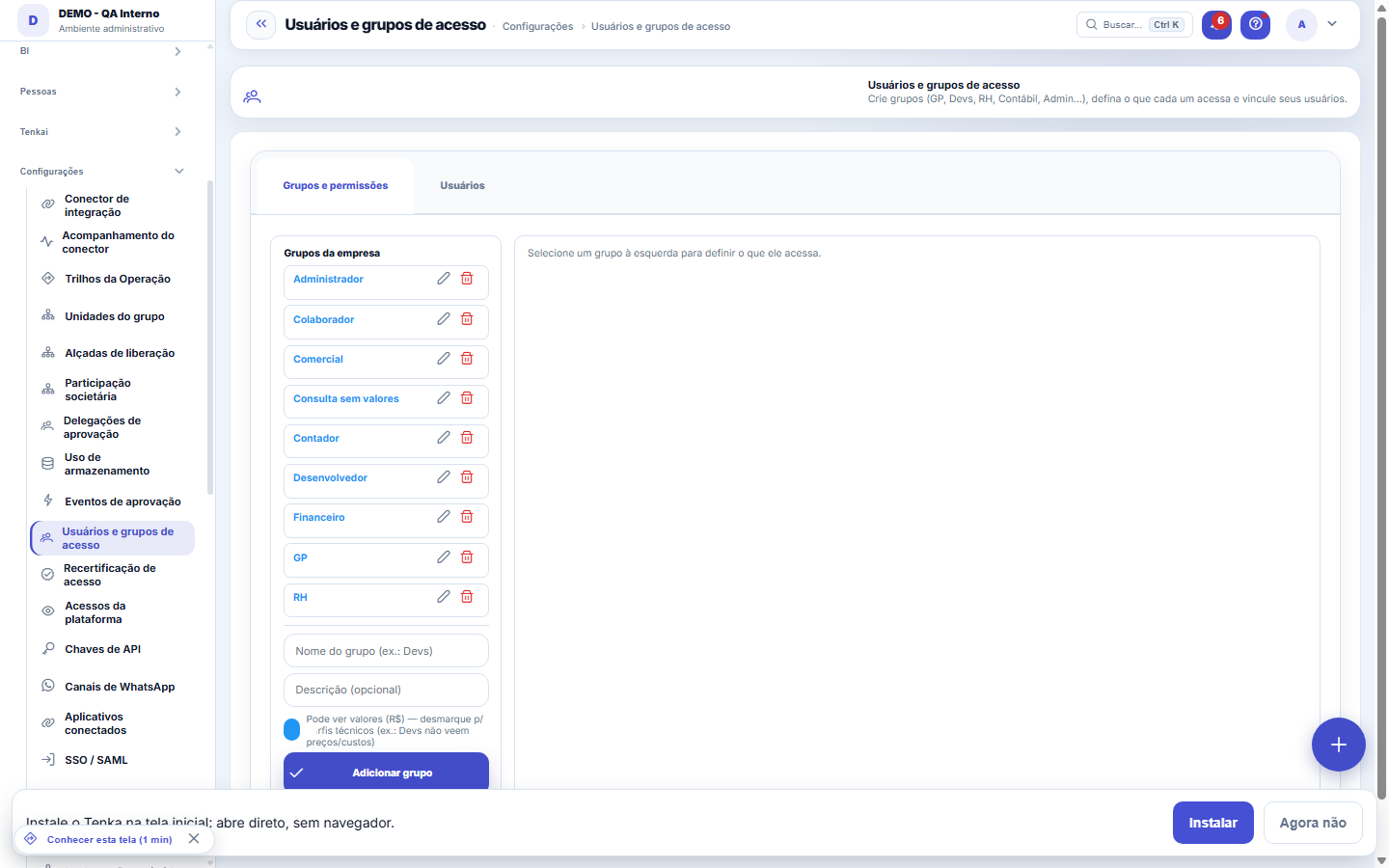
What you find on this screen
A portrait of the screen, read from the screen itself — it changes when the screen changes.
Available actions
Suggested groupsCreate the minimum administration groupCreate userCancelSaveApplySelect all
The list shows
ScreenModuleCan
Form fields
Codperfil
Nome
Descricao
Ativo
Ver valores
Nativo
Usuario ultima alteracao
Start here
What you do here
Register your company's users and organize them into profiles (access groups). Each profile defines, per screen, what it can do: view, create, edit, delete.
The "Show Values" switch: what it hides
When turned off for a group, it replaces EVERY amount in R$ with "•••" on the system's screens — dashboard, finance, contracts, income statement, balance sheet, lists, previews and column totals. The person still sees the rest: quantity, deadline, status, customer, owner. It's for people who need to operate without seeing money (a developer, an intern, a third party), without you having to build a separate screen profile.
Super admin e impersonação seguem outra regra
The platform super admin always sees amounts — the switch doesn't apply to them. During impersonation (when someone from the platform accesses your company to provide support) it's the opposite: "View Amounts" starts OFF, even for the super admin, and turning it on requires recording a second reason in the audit trail. Who impersonated, when and whether they elevated appears in the Trust Center.
Groups in the list, people at the top
The screen shows at the top the account’s people — create a user, link to a group and a tax ID, open the record and resend the invite — and, below, the list of the tenant’s access groups, with search, views and export. Open a group to see and change the screens it reaches, the BI panels and what is restricted to it.
How to
O que a permissão esconde, e o que ela NÃO esconde
It hides money amounts. It doesn't hide quantities, percentages, dates or names: "12 pieces" and "3.5%" still appear. It's deliberate — whoever works in operations and has no access to finance needs the list working, and hiding everything would make the screen useless precisely for the profile the permission exists to serve.
Making the rule stricter for your account
In Settings › Parameters, Security group: "Password: minimum characters" raises the length (never below 8); "Password: reject breached passwords" can be turned off if your network blocks the lookup; "Password: expires in how many days" enforces periodic change — whoever has an expired password sets a new one on the next access, entering the current one.
Rules
Permissão é por perfil
The user's access comes from their profile(s). Without view permission on a screen, it disappears from the menu AND is blocked from direct URL access.
Não conceda telas de plataforma
Your tenant's profiles must NOT receive platform screens (Companies, Plans, Owner Cockpit) — these are exclusive to the provider. The platform blocks this by default, but avoid granting it.
A partir desta versão ela vale de verdade — antes cobria pouco
Until the previous version, the mask was written screen by screen: out of 576 places showing money, only 37 hid the number. Turning off the switch and still seeing amounts was NOT your imagination. Now every amount goes through a single component that always checks the switch. If you turned it off in the past and concluded "it doesn't work", it's worth testing again.
O que a chave NÃO cobre — e é proposital
Four things remain visible: (1) Tenka's PLAN PRICE (price table and upgrade dialog) — it's a catalog, not your company's money; (2) the employee's OWN PAYSLIP and PROFIT SHARING — it's their data, hiding it would be hiding their own salary; (3) the LEGAL TABLES for INSS/IRRF — public information; (4) EXPORTS (Excel, CSV, PDF), which carry the raw number. If the person can't see amounts, they also shouldn't have permission to export that screen.
Grupo de acesso é da CONTA, não da empresa
The groups you see here apply to the whole account, even when the group was created within one of the companies. In an economic group with several companies, the "Administrators" group lives in one of them and keeps administering all of them — and it can be assigned to any person from any company in the account. That's why the list of groups doesn't change when you switch the company in the header.
Por que não dá para excluir o último grupo que administra os acessos
The system refuses to delete the only group that has the Edit verb on the Access screen. Without it, nobody could grant permission to anybody anymore, and there is no screen to fix that from within — only support, working directly in the database. The lock is by BEHAVIOR, not by name: if you create another group and give it Edit on Access, the first one can then be deleted. Renaming the group neither removes nor adds the protection.
Quem pode atender um pedido de anonimização (LGPD art. 18)
The data subject can request anonymization or deletion, and someone in the account needs to be able to carry it out. That's the Edit verb on the Privacy (LGPD) screen. If no group in the account has this verb, this screen warns you — and the fix is to grant Privacy to the group responsible for the matter, usually the same one that manages access. The warning looks at the whole account: one group with the verb, in any company, is enough to meet the requirement.
Ver Valores: o que o grupo enxerga de dinheiro
The group's "Can see amounts (R$)" flag decides whether its people see money figures or the mask in their place. It applies across the whole platform by the same path — screen, export, Tenkai in chat and on WhatsApp. Uncheck it for technical profiles that need the system but not prices and costs.
O grupo Administradores da plataforma: onde aparece e onde não
Besides your account's groups, there is the platform's default group, maintained by the platform team and the same for all accounts. It doesn't appear in the management list — you don't edit or delete it — but it's in the "Link to group" dropdown on the Users tab: linking someone to it gives full access to the product's screens (all four verbs), always limited by the modules of the subscribed plan. Every new platform screen is born already granted to this group. If your account has its own group with the same name, yours appears in place of the default.
"Ver Valores" vale também no que SAI do sistema
Permission doesn't only govern what appears on screens. It applies to the daily email summary, to mobile notifications (including on the lock screen), to the collection message via WhatsApp and to Tenkai's answers on any channel. Whoever can't see amounts gets the same notice, with the amount hidden — the information that there's something to do isn't lost.
Convite de acesso: a senha é da pessoa, nunca do e-mail
When a user is created, they receive a link to SET their own password — valid for 48 hours and single-use; no password travels by email. Didn't arrive? "Resend invitation" on the user's row generates a new link (the previous one dies immediately) and the sending status appears right there, read from the email queue: SENT, PENDING or ERROR with the reason. If the recipient's email is blocking it, the invitation dialog shows the link to copy and send through another channel. Whoever already has a password and forgot it uses "Forgot my password" on the login screen — it's the same mechanism, valid for 1 hour.
"Ver Valores" vale também no arquivo baixado
The profile without "View Amounts" sees ••• in place of money on screen — and, since 24/08/2026, also in PDF, Excel and CSV. Before that, the server-built export carried the real numbers, including from records the page wasn't even showing, because it builds the whole set. If you grant this access to someone, grant it knowing it applies in both places; and if you remove it, it stops applying in both.
Filter the group by unit, in the selector at the top
There are two paths, and they don't mix by accident. CREATE ACCOUNT via the provider: someone who doesn't yet exist on the platform can open an account with the Google/Microsoft button — the email arrives VERIFIED and signup proceeds normally (company, industry, plan). SIGN IN via the provider: whoever is already a user goes straight in. What the platform does NOT do is create a user on its own inside an existing account: inviting someone to YOUR team remains your decision, here on this screen — having a Google email never gives access to anyone's account.
Consultar tudo e gravar nada é um estado legítimo
A profile with only "view" is the right way to give access to people who need to follow along without changing anything — audit, management, interns. The platform respects this in three layers: the record engine's buttons disappear, the buttons on specific screens are born disabled, and any save that still slips through is refused before reaching the database.
Restricted to this group: panel components and indicators
Below the group's dashboards appears what is RESTRICTED to it: dashboard components (the margin card only management sees) and strategic indicators with a profile. The decision is made in the dashboard builder (component dialog ▸ "Who sees") and in the indicator record ("Who sees" tab); here you check, in one place, what each group sees in addition. A component or indicator with no group listed inherits the dashboard — everyone who opens the dashboard sees it.
Account admins see everything the plan offers
Whoever runs the account (can change Company settings, Access or Approval limits) sees every screen the plan offers — including those that arrive later, in a new version or an upgrade. Seeing is not editing: add, change and delete are still granted per group, here. When the plan changes, the new plan's screens appear right away, and those that left the plan stop opening without deleting anything.
One click per verb, saved immediately
On the group record, each cell of the Screens and permissions tab switches the verb (view, add, change, delete) on or off and saves immediately, with an audit record. To build a group quickly, use "Copy from another group"; for one more screen, "Add". The header Save stores only name, description and view values.
A group applies per company
An access group grants screens only in the company where the person is linked to it. Someone who works in two companies needs the group in both: open the group record, Screens and permissions tab, and use Copy to another company. In a company that already has a group with the same name, it gets what is missing; nothing is removed. Tick Also take the people to link those who already have access to that company.
The last group that manages access cannot be deleted
Deleting a group is permanent (there is no trash) and is refused when it is the only one managing the account’s access — without it no one could grant access anymore. "Administradores" is the reserved name of the platform’s internal group: it does not show in the list, but it is in the people’s link combo.
What the password rule is
Every new password needs at least 8 characters, cannot be the e-mail of the person nor contain the part before the @, and cannot be a password that has appeared in public breaches. The rule is the same everywhere: first access, reset link, "Change my password", customer portal and contact access. Passwords generated by the platform (invitation) and sign-ins through Google, Microsoft or SAML skip it: the identity comes from the provider.
Suggested groups by role
In Suggested groups you choose the role — Finance, Sales, Operations, Purchasing and inventory, HR or Leadership — and see beforehand how many and which screens the group will open in this company. The group sees everything in the role and only adds and edits on its core screens; delete is left out; Leadership is read only. Operations already includes the company’s vertical modules. Choose one, several or all companies and apply; then link people to the group.
Every button that saves checks your profile
Buttons that save (save, add, approve, settle, delete) check, at the moment of the click, what your access group allows on that screen: creating a record needs "Add", changing an existing one needs "Edit" and removing needs "Delete". Whoever only has "View" opens the screen and looks things up, but saving stops with the notice that the screen is read-only. An administrator grants the permission in the group, on this screen.
Frequently asked questions
Por que o botão de salvar aparece desabilitado para alguém?
Two situations disable the buttons that save. (1) The person's profile has only "view" on this screen — grant "edit" or "create" in their access group. (2) The session is VIEW-ONLY: the public demo and support's "view as company" browse the whole account without being able to save anything, as a security and LGPD decision. In the second case there's nothing to grant: it's the session itself that is read-only.
Why does the group open some screens and not others?
When a screen does not open, the access denied page says what blocked it: the group that grants it belongs to another company, you are not in a group in this company, the group has the screen without the View permission, the screen is not in your groups, or the company’s plan does not include the module. Administrators check it all at once in User access, under Why doesn’t it open?.
I got a challenge, or the account was blocked for automated browsing. What happened?
Tenka watches browsing in Free, trial and under-30-day accounts. If the browser identifies itself as automation, the pointer never moves, or dozens of screens open within a minute with no action, a one-click challenge appears. Whoever passes continues normally. Failing two challenges blocks the account for one hour, and the account administrator gets the notice here, in Users and access groups, and by notification. Paying accounts get more tolerance and are not blocked: the administrator gets the notice to check whether it was their own team; if not, change the passwords and review the access. Robots and extensions that browse for you count as automation.
How do I deactivate the access of someone who left the company?
Open the person's card (click the name), turn off "Access active", write the reason and save. The person can no longer sign in and, if the system is open, the session ends within 30 seconds. The password does not change and the groups stay: to give access back, turn the switch on again. You cannot deactivate your own access.
Why was an action blocked for me?
Because your access group does not have, on that screen, the permission the action needs: "Add" to create, "Edit" to change an existing record, "Delete" to remove. The notice shows up on the click and nothing is saved. Ask an administrator to open Access, choose your group, find the screen and tick the missing permission. The change applies on the next click, without logging out.
Connected screens
Was this article helpful?
In the same module: Platform and security38
Connected help screenAnchor screen of the detail dictionary. Does not appear in the menu.Platform accessThe record of when the platform's support team accessed your account, what they did and with what authorizati…White-spaceSee what's left to sell to those who are already customers — by cross-referencing the installed base with wha…Template itemAnchor screen of the detail dictionary (template items). Does not appear in the menu.Assistente fiscalQuatro passos para a nota sair do Tenka: estado, regime, código de segurança (CSC) e certificado A1 — com a r…ShippingControls the picking and dispatch of what was sold. Shipping confirms that the merchandise actually left: a m…Position bandAnchor screen of the detail dictionary (position bands). Does not appear in the menu.Blog — WordPress connectionWhere you connect your company's WordPress and teach the AI to write like you: the editorial line (what to ta…
Tenka Academy
Explore the AcademyStep-by-step learning paths for your industry, inside the platform.