

Sprints
Iteration planning: team capacity, sprint tickets, and tracking of what fit (and what didn't).
The screen
The real screen, in the theme you picked above.
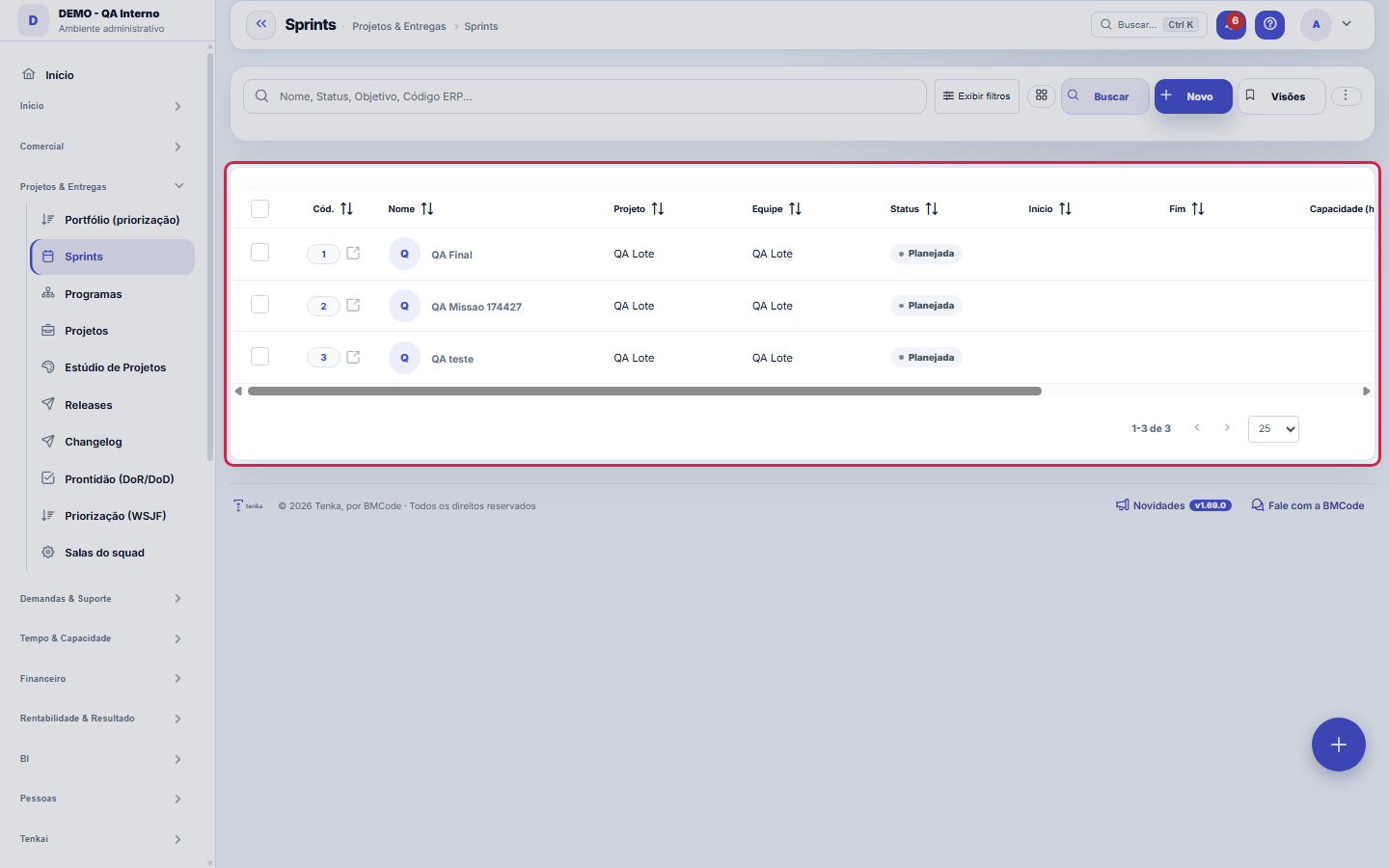
What you find on this screen
A portrait of the screen, read from the screen itself — it changes when the screen changes.
Form fields
Nome*Nome do sprint (ex.: Sprint 12).
ProjetoProjeto vinculado (opcional).
EquipeEquipe responsável (opcional).
StatusSituação do sprint.
InícioInício do sprint.
FimFim do sprint.
Capacidade (h)Capacidade total de horas do time no sprint.
ObjetivoMeta/objetivo do sprint.
Código ERP
Start here
What you do here
Create sprints with a period and capacity, allocate developers and link requests. The system compares capacity × planned hours so you don't overload the iteration.
Para que esta tela existe
Planejamento de sprint, capacidade e tickets — este é o papel da tela "Sprints" dentro da plataforma.
What this screen answers
The team's time window and its goal. A sprint without an end date closes no pace indicator (velocity, burndown) — the panel stays blank without saying why.
O que esta tela faz
Here you create and maintain a sprint: name, project and team that own the round, the period (start and end), the team's capacity in hours, the goal of the round and the status. The sprint created here is the one that appears in the Sprint field of requests, on the kanban board (filter by sprint) and in the capacity planning of the Sprints list.
How to
Exportar, visões e link filtrado
Like every list in the standard engine, this screen exports the ENTIRE set to Excel, PDF and CSV (not just the visible page), keeps saved views per user, lets you choose the visible columns and maintains the recycle bin of deleted items (?excluidas=1 in the URL). Search and filters also work via URL — ?q=text and ?fd_=value —, so "team X's active sprints" can circulate as a link that already opens filtered, instead of a set of click instructions.
Capacity (h): the declared ceiling of the round
Capacity in hours records how much the team really has available in the sprint window — discounting vacations, holidays and the share of each person allocated to another front. It is the ceiling against which planning is done: the sum of the estimates of the requests pulled into the sprint must fit within this number, and a sprint that systematically promises above the declared capacity is not optimistic, it is inaccurate. Declaring honest capacity is what makes the comparison between rounds useful.
Código ERP: a ponte com o sistema de origem
The "ERP code" field (external code) stores the identifier this sprint has in the system it came from or with which the company integrates. It is what allows matching the record here with the one there without depending on the name — names diverge, codes do not. If your operation does not integrate sprints with an external system, leave it blank; filling it with an invented code only pollutes the reconciliation for those who really integrate.
Rules
What ties a request to a sprint
The link is made on the request itself: the Sprint field in the requests form points to a round created here. The sprint does not "pull" requests on its own — planning the round means deciding, request by request, what goes in. The capacity in hours declared in the sprint is the yardstick for that planning: the sum of the estimates of what was pulled in must fit within it. On the kanban board, the sprint filter shows only the round's cards, which is how the team tracks the progress of what it promised.
A visão salva guarda busca, filtros, colunas e ordenação
When you save a view with the Views button, it stores four things: the search text, the applied filters, which columns appear (and in what order) and which column the list is sorted by. Applying the view restores everything at once — including resetting the sort and the page you were on, so the result is exactly what the view describes. Views saved before this version remain valid: whatever they didn't store simply doesn't change when applied.
O erro de preenchimento aparece no campo, ao sair dele
Nas fichas, sair de um campo já dispara a conferência do que dá para conferir na hora: campo obrigatório deixado em branco e e-mail mal formado. O aviso aparece embaixo do campo e desaparece quando você começa a corrigir. Campo numérico não precisa de aviso: ele simplesmente não aceita letra enquanto você digita. Isso é conforto, não a validação final: ao salvar, o sistema confere tudo de novo do lado do servidor.
Uma anotação pode virar demanda
In the record's activity panel, each note has "Turn into request". The click creates a ticket with the note's text, who wrote it and the link to this record — nothing is retyped. Use it when the note is a request for action ("someone needs to review this"); the note stays where it was. The button only appears once the record has been saved; a read-only session (demo) doesn't create one.
Frequently asked questions
Como descobrir quem mudou um campo desta ficha?
Open the record and look at the Timeline on the right: it shows each change as "from one value to another", with the person and the date. When there are many changes, use the two filters at the top of the timeline — one by field, the other by person. The search runs in the database, so old changes show up just the same. You can also ask Tenkai: "who changed contract 482?".
Connected screens
Pertence aProjetosSprints organizam o trabalho de um projeto.ContémDemandasDemandas são puxadas para o sprint.
Was this article helpful?
In the same module: Today's work21
ConversationsThe conversation hub: reply to portal customers, talk to colleagues (internal chat), and in groups. Everythin…Base de conhecimentoOs artigos que respondem antes de o chamado existir — e o número que mostra quantos chamados isso evitou.InboxYour personal inbox to jot down anything without classifying it at the moment of capture.Team ceremoniesWhere the team's meetings are recorded — planning, daily, review and retrospective — with the agreed duration…ChamadosOs atendimentos de sustentação dos seus clientes, com o relógio do SLA, a previsão calculada e as ações da li…Ticket dashboardManagement view of the service desk: SLA, queue by status and type, workload by owner, and resolution time.TicketsDay-to-day operational cockpit: bugs, improvements, support, and tasks — with SLA, owner, contract consumptio…Company documentA certificate, policy, power of attorney or license with the validity at the center: status, notice to the pe…
Tenka Academy
Explore the AcademyStep-by-step learning paths for your industry, inside the platform.