

PDV — frente de caixa
Open the register with the starting change, sell through the cart (search by name or barcode), record cash withdrawals, and close the day by counting the cash — the difference is recorded, not hidden. Each sale enters the financial module as a settled receipt, at the same moment. Before the first s…
The screen
The real screen, in the theme you picked above.
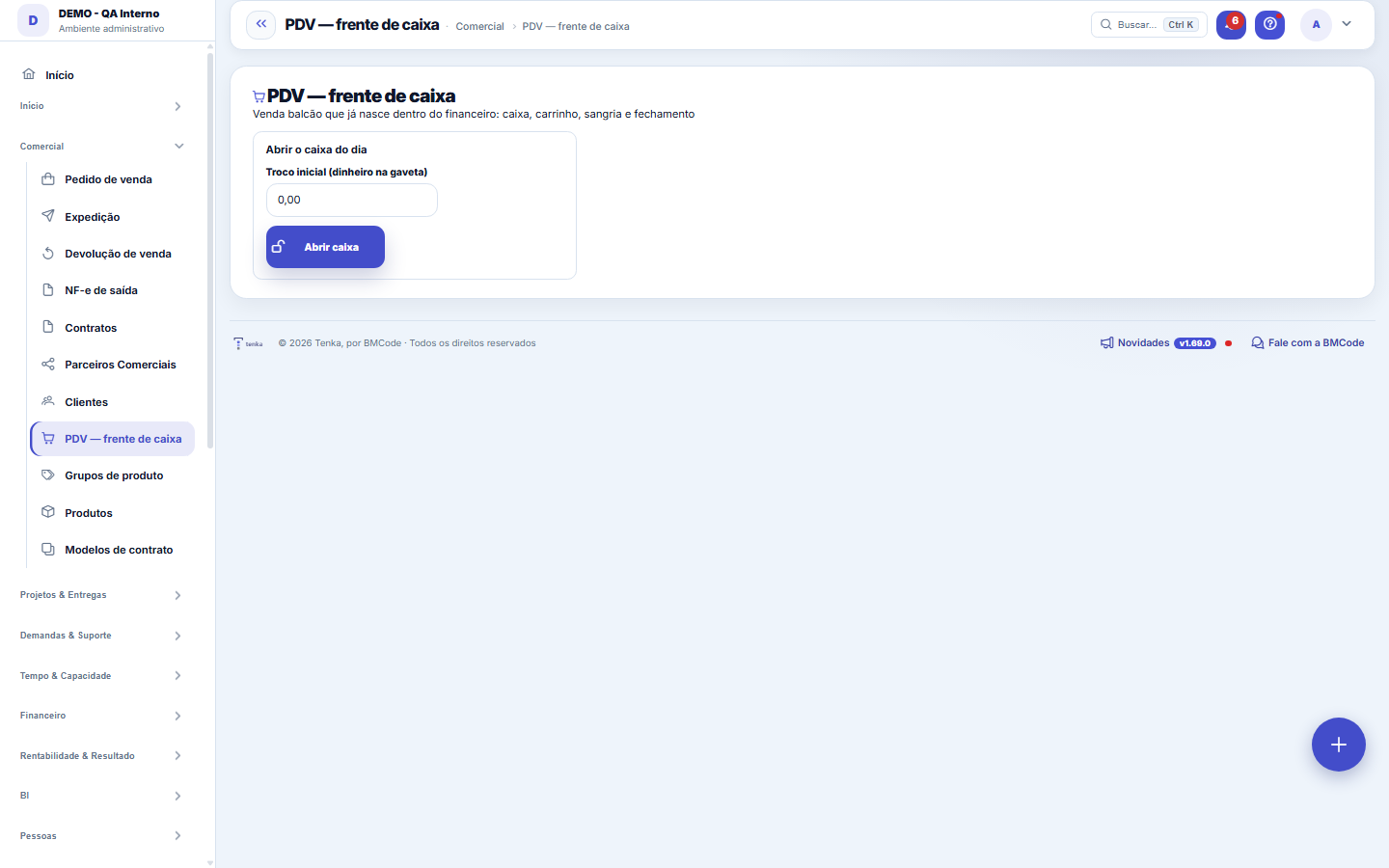
What you find on this screen
A portrait of the screen, read from the screen itself — it changes when the screen changes.
Available actions
Open tillNew customer in 10 secondsAdd payment (F4)Print receiptInvoice by WhatsAppTax receipt (XML)PrintTry issuing nowRecordSell the gift cardScale load fileScale load (Toledo MGV)+13
The list shows
MethodCountedExpectedDifference#Customer (optional)TotalStatusPick-up at the stall on
Form fields
ProdutoO item lançado no carrinho, do jeito que aparece no cupom.
QuantidadeQuantas unidades deste item entraram na venda.
Preço unitárioPreço praticado na venda, que pode diferir da tabela.
TotalQuantidade multiplicada pelo preço unitário. A soma fecha o valor da venda.
Forma de pagamentoComo o cliente pagou. É o que decide para onde o dinheiro é lançado.
How to
Before the first sale: two settings
In Settings › Advanced › Parameters, Operations group, check two fields: “Financial category for POS sales” (the revenue category for counter sales) and “Warehouse the POS moves” (where the goods come from). If they are blank, the register looks on its own for a revenue category with “VENDA” in its name and, if the company has a single active warehouse, uses it. With more than one warehouse and none chosen, or with no suitable category, the sale is refused with a notice saying where to set it.
Sem internet, o balcão continua vendendo
The sale is stored in the browser itself and uploads on its own when the network comes back. While there are sales in the queue, the POS shows the counter — and it only resets when everything has been uploaded. Don't close the browser with the counter lit: the queue lives in it.
The queue has a limit
The browser holds up to 200 sales (“Maximum sales in the offline queue” parameter). When full, the POS refuses new offline sales instead of piling them up: hundreds of sales in a browser that can be closed is a bigger risk than stopping to fix the network. Where to set it: Settings › Advanced › Parameters, Point of sale group.
What you can build here
The NFC-e uses the same accreditation as the NF-e and the NFS-e (fiscal provider token + A1 certificate on the account). Without them, issuing returns a SIMULATED invoice, marked as sandbox, with no fiscal value — and the screen says so. There is never a faked transmission.
Where the invoice shows up afterwards
In the list of outgoing NF-e, together with the order invoices — the Model column separates 55 (goods) from 65 (consumer). They are deliberately not two lists: whoever asks "how many invoices went out this month?" needs one answer, not two sums to check.
Till mode and keyboard shortcuts
The Till mode button (in the POS top strip) hides the system menu and bar; the station remembers the choice. Shortcuts: F2 search, Enter adds the scanned code, F3 quantity, F4 pay, F6 cash out/in, F8 removes the last item, F9 closes the till, Esc clears the search or leaves till mode. The strip shows operator, company, till number, clock and whether the station is online.
Scale, cash drawer and card machine
Read scale and Open drawer use the browser's serial port (Chrome or Edge): the first time the browser asks which port; then it remembers. The scale fills the quantity in kg; the drawer opens through the command of the non-fiscal printer connected to it, and can open automatically on every cash sale. The integrated card machine (TEF) awaits the choice of provider; until then, use the card machine and choose the payment method.
Pre-sale, tax ID on the receipt, salesperson and delivery
F10 brings a picked order or quote into the cart (the order becomes invoiced). F7 puts the consumer tax ID on the receipt without registering a customer. F11 picks the salesperson of the sale (default: the operator), which commission reads. Sale for delivery opens shipping with the customer address.
Receipt, X/Z reading, store credit, promotions and scale
Print receipt sends ESC/POS to the till printer (the drawer one); with an authorized NFC-e it prints as a DANFE with QR. X reading shows the open till per operator; at closing the Z reading is e-mailed (“POS: email for the Z reading”) and the notes grid adds up the cash. On account uses the customer credit limit. Buy X pay Y, price by quantity and scheduled promotions are set in Price lists and applied to the cart automatically. A scale label (EAN starting with 2) enters through Enter in the search; Scale load file exports the PLUs. Where to set it: Settings › Advanced › Parameters, Point of sale group.
Approve the register and load its certificate
Tap "Administrator: approve or change this register's certificate". Enter the administrator's e-mail, password and two-step code, then the .pfx file and the certificate password. The certificate must belong to this company and be valid. Without it, the register shows the red warning and reserves only a few numbers.
Close the register from the keyboard
Press F9: closing opens with the cursor on the first bill of the count. Type how many of each bill and coin (Tab moves to the next); the sum goes to the counted cash. The expected amount shows only after closing. Esc closes the dialog without closing the register.
Rules
The sale is born inside finance
Each completed sale becomes a receivable ALREADY SETTLED, right away, in the category configured in the “Financial category for POS sales” parameter. There is no integration to fail and no number to reconcile later: what the register sold is what the income statement shows. Where to set it: Settings › Advanced › Parameters, Operations group.
Fechamento com diferença declarada
On closing, the system calculates the expected cash (opening float + cash sales + cash additions − withdrawals) and compares it with what you counted. The difference is RECORDED in the register — a cash shortage is visible, not hidden.
A venda offline NÃO duplica ao reenviar
Each sale gets a key before it leaves. If the network drops after sending and before the response, the resend finds the sale already recorded and returns the same one — it does not create a second receivable. It's the scariest case, and it's solved.
O que a venda offline NÃO faz na hora
Without a network there is no fiscal issuing, no up-to-date stock check and no customer notification. All of that happens on synchronization. If stock ran out in the meantime, the sale goes in and the stock warning appears when it uploads.
The path, from start to finish
With automatic NFC-e switched on, each sale tries to issue the invoice right away. If issuing fails — internet down, slow provider, expired certificate — the SALE stays recorded, the receivable settled and the stock moved. The invoice is left PENDING, with the reason written down, and there is a button to try again. The opposite (holding the sale until the invoice goes out) would turn a network problem into a queue at the register.
A period that does not go stale
It is not SEFAZ's contingency regime. Real fiscal contingency (FS-DA, SVC-AN) requires security forms or an alternative authorizer, and Tenka does not do that today. This is an honest queue: the invoice did not go out, the reason is recorded, and someone needs to resolve it. Calling it contingency would be promising what doesn't exist — in a subject where the wrong promise leads to fines.
Invoice reprocessing runs in the background
Reprocessing invoices no longer holds up the screen: the batch runs in the background and the screen itself shows the progress ("how many of how many", completed and skipped). The batch buttons stay disabled while it runs, so the same job isn't triggered twice. You can keep using the system; when it finishes, the summary appears right here.
Packing-list sale, no invoice
Tick "Sell without invoice (packing list)" before finishing. The sale enters the till, the receivable is born settled, stock leaves — all as with an invoiced sale — and it does NOT go to the NFC-e queue. The sale's packing list then appears, with a Print button. The sale is flagged "no invoice" for tax purposes and for Tenkai ("how much did I sell without invoice this month?"). The choice is per sale and the default is WITH invoice: the box unticks itself on every reload. Use it for resellers who buy by packing list; when someone asks for the invoice, use the normal sale.
Selling by the tag (size and colour)
A product with a grid shows one line per size and colour in the search, and the barcode reader finds the piece by the tag’s SKU or EAN. If that variant’s stock doesn’t cover the quantity, the till warns you before you hand over the piece — the sale is not blocked.
The box barcode brings the box
Scanning the barcode of a pack registered in the item record (box, bale, gallon) puts the pack in the cart, with its price — the declared one or factor × primary-unit price. The stock issue converts to the primary unit: selling 1 box of 12 issues 12.
Selling a kit at the till
The kit goes into the cart like any item. When the sale is closed, stock deducts each component (quantity sold × quantity per kit). A kit with no registered components is refused before the sale is saved, with the kit name in the notice. Exchanging or returning a kit puts the components back in stock.
Gift cards and rewards at the POS
Sell gift card (at the end of the register column): type the amount and payment method; the code comes out at once, with no invoice, and cash enters the register as a deposit. To pay with the cashback or points balance, choose the customer and the Rewards method. A paid sale with a customer credits cashback or points right away when the program is on.
Paying with customer credit
Choose the sale's customer and the Customer credit method: you see how much they have (exchanges, returns as credit and advance payments). On finishing, the credit is used starting with what expires first, before the sale is recorded; if the sale fails, the credit comes back in full. Above the balance or without a customer, the sale is refused. An exchange on a sale paid with credit comes back as customer credit — not as cash.
Offline sale with voucher, rewards or credit
A sale made without internet using a voucher, rewards or customer credit only deducts the balance when it reaches the server, and that is where it is checked. If the balance does not cover it, the sale stays in the queue with the reason, to be resolved by hand — it is never recorded without the balance.
Exchange on a sale paid with customer credit
On the exchanges screen, a POS sale paid with customer credit returns the amount to the same vouchers the credit came from — an advance payment becomes an advance payment again and its obligation reopens. A cash refund of that sale is refused: what was paid with credit comes back as credit.
Blind count at closing
When closing the till, type what you counted for each method (cash, PIX, debit, credit) without seeing the expected amount. Only after you confirm does the system show the expected amount and the difference for each method — and it records everything in the till trail. The expected cash already subtracts cash-outs and adds cash-ins.
Split payment and change
Pick the method, the amount of the part (default is what is still due) and Add payment (F4). In cash, type what was received: the change shows large after finishing and opens the drawer. The sale only closes when nothing is due. Without adding a part, the chosen method pays the total, as before.
Discount, item removal and authorization
Discount on the total (F5) or on the line (% icon). Above the company limit (“POS: maximum discount without approval (%)”), on finishing the POS asks for the e-mail and password of an authorizer (edit permission on Authorizations) and records who authorized. Removing an item asks for a reason; above the per-till quota (“POS: items cancelled per cashier without approval”) it asks for authorization. Everything goes to the till trail and the reading. Where to set it: Settings › Advanced › Parameters, Point of sale group.
PIX with a QR code on screen
Fill in the store PIX key in the POS settings. When you add a PIX part (F4), the register opens the QR code with the amount: the customer pays, you check the bank app and click PIX received — only then the part enters the payment. The QR code is valid for the minutes in the PIX time limit setting; after that, or with Esc, the charge is canceled and the sale stays open. Without the key, PIX is checked and recorded by hand, as before.
Pix overpayment
The sale closes at the charged amount. The difference becomes credit for the identified customer, shown in Vouchers and credits, or stays "to refund" when the sale has no customer. Whoever manages the register gets a bell notification. Applies when the account's Pix billing is connected.
Item reserved for another order
If the scanned item is set aside for another order and none is free in this store, the till asks for the e-mail and password of someone with authority before adding it to the sale — always, even when the person at the till has authority (they authorise themselves in the same dialog). Who authorised is recorded on the sale, on the order that lost the item and in the access log. A card sale that did not become a receivable is flagged on the bill for finance to reconcile.
Remove a register's approval
When approval is removed, the register's numbers close immediately. An invoice issued by that register afterwards becomes a pending item and whoever sees invoices is notified. Leftover numbers are voided with the tax authority within 10 days.
Closing with a difference and sales after the Z reading
In the blind closing count, if the counted amount does not match, the count locks and the difference by method shows; the register only closes with a written reason, which goes to the register trail, and the reviewer gets a pending item in the bell. A sale made offline that uploads after closing enters its register and shows in the reading as "came in after the Z reading". Online, a closed register does not sell: open the register.
Closing with a difference: write the reason, and the Z goes to the e-mail queue
After "I checked each method", if any method doesn't match, the closing shows the difference, locks the count and asks for the reason (for example: wrong change, unrecorded cash drop). Without a reason the register stays open. On closing, the Z reading enters the administrator's e-mail queue and the screen says whether it did or why not (for example: the company has no closing e-mail). A sale made offline that syncs after the Z shows in the register reading when you open the POS again.
Contingency invoice and travel invoice
With the company's certificate registered, the contingency invoice is ready to switch on (being certified with SEFAZ): with no internet or with SEFAZ down, the consumer invoice is signed with the "issued in contingency" stamp and the lookup code, and is sent on its own when the connection returns; the bar at the top of the register shows those waiting, and more than 12 hours unsent warns the team and the owner. To issue at the register itself with no internet, the company administrator approves that register once, right here, with her email and password; the register is prepared once per shift. A purchase with a company tax ID or above the state's travel-invoice amount becomes an NF-e in the customer's name, with the registered address; the register warns before charging.
Card machine, Pix, printer and excursion
Once your Stone or PagBank machine is connected by BMCode, "Charge on the machine" sends the amount to the PIN pad through the register program installed on the computer, and the payment only goes in when the approval comes back — ready to switch on, being certified. The approval is the one the machine reports; card reconciliation checks each sale by the receipt number and flags in the bell anything that doesn't match. Once the Asaas account is connected, Pix closes the sale when the money arrives, and one Pix pays for one sale only, at the exact amount. The printer can be wired or Bluetooth (58 or 80 mm), remembered per station. With an excursion today, the sale is linked to it; a new reseller signs up by personal tax ID in seconds.
Undoing a card or Pix payment already charged
Whoever opened the register can always undo a part already charged (card approved on the terminal, Pix paid or with the QR on screen), even if the profile lost the permission to edit in the middle of the sale. Each such undo is recorded with the register number and the amount. A Pix that had already arrived and leaves the sale becomes "Pix to refund" in the bell of whoever checks the register: refund it in the bank app and record the withdrawal. Cash and other forms not yet charged still follow the edit permission.
Instalment credit becomes one receivable per instalment
With a credit card in 2 or more instalments, the sale creates one open receivable per instalment, due when the acquirer pays: the credit term (till setting or the term registered in the card fee) for the first instalment and 30 more days for each following one. With the fee registered, each instalment is already net of the fee for that number of instalments. The transaction number (NSU) goes on each instalment, for reconciliation. One-off credit, debit, Pix and cash work as before. Cancelling the sale cancels all instalments.
What protects the offline invoice kit (and what does not)
The kit that lets the till issue an invoice without internet is tied to this station: copied to another browser or device, it does not open. But if someone copies the whole browser profile of this computer (or the phone backup), the station identity goes with it — then the only barrier is the operator’s password, strengthened with 600 thousand rounds. Use a strong password, do not share the till’s user, and remove the till’s approval if the computer or phone is lost.
Frequently asked questions
What about the NFC-e?
It arrives together with the fiscal issuer (same accreditation with the fiscal provider as the service invoice). The sale already stores everything the invoice needs — items, quantities, amounts — so no sale made today has to be re-keyed when issuing is switched on.
A venda de balcão sem cliente emite NFC-e?
Yes. The NFC-e is the consumer invoice: the recipient is optional up to an amount set by state law. When the customer provides a CPF, it goes on the invoice; when not, the invoice goes out as an unidentified consumer. The receipt shows both cases.
How do I train on the register without a card machine or tax device?
In the POS settings, choose Simulator for the integrated card machine, for PIX with automatic confirmation and for the tax device. The register banner shows what is in training. Card: approved when the part is added; amounts ending in 51 cents are declined and removing the part reverses the payment. PIX: the test QR code has the Simulate payment button, and without a click it expires on time. Tax receipt: each sale is built and checked without sending, and the Tax receipt (XML) button downloads the file to certify in the official emulator. In the environment with real sales the simulator never turns on.
An offline sale that didn't upload
"The system could not check it": wait, the sale stays stored on the register and uploads by itself. "Sale too large": split the sale in two and ring it up again.
What if the internet goes down?
The register keeps selling: the sale is stored on this station and is sent on its own when the connection returns, without duplicates. The invoice is issued when the internet is back — or, if the company has its certificate registered, contingency switched on and this register approved by the administrator, it is issued right away in contingency, printed with the stamp. Card and automatic Pix need internet; without it, charge in cash, store credit or your usual card machine and record the method.
How do I see the till with someone else’s profile?
Whoever administers the account opens the Profiles list, picks the profile and uses "View as": the system shows only what that profile can do until you leave the simulation (each entry and exit is logged). The demo has two ready-made profiles for this: "Prova — Caixa só inclui", which cannot open the till because operating it needs add and edit, and "Prova — Caixa altera sem excluir", which sells and closes the till but sees no Delete button in customers.
The register's refusal notice doesn't go away by itself. Why?
On purpose: the refusal (card declined, payment that doesn't add up, item without stock, discount above the approval limit) stays on screen until the operator reads it and closes it with the X, so nothing slips by in a busy line. Simple confirmations, like “item added”, still disappear by themselves.
The Z reading did not arrive by email: what should I check?
When the register is closed, the Z reading goes to the administrator email set in Parameters, under "POS: Z reading email". Without that address the register closes normally, but the reading stays on screen only. Fill in the company's email and, at the next closing, the Z reading is sent to it, in the language of whoever closed the register. Demonstration accounts already come with a sample address filled in.
Can I send a photo of the notebook, an item or a Pix receipt on WhatsApp?
Yes. From the number linked to your account, send the photo: the notebook page becomes one sale per line (customer, items, amount, paid or on credit — a line that could not be read is marked and not saved); an item with the price in the caption ("ribbed blouse 29.90 S to XL") becomes a style with the store's size grid and the photo; the customer's Pix receipt proposes settling her bill (writing "pix from Maria" in the caption makes it surer). Nothing is saved before you reply CONFIRM with the code. For notebook lines that do not say which item, set "Notebook from photo: loose item" in Parameters.
Is the price in the search list the same one the register charges?
Yes. The list that appears when you search for an item shows the store price list price for the customer chosen in the sale, the same one that goes into the cart and the same as on the phone register. A package (box, bale) shows its own price.
How do I make a cash drop, close the register and write off stock at the POS?
At the POS, F6 opens the cash drop (money leaving the drawer) and the cash in (change coming in). F9 closes the register: you count each payment method before seeing the expected amount, and the Z report comes with it. A sale saved without writing off stock stays in Register sales, in the "Sales with stock to write off" box: fix the reason and tap "Write off the stock now". Also searched as: sangria (cash drop), close the register, stock write-off, caixa do box (stall register).
What if the store has no price table?
The POS search shows the item’s registered price, which is the same one that goes into the cart and the same as on the phone register. When the store has a price table, the search and the cart use the table price, including the one for the customer chosen in the sale.
Why can't I open the register?
Opening the register requires the full cashier profile: add and edit on the POS screen, because whoever opens it must sell and close in the same shift. Ask an administrator to grant it in your profile, under Access.
How do I discard the whole cart from the keyboard?
Press Shift+F8: the register asks for the reason and discards all items, which stay in the register trail. Above the cancellation quota it asks for approval from someone with authority. The register stays open. F6 switches between withdrawal and top-up.
Was this article helpful?
In the same module: Sales24
Online sales channelsCatalog feed, order webhook and fetching from Shopify and Nuvemshop.CustomersCentral registry of who you serve. It gathers contact and document data, the customer's access to the Portal,…EDI com o varejistaO pedido do grande varejista que entra pela VAN, o de-para dos GTIN, o aviso de embarque com os SSCC e a fatu…ExcursõesO ônibus de sacoleiras: agência, guia, poltronas, quem veio, o que comprou, os volumes etiquetados e a comiss…Sales FunnelsThe rails of your sales process: each funnel has stages with probability and a "rot" deadline — the foundatio…Product groupsProduct grouper (one level above the product) to see revenue, margin, and P&L by group — not just by product.Loja virtual e liveA sua loja na internet sem taxa por venda e o pedido-relâmpago da live: link público, estoque ao vivo, reserv…Team targets and commissionsSalespeople and reps side by side: target, sold, attainment, the tier that applies and the month’s projected …
Tenka Academy
Explore the AcademyStep-by-step learning paths for your industry, inside the platform.