

Account view (360 client)
Everything about ONE customer on a single screen: contracts, finance, requests, hours, margin and health — meeting prep in 30 seconds.
The screen
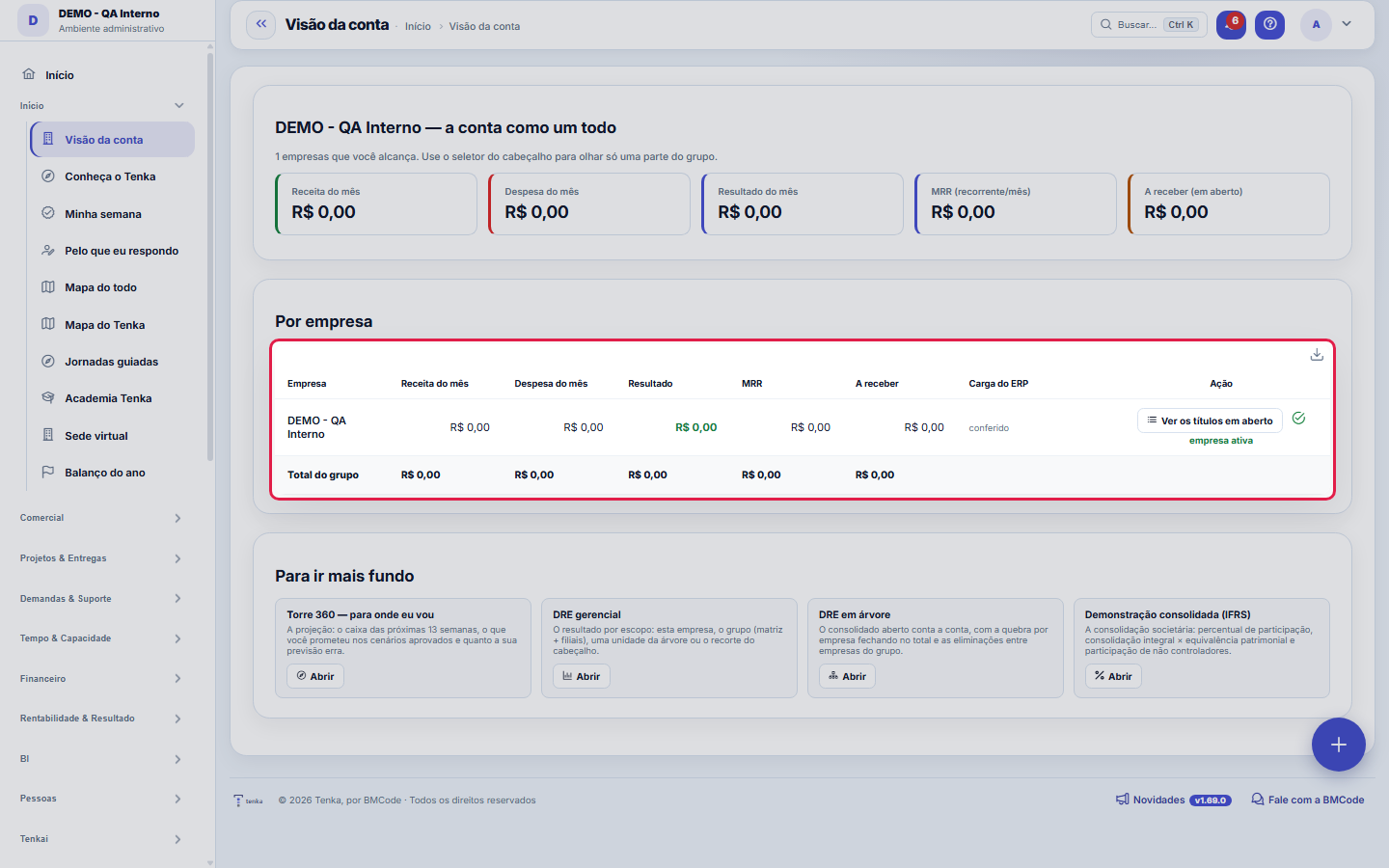
The real screen, in the theme you picked above.
What you find on this screen
A portrait of the screen, read from the screen itself — it changes when the screen changes.
Available actions
See the open receivablesSign in
The list shows
CompanyRevenue for the monthMonth's expenseResultMRRReceivableERP loadAction
Form fields
Receita do mêsReceita do mês somando todas as empresas da conta.
Despesa do mêsDespesa do mês somando todas as empresas da conta.
Resultado do mêsReceita menos despesa do mês; negativo indica prejuízo no período.
MRR recorrente por mêsReceita recorrente mensal contratada, sem considerar vendas pontuais.
A receber em abertoValor faturado ainda não recebido, em aberto na carteira.
EmpresaNome do negócio a que se referem os valores da linha.
Empresa ativaMarca qual empresa está em uso na sessão, entre as da conta.
Start here
What it's for
Before talking to the client, open their view: what they have active, what they owe, what's open, how much they consume and how much is LEFT OVER (real margin). No hunting across five screens.
What this screen answers
The whole tenant at once: revenue, expenses, month's result, MRR and receivables ADDED UP across all your companies — and the same detail company by company.
How to
What this screen answers
The button to enter a company switches the whole system's context to it — it's the way to leave the consolidated view and operate. Coming back here re-consolidates.
Do número da linha para os títulos que o formaram
"See open receivables" enters that row's company and opens the list of entries already filtered to OPEN — the same set that added up to the "Receivable" column. The company switch happens because the list of entries always belongs to one company; and it goes through the same access check as the "Enter" button, so the shortcut never leads to a company you can't reach.
Where to go from here
This screen is the front gate, not the vault. The "To dig deeper" block leads to the four screens that answer what it doesn't: the 360 Tower (cash projection, what was promised and how much the model misses by), the management income statement (results by scope, including parent + branches), the income statement tree (the consolidated total broken down account by account, with the split by company and the eliminations between group companies) and the IFRS consolidated statement (ownership percentage, full consolidation × equity method, non-controlling interests). Each button only appears for those who have the screen.
Rules
Real margin
The profitability block uses the X-Ray engine: billed vs. real cost (hours logged × hourly cost with payroll charges + direct expenses). A big client with a thin margin shows up here.
Health and risk
The health score (payments, support, contract) and the churn risk come from the CS cockpit — a healthy client renews; a critical one requires action this week.
What this screen answers
The ones YOU can reach — never "all the ones in the account". When the header's company selector has more than one checked, the tower adds up exactly those; when no selection is declared, it adds up all the companies you have access to. The text below the title always says which of the two sets applies. A company outside your access doesn't enter the total or appear in the list, even if it belongs to the same account.
View Values
The R$ values in this view follow the "View Values" permission of the profile: whoever can't see money sees the consolidated data, the companies and the health indicators, but with the values masked. This isn't a bug or a cache issue — it's the central values governance, applied in a single place for the whole platform. If you need the numbers, the way to get them is to ask for the permission from whoever administers the account, not to reload the page.
What this screen answers
If one company in the group bills another, the amount enters the consolidated total twice — once as revenue, once as an expense — and total revenue ends up larger than the group's real one. For a group with inter-company operations, treat this number as a management view, not an accounting one.
A torre diz o que ela NÃO enxerga
When the account has an ERP connected, the load can leave documents waiting for a record that hasn't arrived yet — they count in the amount, but not on the right line of the results. The yellow band at the top counts how many there are and in how many companies in scope, and the "ERP load" column shows it row by row. A neat consolidated total on top of an incomplete mirror LOOKS complete: that's why the number and the caveat go together. If "couldn't be checked" appears, read it as "I don't know" — not as "everything's fine".
Gerencial não é societário
This screen's total is a simple sum: what the parent company charges the branch appears twice, once as revenue and once as an expense. For the number that goes to the accountant — with ownership percentage, full consolidation, equity method and non-controlling interests — the path is the Consolidated statement (IFRS). For the management view with eliminations between group companies, the income statement tree.
Frequently asked questions
From view to action
From here you can open a demand, proposal or invoice in the client's context — the buttons carry the right link, with no retyping.
Was this article helpful?
In the same module: Explore21
Academia TenkaEscolha a trilha do seu papel e siga as lições — cada uma aponta a tela real onde se pratica. Ao completar a …Alocação na faltaQuando falta peça: quem leva pela prioridade do cliente, pedido completo primeiro e data, com a fatia de cada…Digital Employees OfficeAll the company's agents side by side, on one comparison screen: status (active/paused), executions this mont…Group chain cockpitThe group’s companies as links of the chain: kilos in and out, yield, margin per company and consolidated, an…Indicator cockpitThe engine room of a KPI: target × actual series (12 months), status light by period, root-cause-and-action i…How do you feel about money?The 10 questions of the CFPB Financial Well-Being Scale on the phone, once a quarter; the perceived score nex…Key per tenant (BYOK)Super admin screen for BYOK (Bring Your Own Key): per tenant, the status of its own encryption key and the ac…Size grid and storeLive size grid, EAN labels, reservation and picking, store replenishment.
Tenka Academy
Explore the AcademyStep-by-step learning paths for your industry, inside the platform.