

Ticket status
The stages of the flow (Open, In progress, Resolved...) — the blocks that make up the workflows and the kanban columns.
The screen
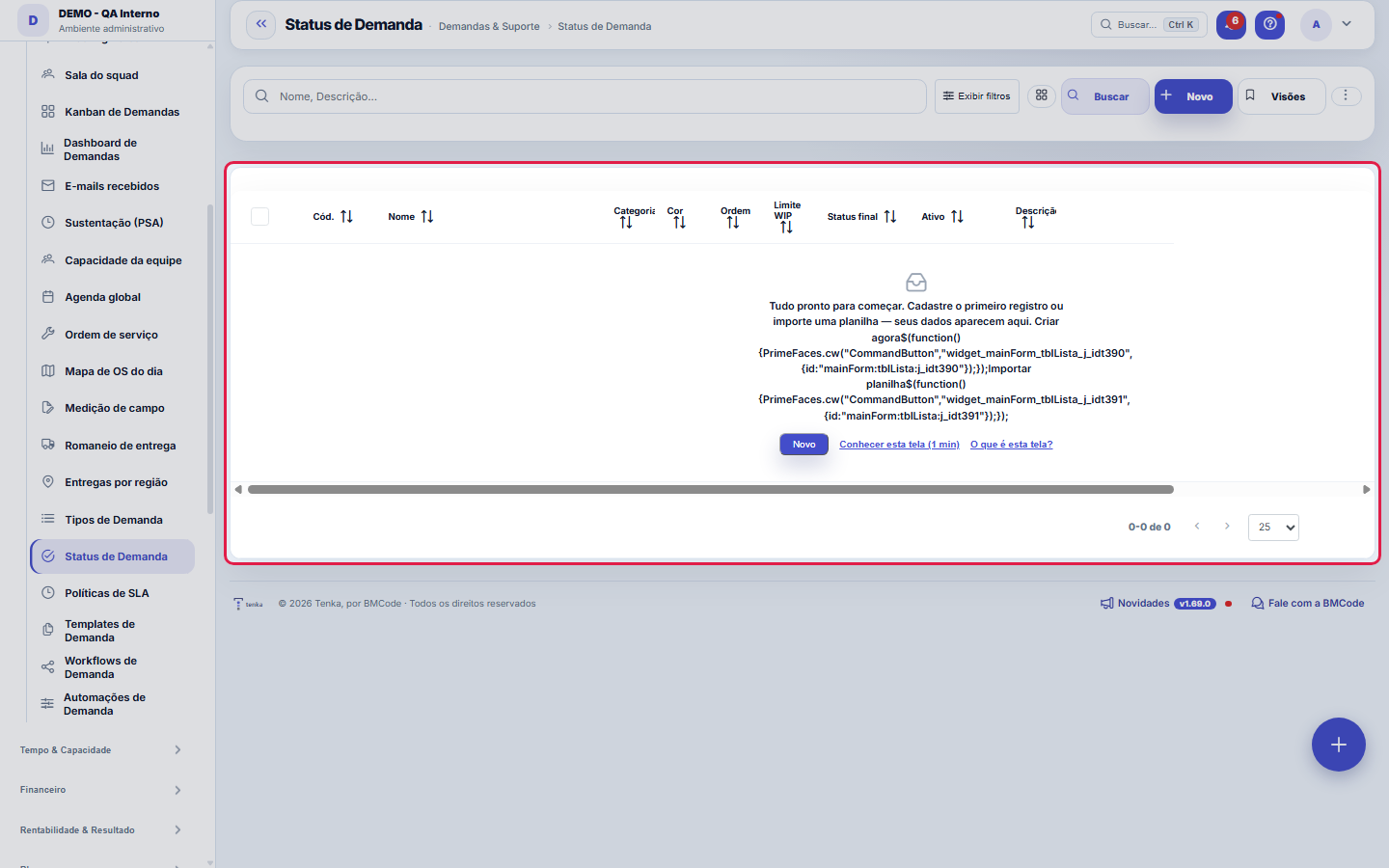
The real screen, in the theme you picked above.
What you find on this screen
A portrait of the screen, read from the screen itself — it changes when the screen changes.
Form fields
Nome*Nome do status (ex.: Aberto, Em andamento, Concluído).
ClassificaçãoEm qual fase do fluxo este status está (Triagem, Em execução, Aguardando…). Define a seção do Kanban em que ele aparece. As classificações são cadast…
CorCor do badge (hex). Ex.: #6366f1.
OrdemOrdem no kanban/listas.
Limite WIPLimite de tickets em paralelo na coluna (vazio = sem limite).
Status finalMarca o status como final (encerra o ticket).
AtivoStatus inativos não aparecem para seleção.
DescriçãoDescrição do status.
Congela o SLAEnquanto o ticket estiver neste status o relógio do SLA fica parado e a pausa é registrada.
Start here
What you do here
Register the possible ticket statuses, with color and category (open/paused/closed). They become the kanban columns and the workflow stages.
What this screen answers
What the columns of your company's request board are — the vocabulary the team uses to say where each request stands.
O que esta tela faz
Here you create and maintain a demand status: name, category (the stage it belongs to), color, display order, WIP limit, the final-status flag and the active switch. The statuses created here are the states that workflows chain together and the columns the kanban board draws.
How to
Status final: é ele que fecha a demanda
Checking "Final status" tells the system that a request that entered it is COMPLETED. Automatic closing, delivery counts, the SLA and the Complete button in My Schedule depend on this. With no final status registered, the system has nowhere to complete to — and warns about it when you try.
Order and category draw the Kanban
The order defines the sequence of columns on the board; the category (Triage, In progress, Waiting…) groups the columns into lanes. Changing this changes everyone's board the very next moment.
Category and order organize the board
The category says which stage the status belongs to — the kanban groups its columns by these stages (triage, execution, waiting, finished, canceled), so a status in the wrong category shows up in the wrong part of the board. The order defines the status's position within the flow and the sequence of the columns. And the color is the status's visual identity on cards and lists: choose colors that are distinct from each other — two statuses of nearly the same color become the same thing to anyone who glances at the board twenty times a day.
Rules
Category matters
The status category (open/paused/closed) feeds the indicators: a "paused" status can stop the SLA clock; "closed" ends the ticket.
Desativar um status não some com as demandas que estão nele
An inactive status leaves the selection combos, but the requests that were already in it stay there. They remain editable and savable: the saved value always comes back to the combo even when inactive. To empty the status, move the requests before deactivating it.
A visão salva guarda busca, filtros, colunas e ordenação
When you save a view with the Views button, it stores four things: the search text, the applied filters, which columns appear (and in what order) and which column the list is sorted by. Applying the view restores everything at once — including resetting the sort and the page you were on, so the result is exactly what the view describes. Views saved before this version remain valid: whatever they didn't store simply doesn't change when applied.
O erro de preenchimento aparece no campo, ao sair dele
Nas fichas, sair de um campo já dispara a conferência do que dá para conferir na hora: campo obrigatório deixado em branco e e-mail mal formado. O aviso aparece embaixo do campo e desaparece quando você começa a corrigir. Campo numérico não precisa de aviso: ele simplesmente não aceita letra enquanto você digita. Isso é conforto, não a validação final: ao salvar, o sistema confere tudo de novo do lado do servidor.
Final status and WIP limit
The "final status" flag declares that a demand reaching it has finished its cycle — it is what separates closed from in progress in counts and dashboards. The WIP limit, in turn, is the agreed ceiling of simultaneous demands in that status: on the kanban board it appears in the column header, which flags visually when the team exceeds what was agreed. The limit does not block entry — it exposes the build-up, which is the role of a radiator: the decision to stop pulling work remains the team's.
Uma anotação pode virar demanda
In the record's activity panel, each note has "Turn into request". The click creates a ticket with the note's text, who wrote it and the link to this record — nothing is retyped. Use it when the note is a request for action ("someone needs to review this"); the note stays where it was. The button only appears once the record has been saved; a read-only session (demo) doesn't create one.
When to check "Freezes the SLA" on a status
Check it on the status that means "we are waiting for someone outside" — typically Waiting for customer. While a ticket is in that status, the SLA clock stops running and the pause is recorded with start time, reason and who requested it. When it leaves the status, the pause closes, the business hours it consumed are given back to the deadline and the delivery forecast is recalculated. Do not check it on work statuses (In progress, Under review): the clock would stop while the team is working, and the SLA would no longer measure what it promises to measure.
Frequently asked questions
Como descobrir quem mudou um campo desta ficha?
Open the record and look at the Timeline on the right: it shows each change as "from one value to another", with the person and the date. When there are many changes, use the two filters at the top of the timeline — one by field, the other by person. The search runs in the database, so old changes show up just the same. You can also ask Tenkai: "who changed contract 482?".
Where the "Waiting for customer" status on my list came from
It was created automatically in accounts that did not yet have any status marked to freeze the SLA — without one of these, the ticket's Pause button has nowhere to take the record and the click does nothing. It is created at the end of your order, with the waiting color, and it is an ordinary status: it can be renamed, reordered, have its color changed or be deactivated. If you prefer to use another status as the waiting one, check "Freezes the SLA" on it and deactivate this one — just make sure to have exactly ONE per account, otherwise Pause and Resume would pick different statuses.
Connected screens
Was this article helpful?
In the same module: Operations13
Ticket automations"When X, do Y" rules on tickets: assign, move, notify — without manual intervention.CalendarsWork schedule and holidays: the base calendar that defines business days, hours per day, and holidays (nation…Classificação do statusAs fases do fluxo em que cada status da demanda se encaixa (Triagem, Em execução, Aguardando…): definem as se…TeamsWork teams with an owner and members — the basis for the team agenda, routing, and manager approvals.Roles and costsTable of roles (dev, QA, PM...) with cost and hourly rate — the feasibility ruler of the Studio.SLA policiesDefine response and resolution deadlines by priority/type — the clock that governs the tickets.Prioritization (WSJF)The backlog in the order the calculation recommends: value, urgency, and risk reduction add up to the cost of…Readiness (DoR/DoD)What needs to be resolved for a demand to ENTER a stage, and completed for it to LEAVE. It becomes a checklis…
Tenka Academy
Explore the AcademyStep-by-step learning paths for your industry, inside the platform.