

Readiness (DoR/DoD)
What needs to be resolved for a demand to ENTER a stage, and completed for it to LEAVE. It becomes a checklist inside the demand itself — and, when the team wants, it becomes a gate.
The screen
The real screen, in the theme you picked above.
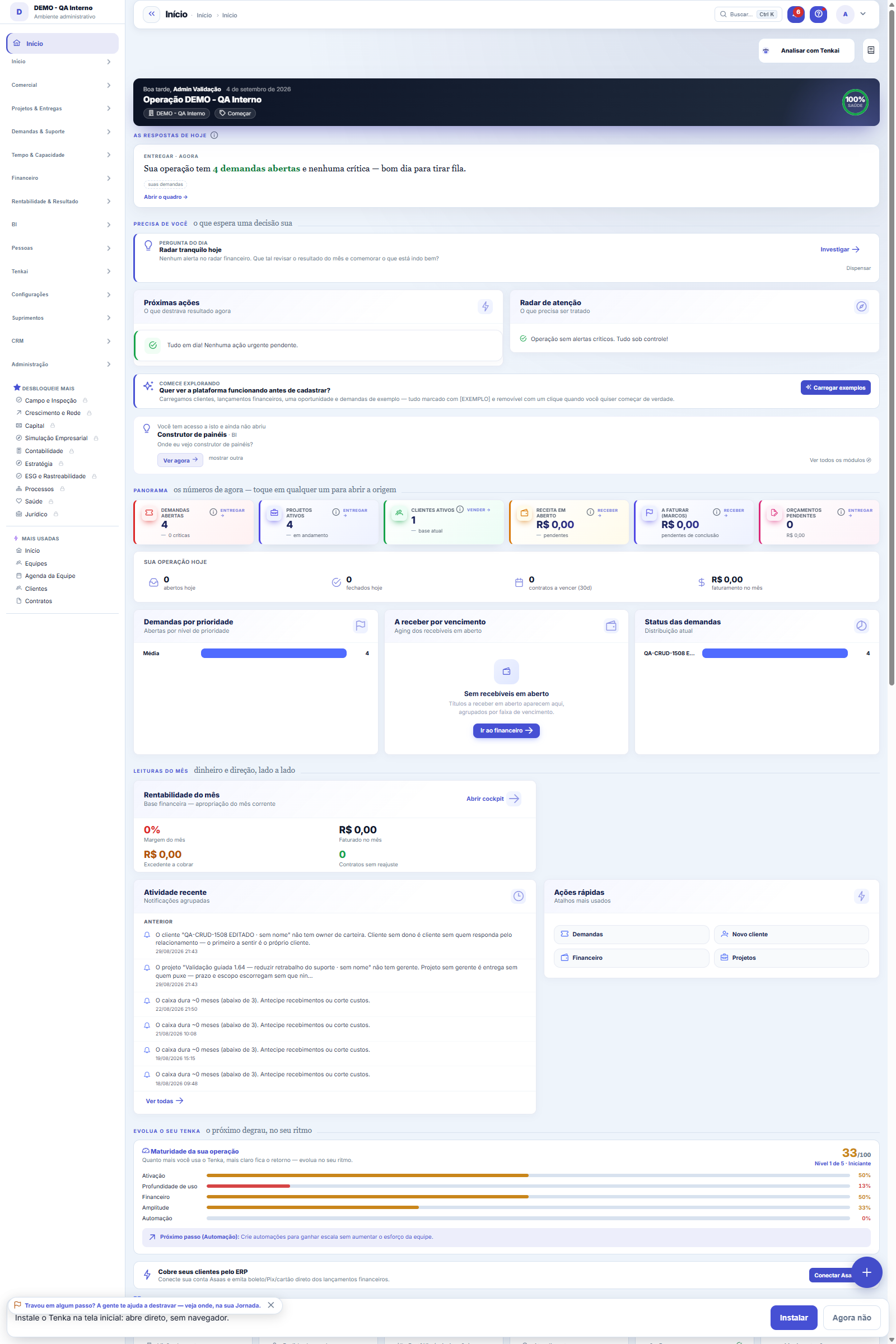
What you find on this screen
A portrait of the screen, read from the screen itself — it changes when the screen changes.
Form fields
Etapa*A coluna do quadro a que este combinado pertence.
Entrar ou sair*DoR é a conferência de ENTRADA: o que precisa estar resolvido para o time começar. DoD é a de SAÍDA: o que precisa estar concluído para a demanda seg…
Só para o tipoRestringe o combinado a um tipo de demanda. Vazio = vale para todas — o caso comum.
O combinado*Escreva do jeito que a pessoa vai ler dentro da demanda, como algo que se marca como feito: "teste automatizado passando", "cliente avisado da entreg…
Bloqueia a saídaDesligado, o item é um lembrete: a demanda anda e a tela avisa o que ficou. Ligado, a demanda não sai da etapa enquanto o item não estiver marcado. L…
OrdemEm que ordem os itens aparecem no checklist da demanda.
AtivoItem inativo para de ser exigido e para de ser criado em demandas novas. As marcações já feitas continuam no histórico das demandas.
Start here
DoR and DoD in one sentence each
DoR — Definition of Ready: what needs to be ready for the work to start. It exists to end the request that goes into execution and comes back two days later because the access, the data or the decision was missing.
DoD — Definition of Done: what needs to be done for the work to be considered finished. It exists to end the "I'm done" that hasn't yet been tested, documented or communicated.
Both are the same idea applied at the two ends: write down the agreement beforehand, so you don't argue about it afterwards. And both are per STAGE of the board — each column can have its own.
DoD — Definition of Done: what needs to be done for the work to be considered finished. It exists to end the "I'm done" that hasn't yet been tested, documented or communicated.
Both are the same idea applied at the two ends: write down the agreement beforehand, so you don't argue about it afterwards. And both are per STAGE of the board — each column can have its own.
O que esta tela responde
Two lists the team agrees on once and uses always: what needs to be ready for a demand to BE ABLE to start (Definition of Ready) and what needs to be ready for it to be considered DONE (Definition of Done). They prevent the demand that enters the sprint without scope and the one that "is ready" but nobody tested.
O que esta tela faz
Here you register an item of the team's readiness agreement (DoR/DoD): which stage it applies to, whether it is a condition to ENTER or to EXIT it, whether it applies only to one demand type, the text of the agreement, whether it blocks exit from the stage, the display order and whether it is active. It is the flow's quality checklist, item by item.
How to
Entrar ou sair: é isso que separa DoR de DoD
The "Enter or exit" field defines which side of the stage the agreement lives on. An ENTRY item is Definition of Ready: what needs to be ready BEFORE the demand enters that stage ("acceptance criteria written", for example, before entering execution). An EXIT item is Definition of Done: what needs to be done for the demand to LEAVE the stage ("code review approved"). The "Type only" field restricts the item to one demand type — a bug agreement does not need to apply to an improvement.
Rules
Como o combinado chega até quem trabalha
You write the item here once; it is copied into the request's own checklist when it enters the stage, with the label in brackets (for example [DoD Em execução] testes automatizados verdes).
Notice that there is no second list to check off: whoever works checks it off in the usual place, inside the request, and the verification reads from there. A second list would mean, in practice, an abandoned list.
Notice that there is no second list to check off: whoever works checks it off in the usual place, inside the request, and the verification reads from there. A second list would mean, in practice, an abandoned list.
Quem barra é o DoD da etapa de ORIGEM
This is the most counterintuitive part. When you drag a card from one column to another, the system checks the DoD of the column it is leaving — because the question is "can this be considered finished here?".
The DoR never blocks. It comes in as an entry check, appears in the checklist and serves as a reminder. If you mark blocking on a DoR item, the system turns it off and warns.
Three possible outcomes when moving: nothing pending, and the card goes through; pending without blocking, and the card goes through with a warning listing what was left; pending with blocking, and the card goes back to its place. A single open blocking item is enough to stop it.
The DoR never blocks. It comes in as an entry check, appears in the checklist and serves as a reminder. If you mark blocking on a DoR item, the system turns it off and warns.
Three possible outcomes when moving: nothing pending, and the card goes through; pending without blocking, and the card goes through with a warning listing what was left; pending with blocking, and the card goes back to its place. A single open blocking item is enough to stop it.
O bloqueio nasce DESLIGADO — e isso é a regra, não um esquecimento
A gate imposed before the agreement produces workarounds, not quality: the team learns to game the board. Write the items, let the team live with them for a few weeks and turn on blocking only for what has become a habit and still slips through.
Two honest limits of the gate, so you don't trust it too much: it only acts on dragging on the board — changing the status through the request form, in bulk, or via "finish" doesn't go through here. And, if the check fails due to a technical error, the move goes through. A gate that locks the operation because of an infrastructure failure is worse than the problem it prevents.
Two honest limits of the gate, so you don't trust it too much: it only acts on dragging on the board — changing the status through the request form, in bulk, or via "finish" doesn't go through here. And, if the check fails due to a technical error, the move goes through. A gate that locks the operation because of an infrastructure failure is worse than the problem it prevents.
Reescrever o texto de um item zera as marcações antigas
The item and the check-off recognize each other by the label text. When you edit the description of an agreement (or rename the stage, which goes into the label), the system stops recognizing what was already checked: the old check-off remains visible in the request's history and the new item comes in as pending.
This is the correct behavior — the rule changed, the check is redone —, but plan the change: doing it in the middle of the sprint sends pending items back to the whole board.
This is the correct behavior — the rule changed, the check is redone —, but plan the change: doing it in the middle of the sprint sends pending items back to the whole board.
A visão salva guarda busca, filtros, colunas e ordenação
When you save a view with the Views button, it stores four things: the search text, the applied filters, which columns appear (and in what order) and which column the list is sorted by. Applying the view restores everything at once — including resetting the sort and the page you were on, so the result is exactly what the view describes. Views saved before this version remain valid: whatever they didn't store simply doesn't change when applied.
O erro de preenchimento aparece no campo, ao sair dele
Nas fichas, sair de um campo já dispara a conferência do que dá para conferir na hora: campo obrigatório deixado em branco e e-mail mal formado. O aviso aparece embaixo do campo e desaparece quando você começa a corrigir. Campo numérico não precisa de aviso: ele simplesmente não aceita letra enquanto você digita. Isso é conforto, não a validação final: ao salvar, o sistema confere tudo de novo do lado do servidor.
Bloqueia a saída: lembrete ou trava?
The "Blocks exit" switch separates the guiding agreement from the agreement with teeth: a blocking item holds the demand in the stage until it is fulfilled; a non-blocking item appears as a reminder of the team's agreement, but does not prevent progress. Use the lock sparingly — blocking everything turns the flow into bureaucracy and invites the team to check items without looking; the block is for what really cannot pass without a check, such as "tests run" before completing.
Uma anotação pode virar demanda
In the record's activity panel, each note has "Turn into request". The click creates a ticket with the note's text, who wrote it and the link to this record — nothing is retyped. Use it when the note is a request for action ("someone needs to review this"); the note stays where it was. The button only appears once the record has been saved; a read-only session (demo) doesn't create one.
Frequently asked questions
Does the item apply to every request type?
Only if you leave the type blank — then it is a general rule. Filling in the type, the item applies only to that type of request (bug, improvement, support...).
Beware of one subtlety: a request with no type defined only receives the general rules. If your important DoD is tied to a type, a request with no type escapes it.
Beware of one subtlety: a request with no type defined only receives the general rules. If your important DoD is tied to a type, a request with no type escapes it.
Como descobrir quem mudou um campo desta ficha?
Open the record and look at the Timeline on the right: it shows each change as "from one value to another", with the person and the date. When there are many changes, use the two filters at the top of the timeline — one by field, the other by person. The search runs in the database, so old changes show up just the same. You can also ask Tenkai: "who changed contract 482?".
Connected screens
É conferido emKanban de DemandasO gate age no arrastar do card entre colunas.Convive comWorkflows de DemandaO workflow diz quais transições existem; a prontidão diz o que precisa estar pronto para usá-las.Aparece emSala do squadO efeito do combinado no fluxo é o que o radiador mostra.
Was this article helpful?
In the same module: Operations13
Ticket automations"When X, do Y" rules on tickets: assign, move, notify — without manual intervention.CalendarsWork schedule and holidays: the base calendar that defines business days, hours per day, and holidays (nation…Classificação do statusAs fases do fluxo em que cada status da demanda se encaixa (Triagem, Em execução, Aguardando…): definem as se…TeamsWork teams with an owner and members — the basis for the team agenda, routing, and manager approvals.Roles and costsTable of roles (dev, QA, PM...) with cost and hourly rate — the feasibility ruler of the Studio.SLA policiesDefine response and resolution deadlines by priority/type — the clock that governs the tickets.Prioritization (WSJF)The backlog in the order the calculation recommends: value, urgency, and risk reduction add up to the cost of…Squad roomsA room is a SLICE of the work plus that team's agreements. This is where it's decided what the big screen sho…
Tenka Academy
Explore the AcademyStep-by-step learning paths for your industry, inside the platform.