

Teams
Work teams with an owner and members — the basis for the team agenda, routing, and manager approvals.
The screen
The real screen, in the theme you picked above.
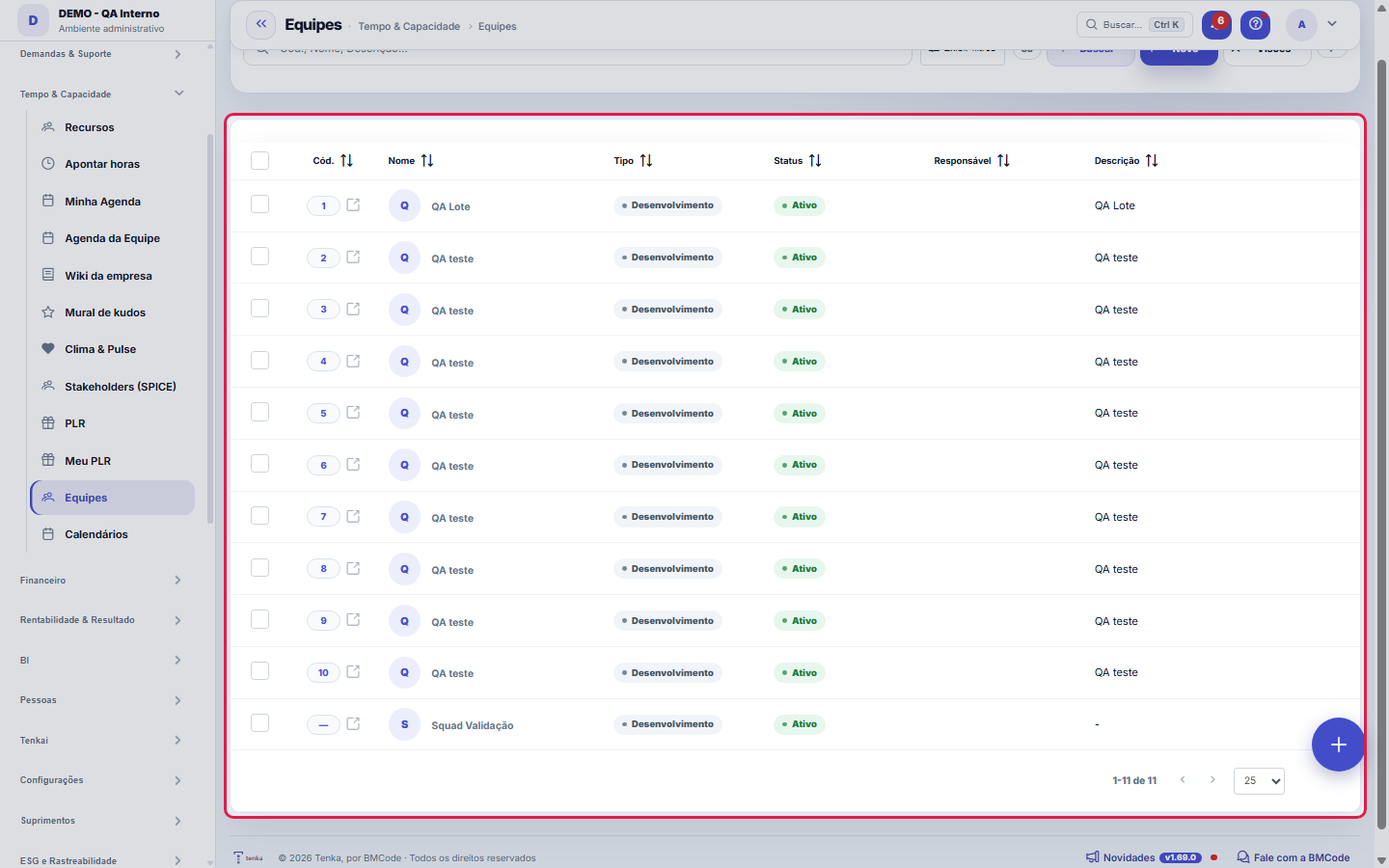
What you find on this screen
A portrait of the screen, read from the screen itself — it changes when the screen changes.
Form fields
Cód.
NomeNome da equipe (aparece nas listas e seleções).
Tipo*Natureza da equipe (desenvolvimento, suporte, etc.).
Status*Equipes inativas não aparecem para seleção.
ResponsávelFuncionário responsável pela equipe.
DescriçãoDescrição livre da equipe.
Start here
What you do here
Set up teams (name, manager, members). The team's manager receives approvals routed "by manager" and can see the team's schedule.
Para que esta tela existe
Cadastro de equipes e responsáveis — este é o papel da tela "Equipes" dentro da plataforma.
What this screen answers
Groups people for capacity, calendar and squad room. The team is the slice used by almost every operations dashboard: someone outside a team appears as "unassigned" in the indicators, even with work assigned.
O que esta tela faz
Here you register and maintain a team: code, name, type, status, person in charge and description are on the Data tab, and the team's people are on the Members tab, in the same record — there is no separate screen for linking people. The team registered here is the one that appears in the Team calendar filters, in sprint planning and wherever else operations slices work by team.
How to
Exportar, visões salvas e preferências de coluna
This list runs on the platform's standard engine, so all of this already comes for free: export to Excel, PDF and CSV of the WHOLE set (not just the visible page), views saved per user to keep filter combinations you always use, choice of which columns appear (your preference, per screen) and the recycle bin — add ?excluidas=1 to the URL to see and recover deleted records.
Link que abre a lista já filtrada
This list's URL accepts filters: ?q=text opens the list already narrowed by the search, and ?fd_=value filters by a specific field (for example, fd_status=ATIVA). This is useful for pasting into an email, chat or bookmark a link that takes the person straight to the right slice — instead of "open the teams screen and filter by active", the link arrives already filtered. It is the same mechanism the platform's clickable totals use to prove where a number came from.
Layout do formulário e navegação entre equipes
This form follows the platform's standard engine: you choose to view the fields in 1, 2 or 3 columns — the preference is saved per screen, and there is also a global default in your User Preferences. The previous/next buttons move between records without going back to the list, which speeds up serial reviews ("check the owner of every team"). And the "?" button reopens this help from anywhere on the screen.
Rules
A visão salva guarda busca, filtros, colunas e ordenação
When you save a view with the Views button, it stores four things: the search text, the applied filters, which columns appear (and in what order) and which column the list is sorted by. Applying the view restores everything at once — including resetting the sort and the page you were on, so the result is exactly what the view describes. Views saved before this version remain valid: whatever they didn't store simply doesn't change when applied.
O erro de preenchimento aparece no campo, ao sair dele
Nas fichas, sair de um campo já dispara a conferência do que dá para conferir na hora: campo obrigatório deixado em branco e e-mail mal formado. O aviso aparece embaixo do campo e desaparece quando você começa a corrigir. Campo numérico não precisa de aviso: ele simplesmente não aceita letra enquanto você digita. Isso é conforto, não a validação final: ao salvar, o sistema confere tudo de novo do lado do servidor.
The members live in a tab of the same record
The team composition is not another screen: it is the Members tab of this form. Each link records the employee, their role in the team, the period (start and end), whether it is active and the development pair (mentor) — who follows that person's development. To remove someone from the team while preserving history, end the link's validity instead of deleting it: the record of who passed through the team is what explains the Team calendar's old numbers.
Uma anotação pode virar demanda
In the record's activity panel, each note has "Turn into request". The click creates a ticket with the note's text, who wrote it and the link to this record — nothing is retyped. Use it when the note is a request for action ("someone needs to review this"); the note stays where it was. The button only appears once the record has been saved; a read-only session (demo) doesn't create one.
Frequently asked questions
Como descobrir quem mudou um campo desta ficha?
Open the record and look at the Timeline on the right: it shows each change as "from one value to another", with the person and the date. When there are many changes, use the two filters at the top of the timeline — one by field, the other by person. The search runs in the database, so old changes show up just the same. You can also ask Tenkai: "who changed contract 482?".
Connected screens
Was this article helpful?
In the same module: Operations13
Ticket automations"When X, do Y" rules on tickets: assign, move, notify — without manual intervention.CalendarsWork schedule and holidays: the base calendar that defines business days, hours per day, and holidays (nation…Classificação do statusAs fases do fluxo em que cada status da demanda se encaixa (Triagem, Em execução, Aguardando…): definem as se…Roles and costsTable of roles (dev, QA, PM...) with cost and hourly rate — the feasibility ruler of the Studio.SLA policiesDefine response and resolution deadlines by priority/type — the clock that governs the tickets.Prioritization (WSJF)The backlog in the order the calculation recommends: value, urgency, and risk reduction add up to the cost of…Readiness (DoR/DoD)What needs to be resolved for a demand to ENTER a stage, and completed for it to LEAVE. It becomes a checklis…Squad roomsA room is a SLICE of the work plus that team's agreements. This is where it's decided what the big screen sho…
Tenka Academy
Explore the AcademyStep-by-step learning paths for your industry, inside the platform.