

My agenda
Your unified view: appointments, tickets with a due date, and the day's hours — your work plan.
The screen
The real screen, in the theme you picked above.
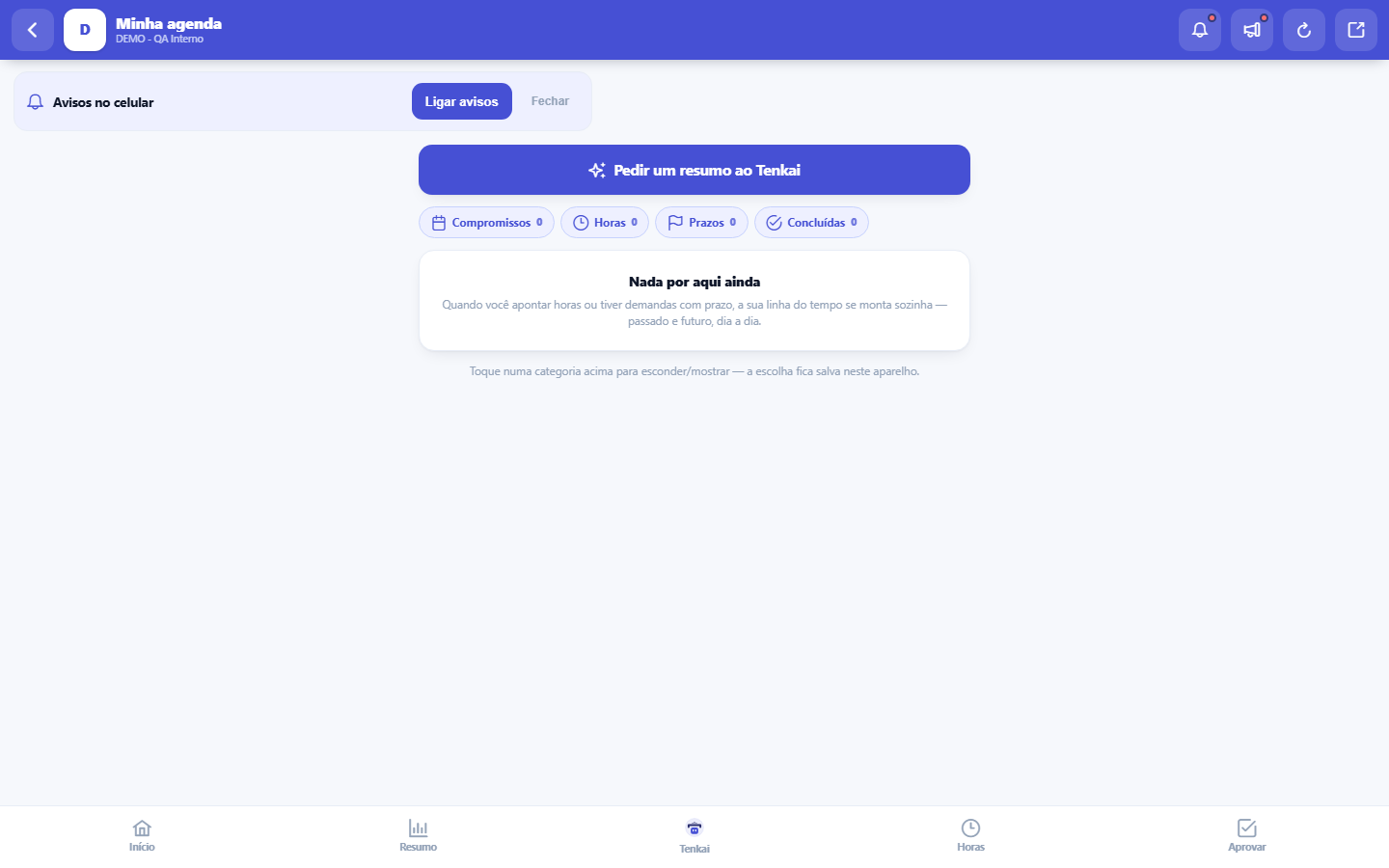
What you find on this screen
A portrait of the screen, read from the screen itself — it changes when the screen changes.
Available actions
RefreshViewsSave current viewApply filtersClearCloseCancelCompleteSave
The list shows
DateRequestDescriptionHoursStatus
Form fields
Minhas demandas abertasDemandas atribuídas a você que continuam abertas.
AtrasadasSuas demandas abertas cuja data de previsão já passou.
Vencem hojeSuas demandas abertas com previsão para o dia de hoje.
Concluídas no mêsDemandas suas fechadas no mês corrente.
Horas apontadas nesta semanaSoma das horas que você apontou na semana atual.
A fazerSuas demandas abertas em que você ainda não apontou hora nenhuma.
FazendoSuas demandas abertas em que você já apontou hora, o trabalho em progresso.
FeitoDemandas suas concluídas dentro do período escolhido no filtro.
Horas lançadas no períodoHoras que você registrou no período, aprovadas ou não.
Horas aprovadasHoras já aprovadas, que entram no custo e na margem dos projetos.
Horas pendentes de aprovaçãoHoras apontadas que ainda aguardam aprovação do gestor.
PeríodoRecorte de tempo do quadro e dos indicadores: semana, mês, trimestre ou tudo.
Start here
What you do here
See your commitments, requests assigned with a deadline and the calendar (holidays included) all in one place. Use it as your starting point for the day.
O que esta tela responde
What YOU have to do, what has already started and what you delivered in the period. The three columns are a snapshot of your work — not of the team's queue nor of the demand register. If a demand isn't yours, it doesn't appear here.
How to
Feito "no mês" — o período vem dos Filtros
The Done column shows what you completed within the period chosen in the Filters rail (week, month, quarter or all). A delivery from two months ago hasn't disappeared: it's outside the range. Change the period to see it.
Rules
What makes a request change columns
To do → Doing: you start the timer (▶ button). It's YOUR logged time that moves the card, not the fact that someone put your name as the person responsible. Doing → Done: the ✓ Complete button, on the card itself. Done → back to the queue: the ↺ Reopen button. Nothing changes column on its own.
O cronômetro precisa do seu cadastro de funcionário
Starting the timer records time under the name of a PERSON (the employee), not of the login account. If your user is not linked to an employee record, the button refuses and explains. HR solves it, in People → Employees, by filling in the "User" field on your record — it's just one field.
Frequently asked questions
Recebi uma demanda e ela já apareceu em "Fazendo" sem eu fazer nada. Por quê?
This was a defect and it has been fixed. The "Doing" column looked at the TICKET's total hours, which include other people's hours and, above all, hours imported from the ERP — so just becoming the person responsible was enough for the card to jump columns. Now the count is based on YOUR time entries: until you start the timer, the demand stays in "To do".
A demanda está com o prazo estourado. Como eu movimento?
The same way as any other: ✓ Complete on the card, or by opening the demand and changing the status. An overdue deadline paints the card red to draw attention, but it does NOT lock anything — there is no demand the system refuses to move because of SLA. If the button refuses, the message will state the real reason, which is then the workflow of the demand type.
Connected screens
Aponta emApontar horasRegistre as horas do que você executou.UsaCalendáriosFeriados e jornada vêm do calendário da empresa.
Was this article helpful?
In the same module: Hours and capacity6
Team agendaThe whole team's workload: who has what, capacity × allocated, and SLA per person.Whistleblower managementThe internal whistleblowing channel, with investigation and confidentiality for the whistleblower. Identity i…Log hoursLightweight time entry per ticket — the source of truth for real cost, contract consumption, and profitabilit…Team CapacityA future-utilization board: who's free and who's overloaded in the coming weeks, cross-referencing each emplo…Grade semanal de horasA semana do time numa tela: horas por pessoa e por dia, utilização da jornada, o que espera aprovação — e a a…ResourcesCross-project allocation: who is allocated where, at what percentage, and where there is conflict or idleness.
Tenka Academy
Explore the AcademyStep-by-step learning paths for your industry, inside the platform.