

Foreign exchange
Records and tracks operations in foreign currency using the day's rate. The result changes between closing and settlement (exchange rate variation): the value in local currency is only final when it settles — before that, it's an estimate based on the current rate.
The screen
The real screen, in the theme you picked above.
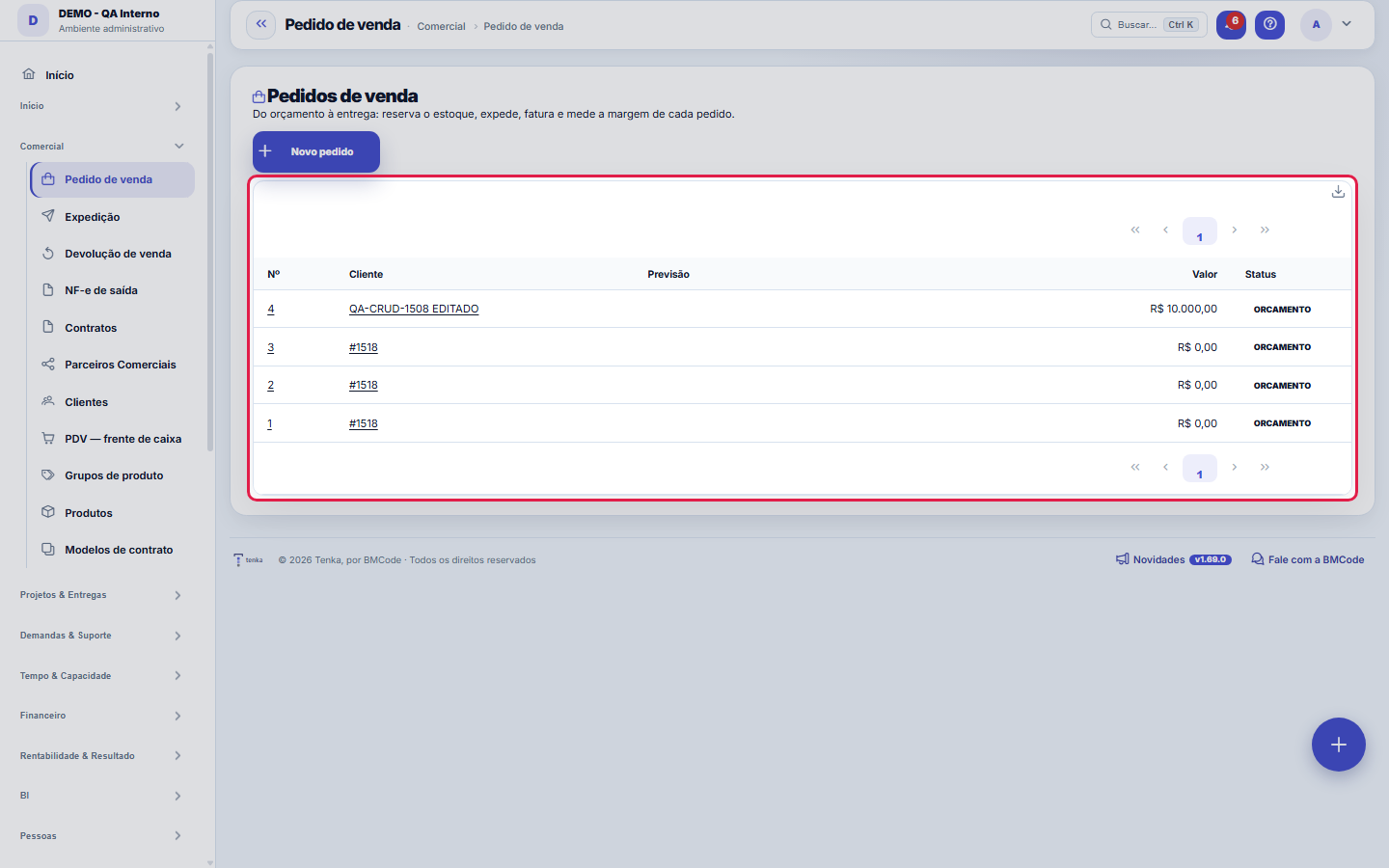
What you find on this screen
A portrait of the screen, read from the screen itself — it changes when the screen changes.
The list shows
Invoice
Form fields
Cliente*Para quem é a venda. O pedido só é confirmado dentro do limite de crédito do cliente (em aberto + pedidos não faturados + este).
NºNúmero sequencial por empresa do pedido.
DepósitoDe onde a venda reserva e expede o estoque. Vazio = o depósito padrão da empresa.
SituaçãoEm que ponto o pedido está: aberto, atendido, faturado, cancelado.
Condição de pagamentoComo o cliente paga (à vista, 30/60/90…). É ela que define os vencimentos do título ao faturar.
Canal de vendaPor onde a venda entrou: atacado, grande varejo, loja própria, e-commerce, marketplace ou franquia. A fatia de cada canal na falta de estoque e a mar…
Valor totalValor do pedido depois do desconto.
DescontoDesconto concedido no pedido.
Valor atendidoQuanto do pedido já foi entregue. A diferença é o saldo em aberto.
ImpostosImpostos calculados sobre o pedido.
Entrega previstaData prometida ao cliente.
ObservaçãoAnotações sobre o pedido.
Origem (ERP)Sistema de origem quando o registro veio de importação.
Código externoIdentificador do registro no sistema de origem.
Start here
Nothing is saved
Records the order before it becomes an invoice and a stock issue. The order reserves; the invoice makes it effective. Selling more than you have is possible in the order, but the stockout shows up at invoicing time — check availability when closing.
O que esta tela faz
The product sales order: from quote to delivery. Choose the customer and the items (with price and discount), confirm, reserve stock (marks the balance as promised without issuing it), follow picking/shipping, invoicing (receivable + NF-e) and, if needed, the return. The matched margin (revenue − cost of goods − costs) appears on the order itself.
Para que esta tela existe
The product sales order: from quote to delivery. Choose the customer and the items (with price and discount), confirm, reserve stock (marks the balance as promised without issuing it), follow picking/shipping, invoicing (receivable + NF-e) and, if needed, the return. The matched margin (revenue − cost of goods − costs) appears on the order itself. — this is the role of the "Sales order" screen within the platform.
A ficha do pedido: do orçamento à entrega, com a margem à vista
The Data tab holds the customer, expected date, totals (amount, discount, taxes, fulfilled) and notes. In the Items tab you build the order: item, quantity, price and discount per line. The Margin tab shows what's left after cost — before confirming, not after invoicing.
Create work orders for what is missing
With the order confirmed, the Create work orders for what is missing button compares each size and colour with what is available (stock minus what other orders already reserved) and opens one work order per product with the missing grid, the date promised to the customer and the source order. Running it again does not duplicate: what is already in an open work order for the order is deducted. A product without a tech sheet is flagged and left out.
The rib goes along by itself
Each fabric article says which item goes with it (rib, cuff, collar) and the percentage. In the order, when the fabric is entered, the companion line appears matched to it and recalculates when the fabric changes. A customer may have their own percentage; the salesperson can still change it on the order line.
The club that gives discounts by itself
Each tier has a purchase floor over the last 12 months (in R$ or kg) and a discount. Every month the system recalculates each customer’s tier; the tier discount goes into each order line by itself, labelled "club discount", and cashback is still used as a payment method.
How to
A lista no motor: filtros, visões e export inteiro
The list runs on the standard engine: free search, column filters and saved views per user; recycle bin (?excluidas=1); Excel, PDF and CSV export of the whole set, with amounts obeying the "View Amounts" permission, including in the file. The URL accepts ?q=text and ?fd_= — a clickable total from another dashboard opens this list already narrowed to the orders that made it up. Column preferences (which ones appear and in what order) are also yours, per user.
The order line in a window
In the order's Items tab, the pencil opens the line: item, variant (size and color), unit, warehouse, lot, quantity, price and discount. Choosing the item brings the price from the customer's table and the rib follows the knit. Payment methods are also edited from the pencil.
Sales channel
Say where the sale came from: wholesale, large retail, own store, e-commerce, marketplace or franchise. Orders from the B2B portal, the sales rep, WhatsApp, the catalog, uniforms, EDI, the marketplace and the online store come filled in. When stock runs short, allocation keeps each channel share and the order takes first from its own channel share; the actual margin by channel shows in the Price tables list.
Two hundred kilos at five percent
200 kg of navy 30/1 single jersey with 5% rib: the navy 30/1 rib line is born with 10 kg. The customer asks for 8%: it becomes 16 kg. The fabric changes to black: the rib changes to black.
Marking the line as a certified sale
Open the line with the pencil. Under Certified sale, choose the certification (GOTS, GRS, RCS, OCS or BCI): the list shows how much is free for this order. Then choose the lot: only lots with an incoming transaction certificate for that certification appear. The quantity is in kg. Below the fields, the system says how much the order asks for and what would block the sale; on Apply, a line that does not fit does not go in. Saving checks again and reserves the balance until the outgoing certificate is requested.
Rules
A visão salva guarda busca, filtros, colunas e ordenação
When you save a view with the Views button, it stores four things: the search text, the applied filters, which columns appear (and in what order) and which column the list is sorted by. Applying the view restores everything at once — including resetting the sort and the page you were on, so the result is exactly what the view describes. Views saved before this version remain valid: whatever they didn't store simply doesn't change when applied.
O erro de preenchimento aparece no campo, ao sair dele
Nas fichas, sair de um campo já dispara a conferência do que dá para conferir na hora: campo obrigatório deixado em branco e e-mail mal formado. O aviso aparece embaixo do campo e desaparece quando você começa a corrigir. Campo numérico não precisa de aviso: ele simplesmente não aceita letra enquanto você digita. Isso é conforto, não a validação final: ao salvar, o sistema confere tudo de novo do lado do servidor.
Esta tela agora é do padrão: colunas, visões e exportação
The list reads the screen's dictionary, so you choose the columns, filter by any of them, save views and export the whole set (not just the page). The form shows the dictionary fields in the Data tab; what is specific to this document — items, checking, picking, quote map — is in the following tabs.
Short today, but fine by the promised date?
When stock is short and the order has a promised date, the order trail adds what production delivers by then: "short today, but production delivers by 15/10" — or how much is still short, item by item. Late production orders do not count.
The order's invoice
The Invoice column shows the order's invoice number, with a link to open it. When the order was invoiced in parts, "+N" appears: click it to see every invoice, with status and amount.
Orders that go to the ERP
In a company that writes to the ERP, a confirmed order shows "Awaiting ERP" until the ERP returns the number (within a minute) and "Rejected by the ERP" when the ERP does not accept it — open the order to see the reason and resend. The ERP number shows on the order and on the customer portal; the whole queue is in Integrations ▸ Orders sent to the ERP.
Closed size grid, payment link and pre-reservation
Every order, whether from the catalog, portal, sales rep, WhatsApp, online shop or live stream, checks the closed size grid, the minimum per style and the store's minimum order; a refusal says how many pieces are missing and nothing is saved. Whoever has approval authority can release it. "Payment link on WhatsApp" sends Pix and card in the customer's chat; once paid, the order is confirmed. The order can be marked for pickup at the stall on the excursion date.
Second-quality piece in a first-quality order
If an order line comes from the second-quality stock and the order is not from that stock, saving shows a warning with the lines. Check with the customer and save again to confirm; if the lines change, the warning comes back.
When it will be ready: the line date promise
Each order line says when the piece will be ready. In stock: the warehouse availability (the balance minus what other orders already reserved) covers the quantity. In production: the availability plus open production orders cover the quantity; the date is that of the order that closes the count, adding the remaining steps along the routing — for an internal step, the remaining minutes divided by the daily capacity; for a subcontractor step, the shipment's agreed date plus that subcontractor's average delay over the last 180 days. No production planned: today plus the product lead time or, without it, the standard production lead time in Parameters (20 days). The catalog and the channel use the same calculation and show only the sentence, never the cost.
The cycle has five steps, and each one locks the previous
Draft → Confirm (the order becomes a commitment and stops accepting new items) → Reserve (holds stock for this customer; "cancel reservation" releases it) → Pick (opens the shipment) → Invoice (generates the outgoing NF-e and accounts receivable). Cancelling is only possible up to reservation; after that the way back is a return. Tenka doesn't skip steps — that's what makes the margin on the tab match what was delivered.
Freight goes into the margin
The order margin deducts the freight paid on its shipments (carrier, app, marketplace or own-delivery cost per km) and what came back at delivery (partial return checked at receipt).
Selling in another unit
On the order line, the Unit column lists the item's primary unit and its sale units (and those of the chosen size/colour). Changing the unit brings its price: the one declared on the unit or factor × primary price. The factor used is saved on the line; reservation, picking and stock issue convert to the primary unit (2 CX12 pick 24 UN), and the invoice goes out with the sold unit as commercial and the primary as taxable.
Order with a kit
The kit goes into the order as one item. On confirmation, a kit without components is refused; on shipping, stock deducts each component and the cost that goes into the margin is their sum.
When the work order is created automatically
Turn on the parameter “Confirmed order creates work orders for what is missing” (PRODUCAO.OP_AUTOMATICA) in Company settings → Parameters: confirming the order then opens the work order immediately. The priority comes from the promised date: up to 3 days is P1, up to 7 is P2, up to 14 is P3, up to 30 is P4 and later or without a date is P5.
Returned credit goes back to the same voucher
If an order paid with customer credit is returned or cancelled after invoicing, the amount goes back to the same vouchers it came from: an advance payment becomes an advance payment again (no expiry) and its obligation reopens for what came back. Only what no longer has a source voucher (paid before this version, voucher expired or cancelled) becomes new credit.
How much has been invoiced
The Invoices tab shows the order total, how much has been fulfilled (invoiced) and how much is left to invoice, and lists every invoice linked to the order — invoices issued by Tenka and those coming from the source system. A fully invoiced order has fulfilled equal to the total.
Where the item ships from and the lot
Each order line shows the warehouse the goods ship from (the order's) and the Lot field, for the batch/shade the customer needs to receive consistently. Size and colour sit in the next column when the item has a grid.
Payment terms
The Payment terms field lists the account's terms. An account that had none gets the default ones the first time it opens an order: Cash, 30 days, 30/60, 30/60/90 and Down payment + 30/60. The terms set the instalments and due dates of the receivables on invoicing.
Several payment methods
On the Payment tab, split the order into as many methods as the customer pays with: part by Pix, part in 3 bank slips, part by card. Each line has method, amount, instalments and terms (empty = the order's); gift voucher, cashback and customer credit ask for the code. The total must add up — otherwise saving is refused and shows the difference. On invoicing, each method becomes its own receivables, one per instalment. With no methods, the order is invoiced by the header terms, also one receivable per instalment.
Add items through the catalogue window
On the Items tab, "Add item" opens the catalogue window. Search by name, code, EAN or SKU (scanning the barcode of a size/colour or a box brings the right choice). Each item shows photo, price, unit and available stock — total and by company and warehouse; with a grid, pick the size/colour and see its availability. Enter the quantity, add to the cart, repeat, and "Add to order" creates the lines at the customer's price list. "Free line" remains for what has no record.
One warehouse per item
In the "Ships from" column, each item can ship from a different warehouse — the shop sends the T-shirt and the DC sends the rest. Empty = the order's warehouse. The reservation marks that warehouse's stock, picking and shipping deduct from it, and the line shows how much is available there. An order with no header warehouse only reserves if every item states its own.
Selling a gift voucher on the order
On the Payment tab, "Sell a gift voucher to this customer" creates the voucher code with the amount and payment method (Pix, cash or card). The amount is an obligation to redeem, not revenue, and no goods invoice is issued — the invoice comes when the voucher is used, on an order or at the POS.
Paying with a gift voucher or cashback
On the Payment tab, the Gift voucher method asks for the voucher code; Cashback uses the balance of the order's customer. Confirming checks that the balance covers it (refuses above it and expired vouchers); invoicing deducts the balance and the receivable for that part is created already settled. If the order is returned, the balance comes back in proportion to what was returned; cancelled after invoicing, it comes back in full.
Pix and cash already received
Pix, cash and debit card show "Received in account". Choose the account where the money landed: on invoicing, that method's receivable is created already settled there and enters the balance and reconciliation. Leave it empty if you have not received it yet — the receivable stays open. Bank slip, credit card, cheque and transfer always invoice as open; a debit card with a registered fee becomes a receivable within the card machine's term.
Paying with customer credit
On the Payment tab, the Customer credit method uses the balance the store owes the order's customer (exchanges, returns as credit and advance payments) — the line shows how much there is. Confirming checks it covers; invoicing uses what expires first and the receivable for that part is created settled. If the order is returned or cancelled after invoicing, the amount comes back as customer credit.
Confirm and send to the ERP
When the company uses a connector with writing on, the Confirm button becomes "Confirm and send to the ERP": the order shows "Sent to the ERP — awaiting confirmation" (yellow) and, in seconds, comes back with the ERP number and its status (green). If the ERP rejects it (credit, stock, registration), the reason shows on the badge, the order becomes editable again and the same button resends it. Only orders with a customer and items that came from the ERP go there; records created only in Tenka ask you to "register in the ERP first".
Cancelling here does not cancel in the ERP
An order that already has an ERP number stays there if cancelled in Tenka — the screen warns with the number. Cancel it in the ERP too; when the ERP cancels, the status comes back here on its own.
The catalogue shows the price the line will get
Each item’s price in the catalogue window is already the one the line will get — the order’s own price rule: the chosen customer’s table, otherwise the channel table and, with no table at all, the list price. The order total, in the footer and in the Items tab title, adds the line as soon as it comes in.
Quantity tier on the internal order
The tier counts the item total in the whole order, not the line: 20 pieces in S and 30 in M add up to 50. When the quantity changes, lines whose price the system set move to the tier price; a price you typed stays. Below the price, the line shows the tier reached, how much is missing for the next and the channel margin floor. A discount that takes the price below the floor only passes with approval from someone with authority. Tiers are set in the price table, Quantity tiers tab.
Where the Stock card availability comes from
Each line's availability is the balance of the line's shipping warehouse (the one chosen on it or, without one, the order's) minus what other orders have already reserved and not yet invoiced, shipped or cancelled. It is the same calculation as the reservation, the promised date and the production order created on confirmation: what the card says is missing is the size of the order.
Frequently asked questions
Que pergunta do dia a dia se responde aqui
"What am I selling, what has already left and how much margin is left on each order?" — whenever that question comes up, this is the screen that answers it.
Where I see the margin and progress of each order
Opening the order: the form concentrates the flow (confirm, reserve stock, pick/ship, invoice) and the matched margin panel — revenue minus cost of goods minus the order's costs. The list answers the portfolio view: Total amount, Discount, Fulfilled amount (how much of the order has been fulfilled), Taxes and Expected delivery. Remember the difference: reserving marks the balance as promised without issuing it; the physical stock issue happens at shipping.
Como descobrir quem mudou um campo desta ficha?
Open the record and look at the Timeline on the right: it shows each change as "from one value to another", with the person and the date. When there are many changes, use the two filters at the top of the timeline — one by field, the other by person. The search runs in the database, so old changes show up just the same. You can also ask Tenkai: "who changed contract 482?".
Is the production order created on its own when the order is confirmed?
Yes, if the option "Confirmed order creates work orders for what is missing" is on in Company settings → Parameters. When on, it applies to any path that confirms the order: the Confirm button, payment through the link and a quote that came from the catalog. The order covers only what the size grid lacks, with the spec sheet routing and the priority from the promised date; confirming, paying and asking again never opens a second order for the same line. When off, the "Generate work order for what is missing" button does the same whenever you want.
Why was the order blocked before going to the ERP?
Tenka checks the customer’s credit limit HERE before sending: if what is open plus this order exceeds the limit in the customer record, confirmation is refused with the figures (limit, open, this order) and the order does not even reach the queue. Then, in the queue, the ERP checks its own stock and limit again. The queue runs every minute — the ERP number usually shows within a minute. To pick items with size and colour, "Add item" opens the catalogue: search, set quantities by size and colour and use "Add to order".
How do I sell fibre or yarn as certified (GOTS, GRS…)?
On the order line, choose "Certified sale" and the lint lot. The quantity is in kg. On saving, Tenka checks the transaction certificate balance, the certification's validity and the trace back to the bale; if something blocks it, the order is not saved and says what. The balance is only reduced when the outgoing certificate is requested on the transaction certificates screen.
Why didn’t the order with 2nd-quality items save the first time?
Because the item comes from the 2nd-quality stock in a 1st-quality order. The warning appears at the top of the form with the lines; check with the customer and click Save again, with the same lines, to confirm. Changing the lines brings the warning back.
Was this article helpful?
In the same module: Sales and shipping7
Payment termsAs condições que a venda oferece: em quantas parcelas divide, quando vence a primeira e o intervalo. O fatura…Consignment and approvalConsignment, approval and samples: what left, what is out, and the settlement that becomes a receivable.Partner HubThe accounting partners' space: companies served, materials, and payouts. It's the bridge between the account…EncomendasA venda que vai pela transportadora ou pelo guichê do ônibus: volumes, rastreio e o andamento avisado no What…Process documentsStores the documents that support a process (procedure, evidence, attachment) linked to the right step. A loo…Textile chain mapFrom order to cash, every stage of the textile chain in one graph: each box is a screen with your company’s n…5W2H action planThe action plan in 5W2H format. An action with no owner and no date isn't a plan, it's an intention — those t…
Tenka Academy
Explore the AcademyStep-by-step learning paths for your industry, inside the platform.