

Employee absence
Anchor screen of the detail dictionary (absences). Does not appear in the menu.
The screen
The real screen, in the theme you picked above.
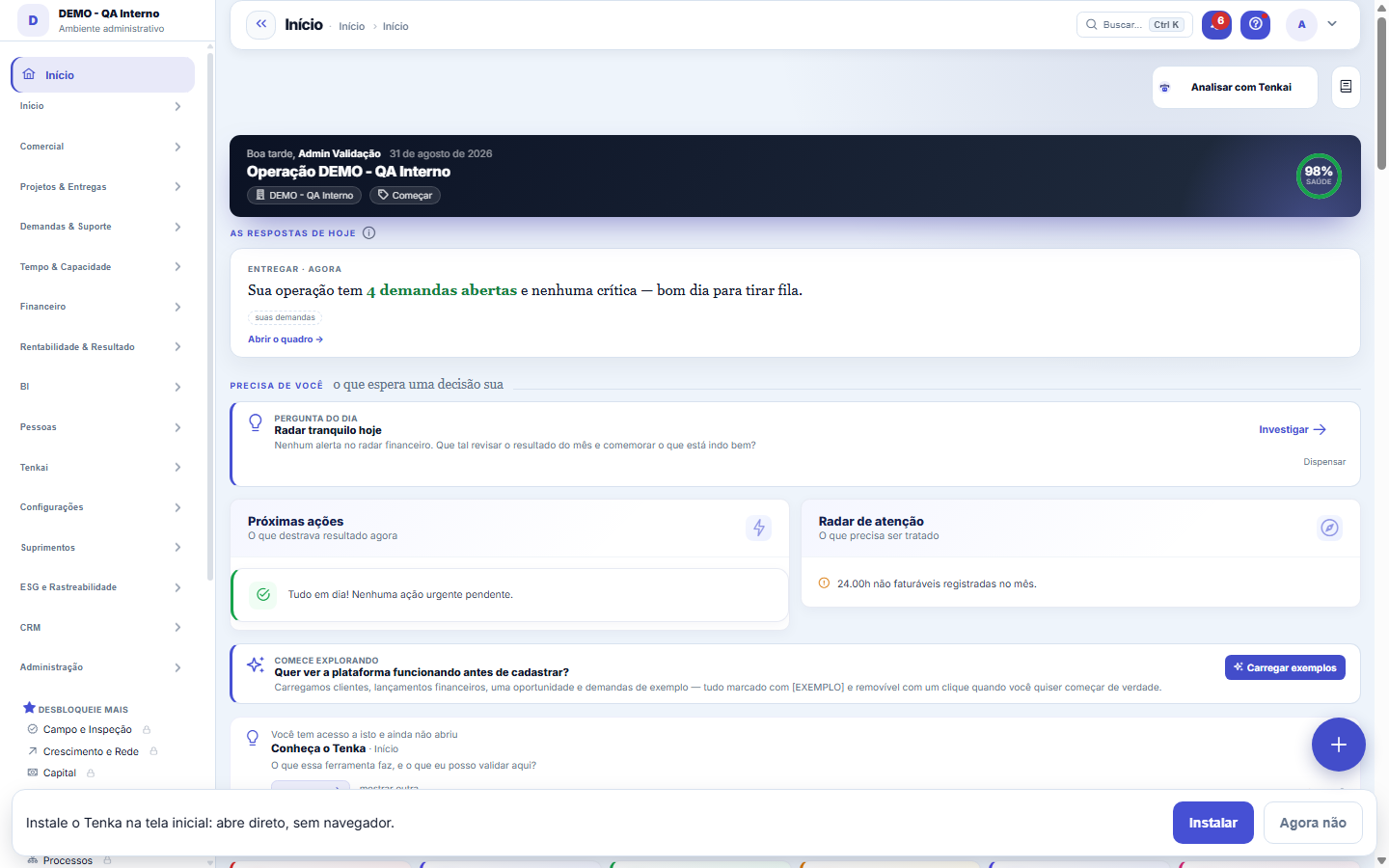
What you find on this screen
A portrait of the screen, read from the screen itself — it changes when the screen changes.
Available actions
Load examplesGenerate plan from this assessmentDismissRemove sample data
Form fields
saúdeÍndice de 0 a 100 que resume se a operação da empresa está saudável hoje, calculado dos indicadores do painel.
Demandas abertasQuantidade de tickets ou chamados que ainda não foram fechados.
Projetos ativosQuantidade de projetos em andamento, ou seja, que não estão concluídos nem cancelados.
Clientes ativosQuantidade de clientes com situação ativa na base da empresa.
Receita em abertoSoma dos lançamentos a receber que ainda estão em aberto, sem baixa.
Vencido (a receber)Soma dos recebíveis em aberto cuja data de vencimento já passou, ou seja, a inadimplência.
A faturar (marcos)Valor de marcos de projeto concluídos ou previstos que ainda não foram faturados.
Orçamentos pendentesQuantidade de orçamentos de demanda aguardando aprovação do cliente.
Excedente a cobrarValor das horas trabalhadas acima do contratado que ainda não foram cobradas.
Contratos sem reajusteQuantidade de contratos vigentes que estão há mais de 12 meses sem reajuste de preço.
Faturamento no mêsTotal faturado no mês corrente pela empresa.
Margem do mêsPercentual de margem do mês corrente, apurado pela base financeira de apropriação.
Start here
Para que esta tela existe
Executive view of the platform — this is the role of the "Home" screen within the platform.
Your stall at a glance
On a stall account, Today shows the whole operation: sales today and this month, what was left (sales minus item cost), who owes you, the month’s cash, how you get paid, stock, best sellers, orders and production. Below, the charts: 6 months of in and out with the running total, who has owed the longest, the best weekday and the month day by day. Click a number to open the list behind it.
How to
Sample data: load and remove whenever you want
In a new account, Home offers "Load examples": customers, financial entries, an opportunity and requests — all tagged with [EXEMPLO] and removable with one click on "Remove sample data". They let you see the screens alive before typing anything. Examples only go into a base that is still empty, so they never mix with real operations; and, after loading or removing them, the dashboard numbers update right away.
Two-minute videos
The Two-minute videos strip shows the first steps on screen, recorded on the demo account. Each video opens in the Help Center with captions in your language and the transcript right below; nothing plays on its own. When a screen shown in the video changes, the video is taken down until it is recorded again, so it never shows a screen that no longer exists. The strip only appears when there is a published video.
Rules
The "Active customers" card counts the same as the Customers list
The card's number and the list it opens use exactly the same yardstick: active customers that your account can see. A customer is a record of the ACCOUNT (the tenant), not of the company you are in — in a group with several companies, the card shows the whole account's portfolio, just like the list. Before, the two counts were different and the card could show 1 while the list showed 4.
O anel de saúde e as respostas de hoje
The ring at the top sums up the operation as a health percentage — the five-second reading of the day. Right below, the "Today's answers" cards bring ready-made interpretations with the sources behind them and a link to investigate the number on its source screen. The "Needs you" section gathers in one place everything awaiting a decision: the question of the day, the next actions and the radar alerts.
Quando o convite de dados de exemplo aparece — e quando não aparece
The "Load sample data" card only appears while the whole ACCOUNT is practically empty: fewer than 5 customers and fewer than 10 financial entries adding up ALL the account's companies, not just the one open on screen. That is how it came to be measured, so that a new company created inside an account that already operates doesn't receive fictitious data by mistake. Everything it creates is tagged with [EXEMPLO] in the name and goes away all at once with the "Remove sample data" button, which appears in place of the invitation after loading.
How to choose what notifies me, and where
Open the bell (top of the screen) and click the settings icon next to "Notifications". The grid shows each type of notice in rows and the three channels in columns: in the system, phone (push) and email. One click flips the cell and saves right away — there is no save button. Everything starts turned on; whatever you turn off stops arriving through that channel, and only that one. The company's rules (for example, SLA email) are still decided in Settings ▸ Notifications — they turn the channel on for everyone, and your preference can turn it off for you.
Upcoming due dates and your line of business maturity
In a Family account, Home shows the upcoming due dates (bills to pay and receive, card invoices and documents in the next 30 days, with overdue ones in red). Maturity measures what your line of business does: the household by accounts, people, entries, budget and rules; apparel by spec sheets, sizes, orders, contractors, sales orders and shipping.
Needs you: the apparel exceptions
For apparel businesses, Home shows what needs action today: a subcontractor past the return date, a production order without material to start, a confirmed order that will be late for lack of stock and a variant that runs out in a few days. Each line takes you to the screen where it is solved. The same alert arrives on its own in the bell (and by e-mail or WhatsApp, if enabled in Tenkai monitoring), without repeating the next day.
The Home for your role
Tenka works out your role from what you do: whoever changes the company settings sees the owner’s day; whoever changes production orders sees production right now (efficiency, stoppages, subcontractors, cells in the red); the sales rep sees today’s target, sales and portfolio; the seamstress goes straight to "My pieces". In "See the Home as" you pin another role or go back to automatic.
Why some cards arrive later
Home shows the main numbers first. The supporting cards — what needs you, checklist, discovery, your role's home, exceptions and the next step — appear right after, with a grey outline in their place while they load. The screen does not freeze: you can already click on what is shown.
Everything in the language you chose
Status labels, notices and comparisons built by the system come out in the language chosen at the top of the screen. Texts saved for someone else (such as the closing narrative) come out in the reader's language. Saw a Portuguese word in the middle of another language? Tell support: it is a defect.
What comes out in your language — and what stays as written
Everything the system writes for you — notices, errors, validations, the Home radar, the guided plan, section titles, status options, months and Tenkai's answers — comes out in the language chosen at the top of the screen. What a person TYPED (a customer's name, a ticket description, a comment) stays as written. If Portuguese still shows up in a system text, it is a defect: tell support the screen and the sentence.
The top bar
In the top bar: search in the center (Ctrl+K) finds screens, records and actions; Ask Tenkai opens the assistant on the right; the gear brings quick settings — language, light or dark mode, menu by modules or by verbs and the interface size; the bell shows notifications; the question mark, the screen help; and your avatar, the account and Sign out. Below the bar, Back returns to the previous screen and the star pins the screen to the menu.
Using it on your phone
The first-use screens (Home, company settings, access, customers, items, entries, accounts, reconciliation, income statement, cash flow, contracts, proposals, Customer 360, CRM, connectors, diagnosis, implementation and the Tenkai council) work in the phone browser: the list search takes the full width, buttons sit on a line that wraps, every button and menu item is finger-sized and wide tables scroll inside their own box, without pushing the screen sideways. For day-to-day field work the app is still the way to go (Install on phone).
Help Center
The Help Center opens with the search and Tenkai answering with sources. Below it: tell it who you are (getting to know Tenka, just started, use it every day, customer of a user, developer) and the page goes to what fits you; the first steps and what helped others most; guides by topic with a quick filter; portals and access; news of the version and of the world; and, for those getting to know it, industries, implementation guides, integrations and plans. Every screen of the system is in "All screens by topic".
Help Center: the home page
Below the search, say who you are and the page goes to what fits you. Right after come the first steps, an example of how Tenkai answers (with the screen the answer came from) and what helped others most. The partner portal is inside Tenka: sign in with the user your reseller received and you land right on it.
Today: what each block shows
At the top, the greeting, the date and the account health. Below, four result cards: this month's margin (with last month's, this month's revenue and the overage to bill), what you have to receive (with the overdue part and the age of the invoices), your overdue items (out of everything in your name) and this month's billing (with active clients, contracts expiring in 30 days and contracts without adjustment). Then the operation counters: open and critical requests, opened and closed today, pending quotes, active projects and milestones still to bill. Every number opens the list behind it.
Your operation in Tenka
The Your operation in Tenka strip shows your company's main vertical, the country and how much of what your operation needs already works in Tenka, how much works by connecting to your system and how much is coming soon. Click any number to open the Map by vertical, where the same number appears module by module. The vertical is changed in Company settings › Activities and verticals.
Today: how the account health is calculated
The score starts at 100 and loses points in three pillars. Operations, up to 30: critical requests (3 each, up to 15), quotes waiting for approval (up to 8) and this month's hours that never become an invoice (1 per 10 hours, up to 7). Money, up to 45: a negative margin this month takes 15 (below −50%, 25), and overdue receivables over everything you have to receive take up to 20. Deadlines, up to 25: the share of items in your name that are past due. Without permission to see values, money is left out and the score is based on the other two. 70 or more is good; 30 to 69, needs attention; below 30, critical.
Health of your areas
Each area you can open gets a light: the current number, the status (on track, attention or critical) and the shortcut to that area's screen. The worst comes first; the first eight are in view and the rest under See all areas. Account health, at the top, is the average of these areas, and the bars next to it show the three that weighed most. Areas you cannot access do not count; people who cannot see amounts do not get the money areas. Below are your modules, each with how many screens it opens. Looking for a specific screen? Use search (Ctrl+K).
Account health in Tenkai and BI too
The ring's score is the same in three places: here, in Tenkai's answer (ask "how is my account health?") and in the BI panel, in the Account health (Today) source. Everywhere it counts only the areas you can open, and people who cannot see amounts do not get the money areas. Tenkai also says which areas pulled the score and takes you to each one's screen.
Your Home: one way in per role
Home is the only way in. The "Your Home" strip shows the sections for your role — administration, finance, sales, operations, HR or field —, worked out from what you do in the system, and the old start screens (My week, What I answer for, Inbox, Discover, Account view, Records) became cards in that strip: they open with all the content they had. On a phone, the way in is the phone Home; customers come in through the portal dashboard.
One Tenkai, with channels
The assistants with people's names (Ana for collections, Otto for processes, Fabiana for tax, Vera for sales, Caio for purchasing, Cássio for reconciliation) and the daily notes (your day, number of the day, tips, council, radars, Watch) are now Tenkai channels: the same assistant, and the channel tells you the subject — "Tenkai · Collections", "Tenkai · Watch". You choose how each channel alerts you in My preferences › Notifications.
The "?" opens the Help Center on the screen’s article
In the "?" at the top, Help Center opens the Help Center right on the article of the screen you are on, with a button to go back to it. In the screen help, Open in the Help Center takes you to the same article, with the frequent questions and the related screens. A record’s detail screen opens the same article as its list.
Open the screen a Tenkai answer came from
At the end of every answer with figures, Tenkai shows where the data came from as a button with the screen name, for example Payables and receivables. The button opens the screen in another tab, already filtered by the question, and the conversation stays where it was. When the answer comes without the AI wording, a one-line notice says why.
Today for the owner, the salesperson and the cashier
At the garment maker, the owner sees four numbers (sold today, cash on hand, owed to workshops, orders waiting for fabric), each leading to the screen that adds it up, and three buttons: Sell, See my stores and Ask Tenkai. The salesperson sees today's target and sales, the catalog with stock and WhatsApp. Whoever only operates the phone register goes straight into it.
The owner’s numbers: fines, subcontractor rating, collection and predictive alert
On the owner’s strip, "open retailer fines" adds up fines still open, by amount minus what was recovered; "subcontractors rated D or E" counts each subcontractor’s latest risk rating; "still available to buy in the collection" is the budget minus the committed amount of the most recent collection plan with a budget; "machines with a predictive alert" are those over the threshold now. Click the number to see the list that adds it up.
Frequently asked questions
Que pergunta do dia a dia se responde aqui
"Onde eu vejo início?" — quando essa pergunta aparecer, é nesta tela que ela se responde.
Por que aparece uma faixa de período de teste no topo?
When the company is on a trial period, a banner at the top of the dashboard shows the exact situation: how many days are left, whether it is the last day, whether it ends today, whether the trial has expired or has no set deadline (in which case the guidance is to contact support). In a company with an active plan the banner does not appear. It is informational: the dashboard keeps working normally while the trial is in effect.
Abri pelo celular e caí em outra tela — é normal?
Yes. On a mobile phone the dashboard automatically redirects to the pocket app, which is the experience designed for small screens. The redirect respects the access profile and the choice of those who prefer the full version: anyone who turns on desktop mode on the device keeps seeing this dashboard. If you landed on the pocket app and need the full dashboard, look for the desktop mode option.
Apareceram lançamentos com [EXEMPLO] no nome. Como tiro?
They are the demonstration data, created by the "Load sample data" card on Home. None of them is a real entry. To remove all of them, open Home and click "Remove sample data": the cleanup is done by the [EXEMPLO] marker itself, so it takes exactly what was created and touches nothing of yours. If you have already deleted some by hand, the button keeps working for the rest.
Did a screen’s help come in another language?
Each help text declares the language it was written in. The drawer shows the version in YOUR language; if there is none, it shows the Portuguese version (and translates it when a translation is registered). If a help text appeared to you in Spanish or English, it is because it only exists in that language — the Portuguese version can be written in Administration → Help, marking the language.
Por que o Início aparece antes dos números?
The screen is designed to appear first and fill in afterwards. In place of each card there is a gray outline while the information comes from the database; as soon as it arrives, the card takes its place. They are the same numbers as the corresponding report — nothing is estimated or rounded because of this. If a gray outline stays still for a long time, it is a sign of slowness in the connection to the database, and it is worth telling support.
Why does the dashboard show two revenue and two margin figures?
Because each figure has a different basis, and the label now says which. Receivables entered this month is what you entered this month that is still open. Revenue for the month and Margin for the month count revenue and expenses by this month's accrual date. The net margin alert uses the income statement, which starts from the accounting result. The figures do not have to match; each one answers a different question.
Why does the leftover say it looks bigger than it is?
Leftover is sales minus the average cost of the items. An item without a cost counts as zero, so the leftover looks bigger. Register the item cost in Items for the number to be right.
Was this article helpful?
Tenka Academy
Explore the AcademyStep-by-step learning paths for your industry, inside the platform.