

Sandbox environment
A test mirror for experimenting without touching production. What is done in the sandbox does NOT reflect on production, and vice versa; confusing the two means publishing a test or testing on real data — check which environment you're in before acting.
The screen
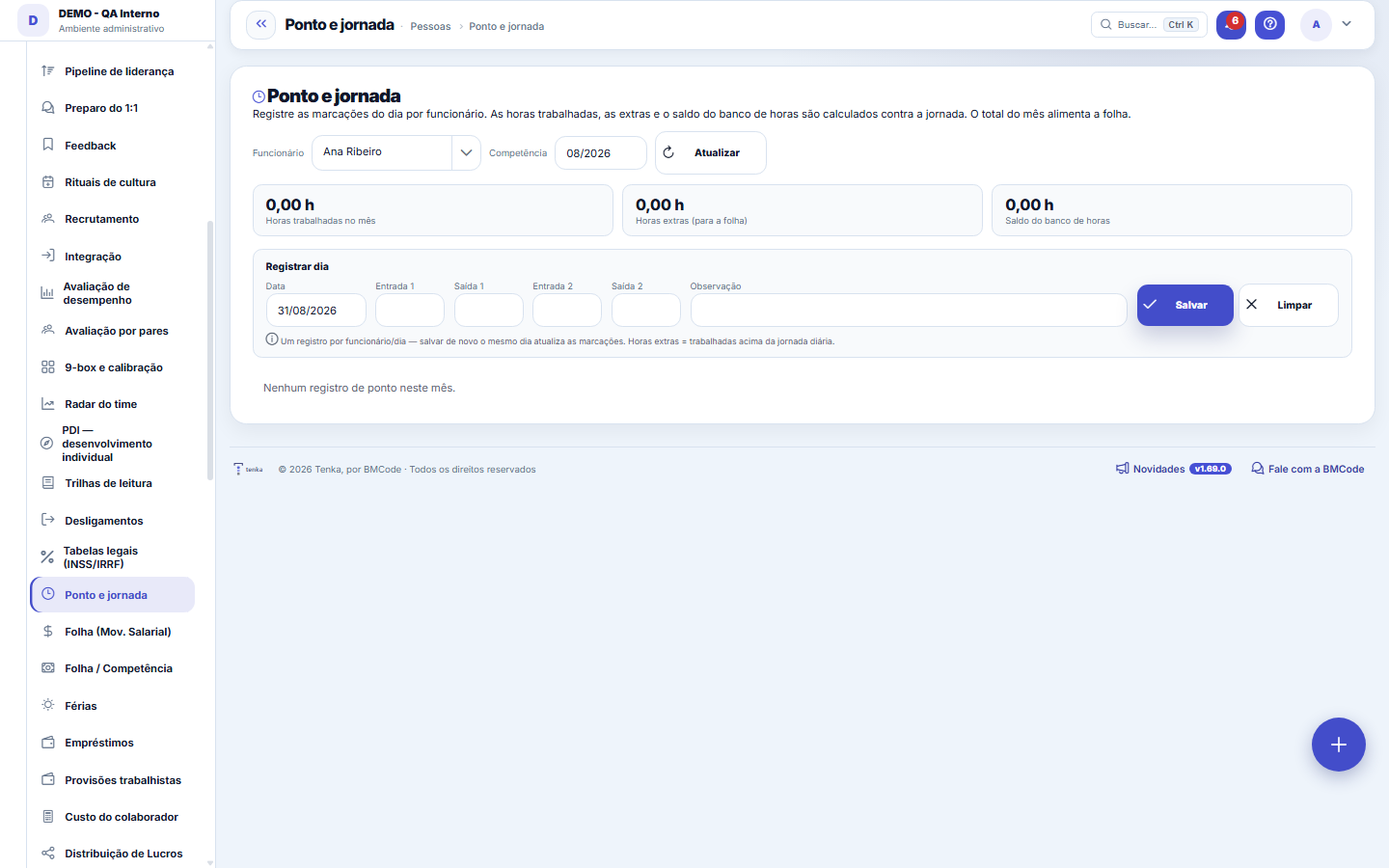
The real screen, in the theme you picked above.
What you find on this screen
A portrait of the screen, read from the screen itself — it changes when the screen changes.
Form fields
Funcionário*De quem é a marcação.
Data*O dia da marcação (um por funcionário).
BatidasEntrada e saída dos dois turnos.
Trabalhadas (h)Calculadas pela jornada.
Extras (h)O que passa da jornada e vai para a folha.
Saldo (h)Positivo ou negativo em relação à jornada.
ObservaçãoJustificativa ou nota do dia.
Start here
What this screen answers
Records and closes time clock entries, the basis for overtime, hour bank and absence deductions. What feeds the payroll is the CLOSED time record, not the punched one: an open entry at closing becomes zero — close the period before running the payroll.
O que esta tela faz
Daily time record per employee (clock-in and clock-out entries, with two shifts) and monthly calculation of hours: worked, overtime and hour bank balance — always against the employee's daily work schedule. One record per employee/day. The monthly overtime total is ready for the payroll to post.
One day, up to four punches
Choose the employee and the date and enter the punches (in and out of up to two shifts). On save, Tenka calculates hours worked, the overtime that goes to payroll and the balance from the employee’s schedule. One entry per employee and day: saving again corrects the same day.
How to
The numbers on top, the records below
The panel’s indicators stay at the top; below, the standard list with the records behind them — search, filters in the side panel, saved views, columns and export. Click a record to open its form.
Save, browse and undo
Save stores without leaving the form (Ctrl+S); Save and close returns to the list; the header arrows move from one record to the next. Delete sends the record to the list’s trash, from where Undo brings it back.
Standard list and form
The screen became the standard list: search, filters, saved views, columns, export and trash with Undo. Click the record (or New) to open the form, with the detail tabs when there are any.
Rules
Um registro por pessoa e dia, com dois turnos
Each day holds a single record per employee, with up to four entries: clock-in, out for the break, back from the break and final clock-out. Made a mistake on an entry? Use the row's pencil to edit that day's record instead of creating another. Hours worked, overtime and the hour bank balance are always calculated against the employee's daily work schedule — that is why the employee record needs the correct working hours.
Import the clock's AFD file
Export the AFD from the certified clock (Ordinance 671 or 1,510) and choose the file under Import the time clock file. Each punch is matched by the employee's CPF; the older file, which carries the PIS, comes back counting punches without an employee. A day that already has records is kept as is. Up to four punches per day become in and out times; the rest go into the day's note. If the file has a sequence gap or a malformed line, nothing is saved and the message names the line.
Frequently asked questions
De onde sai a hora extra que a folha lança?
From the month's calculation against the daily schedule: whatever exceeds the schedule becomes overtime, and the cards at the top show the total hours worked, the total overtime and the hour bank balance for the selected period. The monthly overtime total is the number that is ready for the payroll to post. Change the employee or the period in the selectors at the top to calculate another month — the table lists the whole month, day by day.
Was this article helpful?
In the same module: Payroll and compensation10
Payroll periodA month's payroll: employees with earnings, deductions and net pay, the events and the contractor's service i…Convenções coletivasA convenção do sindicato com vigência, data-base, piso geral e por função, a garantia de quem ganha por peça,…Employee costThe X-ray of cost: gross salary × real cost with charges, side by side — "how much the margin lies" without t…Profit DistributionThe formal distribution of results among the partners: accrual period, amounts per partner, and automatic pos…Loans and advancesControl of what the company has advanced to the employee and how it is paid back: installments, outstanding b…Salary movementEach employee's compensation history: how much they used to earn, how much they now earn, when and why.Payroll by periodLightweight monthly payroll: events (salary, bonus, deductions) per person → generates the period's "payable"…VacationVacation scheduling and record-keeping: periods, status, and the effect on team capacity planning.
Tenka Academy
Explore the AcademyStep-by-step learning paths for your industry, inside the platform.