

Service on your phone
Tenka's chat on your phone: which conversations show up, what happens when you open one of them, and where your reply goes out through.
The screen
The real screen, in the theme you picked above.
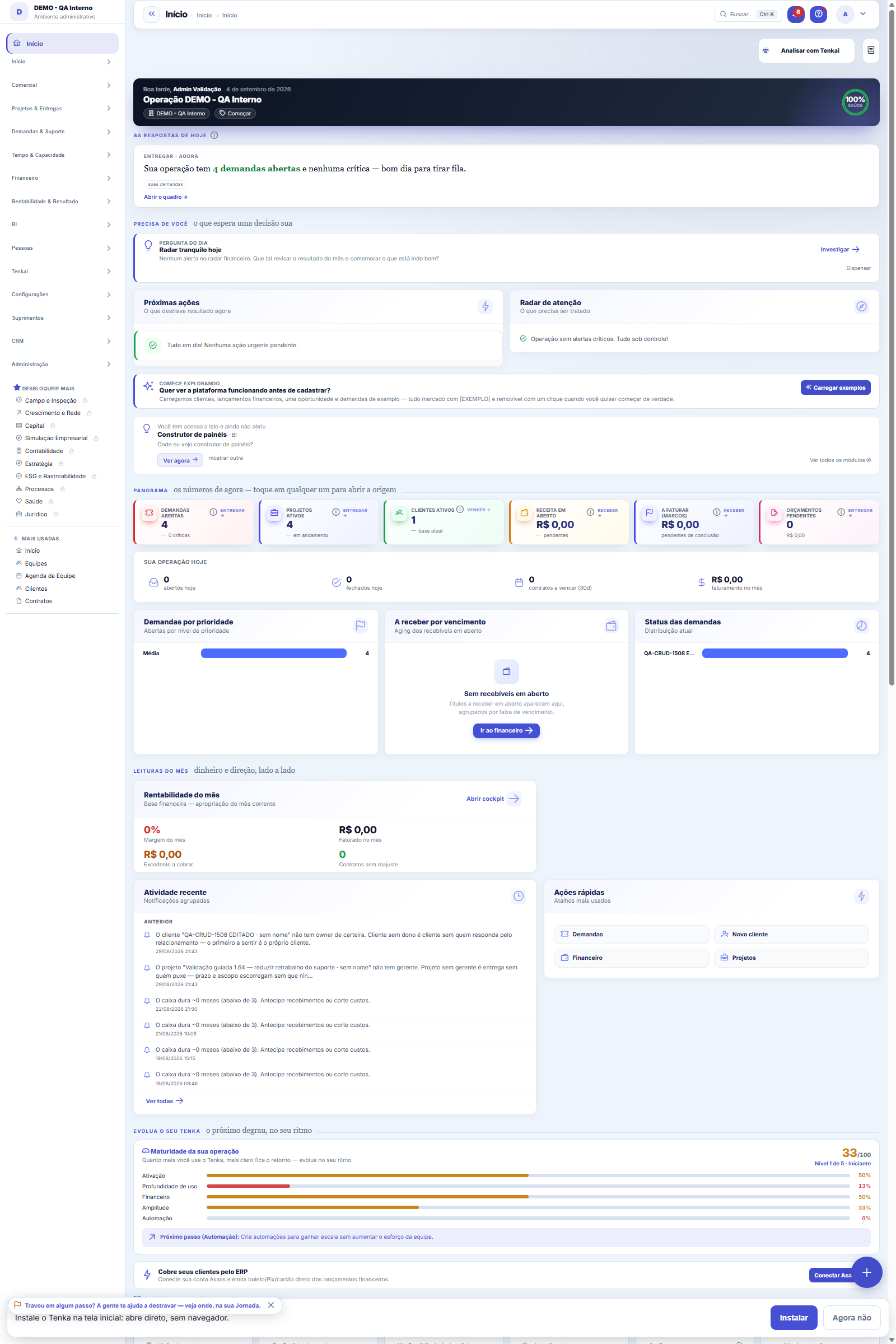
What you find on this screen
A portrait of the screen, read from the screen itself — it changes when the screen changes.
Available actions
SearchRequest inclusion
Start here
O que esta tela mostra
Each card is a vertical in the catalog — field report and inspection, legal, clinic, textile/ESG. Those marked as included are already in your account (their screens appear in the menu); the others are available for purchase.
Para que esta tela existe
The catalog of verticals (field report, legal, clinic, textile/ESG): what your account already has through its industry and what's available for purchase, with the inclusion request going straight to sales. A vertical is a module sold separately on top of the plan. — this is the role of the "Verticals" screen within the platform.
How to
How to request a vertical
Click Request inclusion on the card. The request is recorded with your account details and goes straight to the sales team — nobody needs to open a ticket or send an email by hand. A repeated request isn't entered twice.
Veja as telas de cada vertical antes de pedir
Each card has the "See screens" button, which expands the list of screens that module delivers — it's the way to know what comes with it before requesting the purchase. The badge states the status in YOUR account: "Included" means the vertical is already part of what you contracted; "Available" is what exists in the catalog and can be contracted separately, because a vertical is a module sold on top of the plan. The Request button sends the inclusion request straight to sales, without leaving the screen.
Rules
The tree of your operation
At the top of the screen, the tree shows your company’s verticals, the path to them and the neighbouring ones you can request (the sisters and daughters of yours). Whatever has nothing to do with your operation stays hidden; to find another one, search by name or by a word from your business and, if nothing shows up, choose from the list. The cards for every module are still below, under All catalogue modules.
Already works, by connecting to your system, or coming soon
When you pick a vertical, the panel shows what Tenka does for it in your company’s country, module by module: Already works in Tenka (the screens exist), Works by connecting to your system (Tenka fetches the data from the system you already use) and Coming soon (not available in your country yet). Whatever is not yet in your account has the Request this button: the request reaches BMCode, which replies in your language. The vertical suggests; what unlocks screens is still the plan and the profiles.
Por que uma vertical não aparece no meu menu
A vertical is a module sold separately, on top of the plan: its screens only enter the menu of those who have it. It's not a defect — it's the design. What your account has comes from the company's industry and the contracted verticals.
O que acontece quando você pede uma vertical
The request is recorded in the email queue and goes to the platform's sales team, with the name of the account and of who asked — a vertical is a module sold separately, so the next step is commercial, not technical. An identical request still awaiting handling isn't entered twice: the queue is the memory.
Frequently asked questions
Do vertical names show in my language?
Yes. The name of each vertical and each operation format follows the language chosen at the top of the screen: here, in the map by vertical, when creating the account and in Tenkai's answers. When a new name has not been translated yet, it shows in Portuguese until the translation arrives.
Contratei — quando aparece?
As soon as sales adds the vertical to your account, its screens enter the menu automatically, without a new deploy and without needing to sign out and back in more than once.
Por que duas telas com nomes tão parecidos
Because they're the list and the record of the same thing. "Installed assets" (plural) is the LIST — where you search, filter and export; "Installed asset" (singular) is the RECORD — the sheet of one piece of equipment. The same goes for Customer sites / Customer site, Inspection templates / Inspection template and Maintenance plans / Maintenance plan. Since 13/09/2026 each item in the showcase shows this badge and, right below the name, what the screen solves; the full text appears on mouse hover.
Was this article helpful?
In the same module: Settings7
Cadastro próprioA tela dos cadastros que a SUA empresa construiu: as abas, os campos e as regras aqui foram desenhados por vo…Company fieldsFields your company creates in any table: they show on the form, as a list column and filter, in exports, BI …Campos das telasComo ajustar os campos de uma tela para a sua empresa, sem mudar o padrão da plataforma.Flow by natureThe nature × day-of-month matrix: what came in and went out (up to yesterday) and what will come in and go ou…Tenka mapThe snapshot of platform adoption: in use, contracted but unused, and what exists outside the plan.Matriz de acessosA foto completa de quem vê o quê. Some leitura: para conceder ou revogar, use a tela de Acessos.Studio de ObjetosComo criar um cadastro próprio, com os campos que a sua operação usa.
Tenka Academy
Explore the AcademyStep-by-step learning paths for your industry, inside the platform.