

Risk matrix
Maps risks by probability and impact to prioritize treatment. What matters is the risk TREATED, not the one listed: a risk in the red zone without an action plan is a record that you knew and didn't act.
The screen
The real screen, in the theme you picked above.
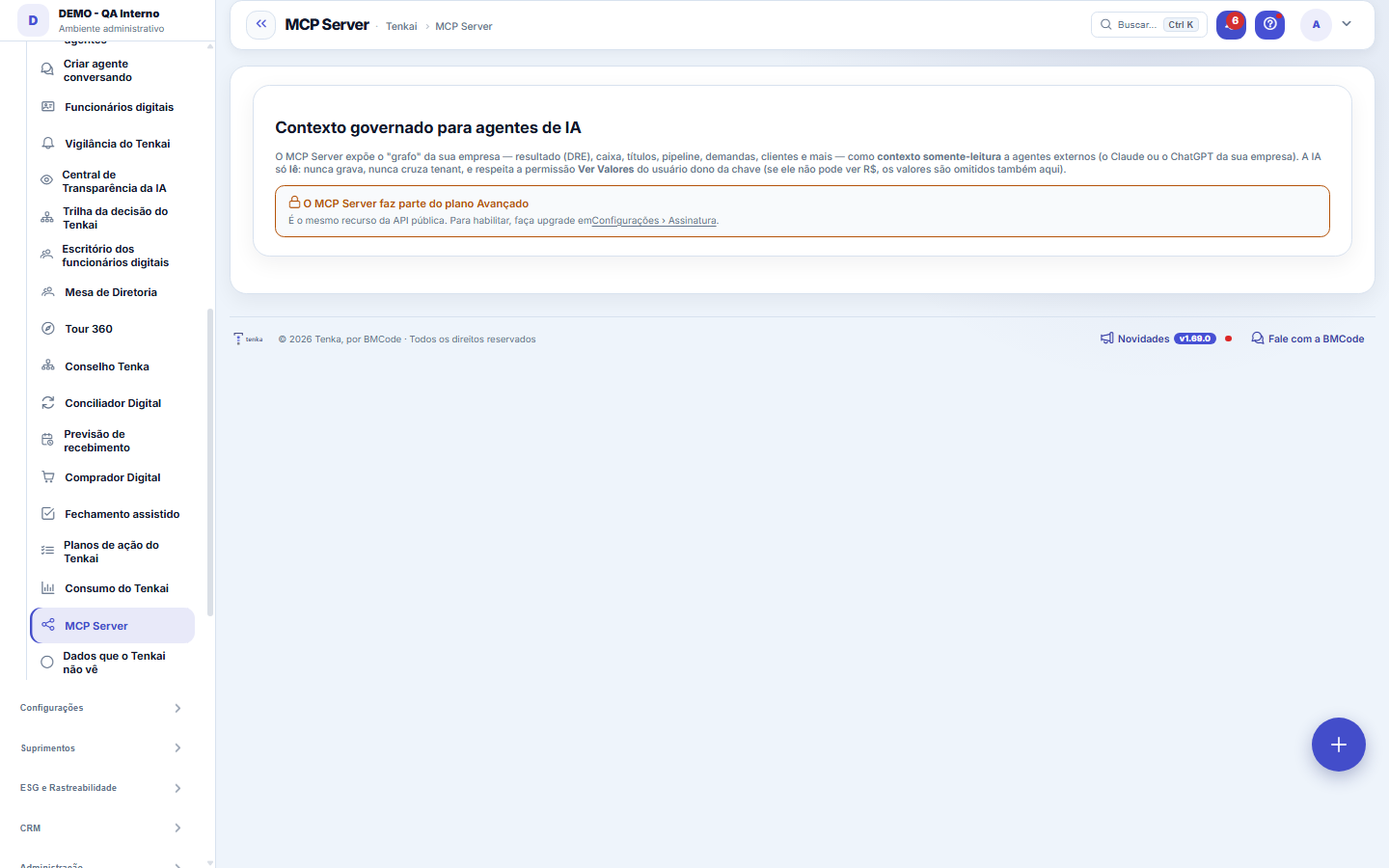
What you find on this screen
A portrait of the screen, read from the screen itself — it changes when the screen changes.
Available actions
ConfigureCancelSave
The list shows
KeyPrefixMCP scopeAction
Form fields
NomeQual ferramenta ou assistente usa esta credencial de MCP.
PrefixoInício da credencial, que permite identificá-la no histórico sem revelar o segredo.
Escopos de MCPQuais ferramentas do Tenka esta credencial pode chamar. É aqui que se limita o assistente.
Escopos de escritaEm quais áreas o assistente pode gravar, e não apenas consultar.
AtivaDesligar aqui corta o acesso do assistente imediatamente.
Último usoQuando o assistente usou esta credencial por último.
Revogada emData em que a credencial foi cassada e parou de funcionar.
Start here
O que é esta tela
MCP is the standard that lets an AI assistant — a general-purpose chat assistant, for example — READ your company's context here inside to answer your questions, without you having to copy and paste any report. On this screen you create the key the assistant will use, choose what it can read and see when it last read. The question the screen answers is: "what can an outside AI see of my company, and who authorized it?".
Rules
MCP é sempre SOMENTE LEITURA
No MCP scope writes, changes or deletes any of your data. The assistant reads what you've released and answers; every change keeps happening through the screen, with your login and your audit trail. It's a design decision, not a setting: there's no button to "let the AI write" on this screen.
A chave vale por si — trate como senha
Whoever has the key has its scopes, without needing your login. Don't paste the key into a group channel, issue, shared spreadsheet or repository. If you suspect exposure, revoke it immediately: revocation takes effect at once and the "last used" column shows whether the key was used after you became suspicious — that's the information that closes (or opens) an incident.
Connect from Claude, ChatGPT or Copilot
Copy the connector address from this screen and paste it in the store: in Claude, Settings › Connectors › Add custom connector; in ChatGPT, Settings › Apps & Connectors › Create, in developer mode, with OAuth authentication; in Copilot Studio, Tools › Add a tool › Model Context Protocol. The person signs in with their own Tenka login. The first time, the app shows up as pending in Connected apps, and whoever administers the account approves it. Store connections only work once the platform opens the stores for the account; until then, the API key on this screen still works.
Frequently asked questions
Como eu ligo isso, na prática?
Three steps. (1) Here, create the key and tick the scopes — start with only what you need; you can widen it later. (2) The key appears ONCE on screen, at the moment it's created: copy it then, because the platform only keeps its cryptographic digest and can no longer tell what it was. (3) Paste the key into your assistant's MCP configuration. If you lose the key, there's no recovery — revoke it and create another, which takes ten seconds.
What does each scope unlock?
Each scope is a slice of context, and the name says which slice: `empresa.ler` (identity, industry, structure), `contrato.ler` (portfolio and contracted amounts), `demanda.ler` (requests, status, time entries) and `financeiro.resumo` (totals and indicators — summary, not entry by entry). Good practice is the usual: release the minimum that answers your question. An extra scope doesn't improve the answer and widens what leaks if the key is exposed.
Was this article helpful?
In the same module: Platform and security38
Connected help screenAnchor screen of the detail dictionary. Does not appear in the menu.Platform accessThe record of when the platform's support team accessed your account, what they did and with what authorizati…White-spaceSee what's left to sell to those who are already customers — by cross-referencing the installed base with wha…Template itemAnchor screen of the detail dictionary (template items). Does not appear in the menu.Assistente fiscalQuatro passos para a nota sair do Tenka: estado, regime, código de segurança (CSC) e certificado A1 — com a r…ShippingControls the picking and dispatch of what was sold. Shipping confirms that the merchandise actually left: a m…Position bandAnchor screen of the detail dictionary (position bands). Does not appear in the menu.Blog — WordPress connectionWhere you connect your company's WordPress and teach the AI to write like you: the editorial line (what to ta…
Tenka Academy
Explore the AcademyStep-by-step learning paths for your industry, inside the platform.