

Technographic radar
Shows which technologies and products prospects already use, to target whoever fits. The signal is a clue, not confirmation: the company may have switched tools since the last capture — use it to prioritize, not as the truth.
The screen
The real screen, in the theme you picked above.
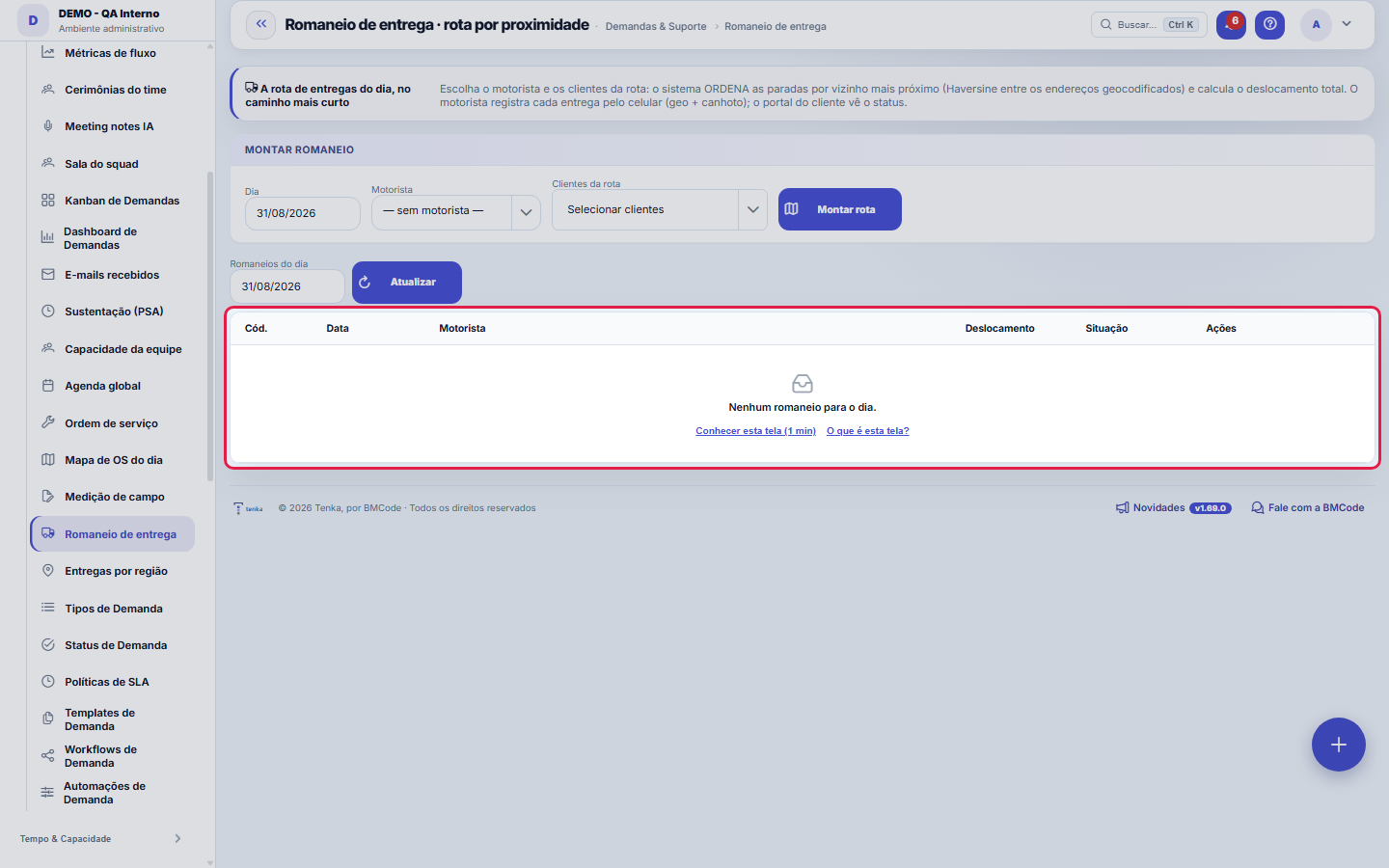
What you find on this screen
A portrait of the screen, read from the screen itself — it changes when the screen changes.
Available actions
Build routeRefreshView routeStart
The list shows
CodeDateDriverTravelStatusActions#CustomerFrom the previous one
Form fields
DataDia da rota. Um romaneio por dia e por motorista.
SituaçãoEm planejamento, em rota ou encerrado.
Km totalQuilometragem total da rota.
Start here
What this screen answers
Groups items and deliveries into a load to route and check. The packing list is what the driver takes: an item outside it is not checked at delivery — whatever doesn't go in here travels without control.
O que esta tela faz
The day's delivery route by proximity: choose the driver and the customers and the system ORDERS the stops by the shortest path (nearest neighbor, by geographic distance between the customers' geocoded addresses), calculating the total travel. The driver records each delivery on the phone (geolocation + proof of delivery) and the customer portal sees the status.
How to
The status of the load list and of each stop
The packing list starts as PLANNED; the Start button puts it IN_ROUTE (the button only appears while it's planned) and, once the deliveries are completed, it becomes COMPLETED. Each stop has its own status: DELIVERED or FAILED, recorded by the driver on the phone with geolocation and proof of delivery — and the failure becomes a stockout tracked on the Deliveries by region screen and in the 360 Center. In the route detail, the first stop shows "departure" and a stop without a geocoded address shows "no geo" in place of the distance.
Rules
Montar a rota: você escolhe quem, o sistema ordena o caminho
In the "Build packing list" block you define the day, the driver and the route's customers (the customer picker has search and accepts several). When you click Build route, the system ORDERS the stops by nearest neighbor — smallest geographic distance between the customers' geocoded addresses — and calculates the total travel in km. The order of the stops, therefore, is not the order in which you checked the customers: it's the shortest path the system found between them.
Frequently asked questions
Onde vejo o detalhe de uma rota já montada?
Click the packing list code (first column) or the row's View route button: it opens the dialog with the complete route — driver, total travel and the stops in the calculated order, each with the customer, the distance from the previous stop and the status (delivered, failed or pending). It's the view for following the day in progress without calling the driver, and the customer sees the status of their delivery through the portal, without needing to ask.
Was this article helpful?
In the same module: Field and operations8
Shipping centerThe queue of what has to go out, through the four methods, from dispatch to proof of delivery.HomeThe first screen answers three questions in order: what requires a decision today, how the month is going, an…Own fleetVehicles, maintenance, refueling and the cost per km of own delivery.AI Transparency CenterThe auditable record of everything the AI did, suggested, or decided: who asked, with what data, and what cam…Vertical readinessThe "zero no" scoreboard for the platform's 5 verticals (PSA/software house, field services, retail/leasing, …Customer mapPuts your customer portfolio on the map to plan routes, territories, and coverage. Addresses are geocoded fro…Tenka AcademyChoose the track for your role and follow the lessons — each one points to the real screen where you practice…Picking TVThe queue of orders to pick on a warehouse TV: the roll to take or the rib to cut and the state of each line,…
Tenka Academy
Explore the AcademyStep-by-step learning paths for your industry, inside the platform.