

Painéis
Abre um painel montado pela sua empresa. Os filtros do topo valem para todos os componentes de uma vez.
The screen
The real screen, in the theme you picked above.
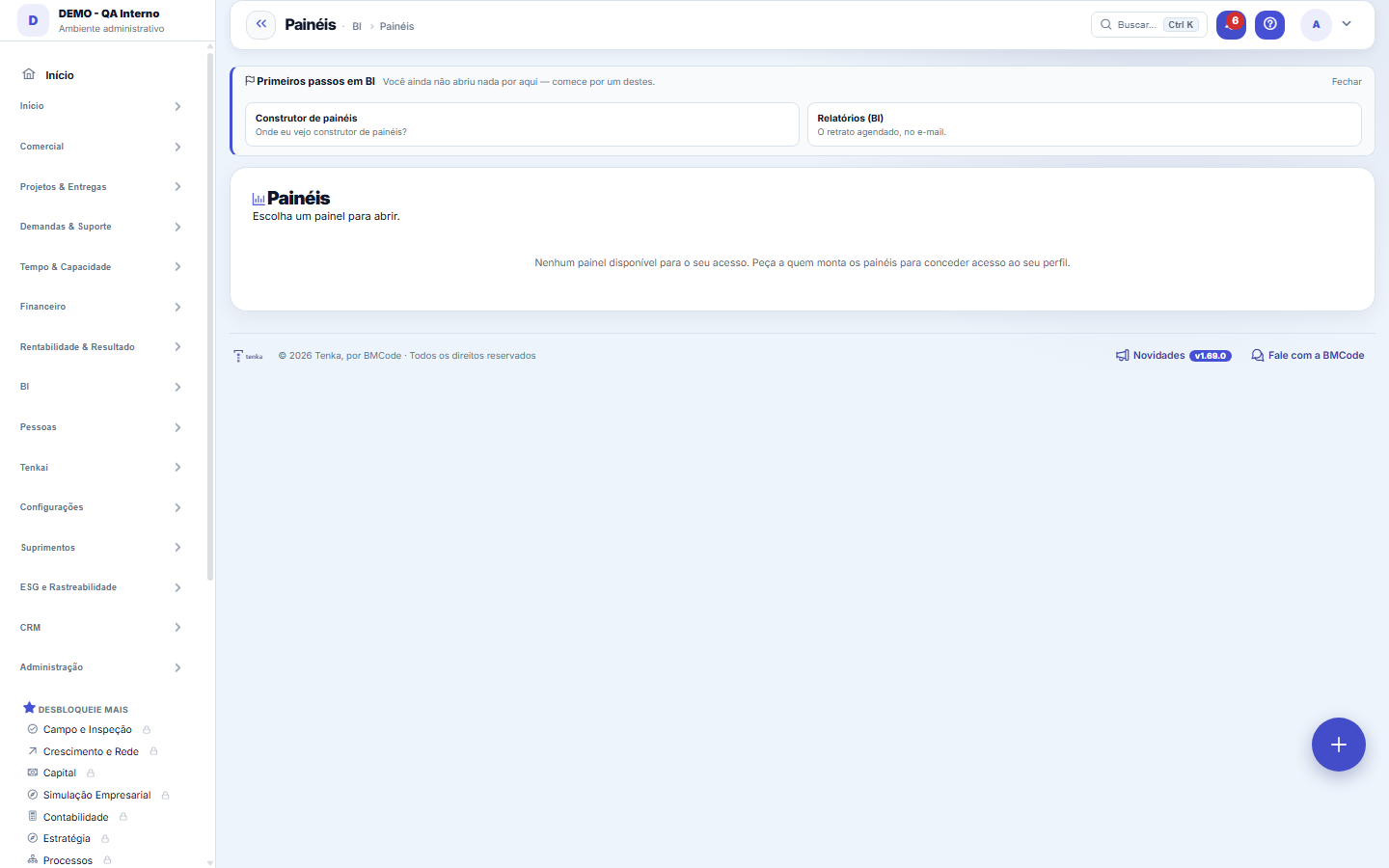
What you find on this screen
A portrait of the screen, read from the screen itself — it changes when the screen changes.
Available actions
Full screenExport dashboard (PDF)Get this dashboardPrint (visual)FilterApplyClearSubscribeClose
The list shows
ChannelFrequencyDestinationLast sent
Form fields
NomeComo o painel é chamado no menu e nos envios por e-mail.
DescriçãoQue pergunta este painel responde, para quem abre saber se é o painel certo.
PublicadoPainel não publicado só aparece para quem o está montando.
AtivoPainel inativo sai do menu sem perder os gráficos já montados.
OrdemPosição do painel na lista, para o mais usado ficar no alto.
Frequência do envioDe quanto em quanto tempo o painel é enviado por e-mail sem ninguém pedir.
DestinatáriosPara quem o painel agendado é enviado.
Último envioQuando o painel foi enviado por último. Data velha com agendamento ligado é envio falhando.
Modo TVPainel em modo TV gira sozinho na telona, sem menu e sem clique.
Start here
O que você está vendo
A dashboard built by your own company in the Dashboard builder. Each box is a component with its own slice; the top filters, when they exist, apply to all of them at the same time.
How to
O filtro fica guardado para você
The value you leave in the top filters is remembered in your account, as on list screens. Next time the dashboard opens already on your slice, without you filtering again. Clear brings back the full view.
Analyze with Tenkai
The Tenkai button answers about this dashboard's numbers: for each component it knows the source, the filters, the calculation and the on-screen result — the calculation record. Ask "why did this number drop?" or request an executive summary. It only sees what you see: values hidden by View Values don't reach the AI.
Click to filter, click the chip to undo
Click a bar, column or slice: that value becomes a filter for the WHOLE dashboard and appears as a chip at the top. The chip's X undoes it. A component whose source doesn't have the field warns that it wasn't filtered — as with the top filters.
Receber este painel — por e-mail ou WhatsApp, do seu jeito
The "Receive this dashboard" button creates YOUR subscription: channel (email or WhatsApp), frequency (daily, every Monday, day 1) and local time. The PDF arrives as you see the dashboard on screen — only the components your profile sees, with your row rules and with masked values if you don't have "View Values". Leave the destination blank to use the email/phone from your record. "Send now" sends a copy right away for you to check. Each person sees and changes only their own subscriptions.
Atualizado às… e "atualizar agora"
The stamp shows the time of the last data read. "Refresh now" reruns the live queries, without reloading the page. The dashboard on screen is ALWAYS live; the daily snapshot (at the time set in the BI.SNAPSHOT_HORA parameter) exists for the API/MCP (fonte=snapshot) and for the metrics' historical series — not for the screen.
Filter by text
Type " " (e.g. "store Downtown") and Apply: the matching global filter gets the value, without going field by field. "clear" removes them all. It is a text rule, not AI: if the dashboard has a single filter, the value alone is enough.
Rules
Quando um componente avisa que não foi filtrado
Components of the same dashboard can use different data sources. If you filter by a field that a component's source doesn't have, it shows a notice saying exactly that — instead of pretending it filtered. Prefer to believe the notice: its number is for the whole set.
Assinatura da pessoa × agendamento do painel
They are two things. The SCHEDULE (in the builder, dashboard tab) belongs to the dashboard: a list of emails, no filter, with visible values — whoever builds it decides. The SUBSCRIPTION belongs to the person: each one chooses channel, time and frequency, and receives with their own permission. If the dashboard stops being published, subscriptions stop on their own. A send failure (no phone, no active WhatsApp channel) is written on the subscription's row and Tenkai answers "why didn't I receive the dashboard?".
No WhatsApp, a resposta que tem gráfico chega com imagem
When you ask Tenkai on WhatsApp for something the screen would draw as a chart (series by month, ranking by customer), the text answer comes with an image of the chart. The image only goes out when the values are visible to you — if your profile doesn't have "View Values", only the masked text goes, never the bar with the number.
Account health (Today) source
Choose the Account health (Today) source in a card to have in the panel the same score as the Today ring (0 to 100). Without a metric, the card shows the score; with the Areas measured metric, how many areas counted. A table also shows the status and the areas that weighed most. The score belongs to whoever is looking: it counts the areas each person can open, so a panel sent by e-mail or opened by link does not show this card. Grouped charts do not apply to this source.
Filter the dashboard by talking to Tenkai
With the dashboard open, open Tenkai and write a command: "show only the Centro store", "filter region South" or "clear the filters". The filter goes into the dashboard itself, the numbers recalculate and the answer confirms what was applied. It only works with the filters the dashboard has; if Tenkai cannot tell which filter the sentence refers to, it answers normally instead of guessing. Questions ("which store sells the most?") do not change the dashboard. The "Why did it drop?" suggestion explains a drop through the calculation trail of each number.
Frequently asked questions
How do I put the sector comparison on a dashboard?
When creating a component, choose the source "Sector comparison (median and quartiles)": for each indicator it brings the status (published or waiting), the minimum number of accounts, the 1st quartile, the median, the 3rd quartile and your account's value. The source only returns rows when the account takes part in the comparison (Sector benchmark screen), and the sector numbers stay empty while the indicator is waiting for enough accounts.
Was this article helpful?
In the same module: Build your own view3
Painéis (BI)A lista dos painéis desta empresa: quem enxerga cada um, quem criou, quem mexeu por último. Abra para editar …BI reportA self-service report: source, columns, grouping, filters and sorting built without code, with preview, chart…Reports (self-service BI)Build reports without depending on IT: choose a curated source, mark the columns, see the result instantly, e…
Tenka Academy
Explore the AcademyStep-by-step learning paths for your industry, inside the platform.