

Releases
Delivery versions and packages: what goes into each version, publication status, and link to tickets.
The screen
The real screen, in the theme you picked above.
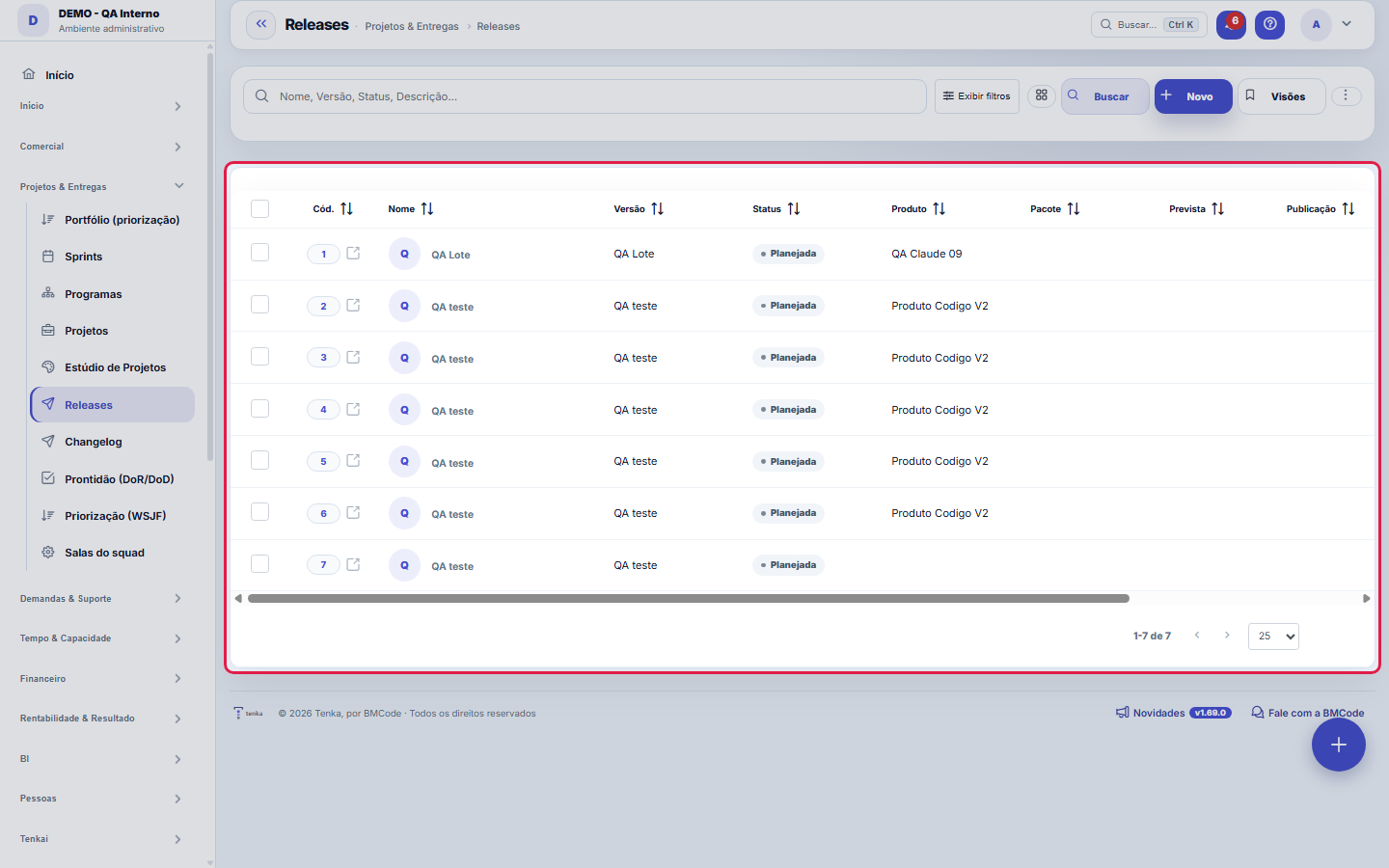
What you find on this screen
A portrait of the screen, read from the screen itself — it changes when the screen changes.
Form fields
Nome*Nome da release.
VersãoNúmero/identificador da versão.
StatusSituação da release.
ProdutoProduto da release (opcional).
PacotePacote do produto (opcional).
PrevistaData prevista de publicação.
PublicaçãoData/hora em que foi publicada.
DescriçãoEscopo/objetivo da release.
Start here
What you do here
Organize deliveries into releases (versions): link the resolved requests, set the date and track publication. Basis for communicating the changelog to the client.
Para que esta tela existe
Management of versions, delivery packages and publications — this is the role of the "Releases" screen within the platform.
O que esta tela responde
Groups what went into a version. It is the basis of the changelog the customer reads: a release without items communicates nothing, and an item without a release reaches no one.
O que esta tela faz
Records ONE release: the name, the version number, the product and the delivery package it belongs to, the status in the cycle and the two dates that tell the story — the planned one (the commitment) and the publication one (the fact). The description documents what the release carries. It is from here that changelog entries hang on a concrete version, answering "what went live and when".
How to
Filtros por URL: o rastro do número
"?q=text" opens the list already searched; "?fd_=value" filters by a dictionary field (status, product…), matching by label in relationship fields; "?excluidas=1" opens the trash. It serves to link a number to its set: a panel showing "releases published this month" can point to this list already sliced, and whoever clicks checks the rows that formed the total.
Prevista e Publicação contam duas histórias
"Planned" is the commitment: the planned release date, useful for following the delivery calendar. "Publication" is the fact: when the release actually went live. The gap between the two is the management information — delay or early delivery — and the "Status" field follows the version's cycle. Fill in the planned date when planning and the publication date only when it happens: recording an early publication turns a plan into a false fact.
Navegação e colunas do formulário do motor
This form belongs to the screen engine: use the previous/next navigation in the header to go through the releases in list order, without returning to the list for each record. The number of field columns (1, 2 or 3) is your preference, adjustable per screen — and the global default is in the user Preferences. The "?" button opens this help; Ctrl+K searches for any screen by name or synonym.
Rules
Quem enxerga esta tela
Access is governed by profile: whoever administers the account grants "view" (and the other verbs) on the Access screen. If someone on the team cannot find this screen in the menu, the path is to ask the administrator for the grant — absence from the menu is not a bug, it is permission.
Excel, PDF and CSV come from the whole set
This list's export covers the WHOLE SET of the current slice, not just the page on display: apply the filter first and export afterwards. The exported columns follow your per-user column preference. For recurring checks (e.g. releases still to be published for a product), save a view — it keeps the slice and avoids rebuilding the filter on every visit.
A visão salva guarda busca, filtros, colunas e ordenação
When you save a view with the Views button, it stores four things: the search text, the applied filters, which columns appear (and in what order) and which column the list is sorted by. Applying the view restores everything at once — including resetting the sort and the page you were on, so the result is exactly what the view describes. Views saved before this version remain valid: whatever they didn't store simply doesn't change when applied.
O erro de preenchimento aparece no campo, ao sair dele
Nas fichas, sair de um campo já dispara a conferência do que dá para conferir na hora: campo obrigatório deixado em branco e e-mail mal formado. O aviso aparece embaixo do campo e desaparece quando você começa a corrigir. Campo numérico não precisa de aviso: ele simplesmente não aceita letra enquanto você digita. Isso é conforto, não a validação final: ao salvar, o sistema confere tudo de novo do lado do servidor.
Uma anotação pode virar demanda
In the record's activity panel, each note has "Turn into request". The click creates a ticket with the note's text, who wrote it and the link to this record — nothing is retyped. Use it when the note is a request for action ("someone needs to review this"); the note stays where it was. The button only appears once the record has been saved; a read-only session (demo) doesn't create one.
Frequently asked questions
Que pergunta do dia a dia se responde aqui
"What went live and when?" — when that question comes up, this is the screen that answers it.
Como descobrir quem mudou um campo desta ficha?
Open the record and look at the Timeline on the right: it shows each change as "from one value to another", with the person and the date. When there are many changes, use the two filters at the top of the timeline — one by field, the other by person. The search runs in the database, so old changes show up just the same. You can also ask Tenkai: "who changed contract 482?".
Connected screens
EmpacotaDemandasDemandas resolvidas compõem a release.Comunica emChangelogA release publicada vira changelog para o cliente.
Was this article helpful?
In the same module: Customer deliveries1
Tenka Academy
Explore the AcademyStep-by-step learning paths for your industry, inside the platform.