

Tenka on Mobile
The mobile hub (installable as an app): the daily essentials — logging hours and approving — built for the thumb.
The screen
The real screen, in the theme you picked above.
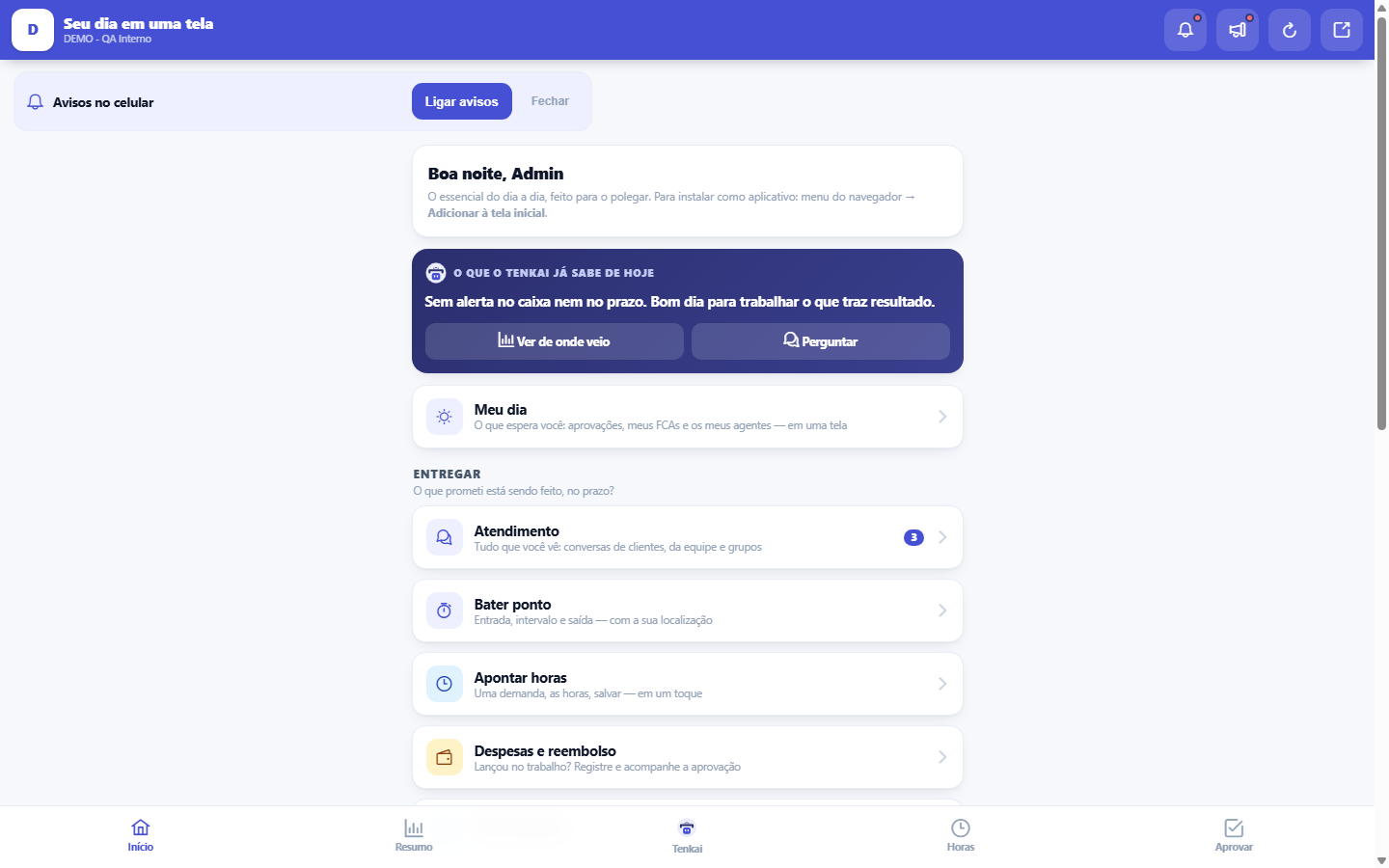
What you find on this screen
A portrait of the screen, read from the screen itself — it changes when the screen changes.
Form fields
Minhas aprovaçõesQuantidade de solicitações paradas esperando a sua decisão, mostrada no atalho.
Start here
What it's for
Devs log hours when closing a task; managers approve from an airport line. The two most frequent actions of the team, without opening the desktop version.
Why Tenka opened here
You came in from a phone, and Tenka now takes you straight to the pocket app — before, you had to find out it existed. The app isn't the whole system shrunk down: it brings what gets solved standing up, quickly, with one hand. Approve, log hours, clock in, record an expense, see what's waiting for you. Desk work stays in the full version.
How to
Voltar para a versão completa (e o Tenka lembra)
The arrow icon at the top opens the full version, and the choice is saved ON THIS device: the next logins from here go straight there. To return to the pocket app, use "Tenka on your phone" in your name's menu, in the full version. The preference belongs to the device and not to your account, because the same person usually uses the phone on the street and the computer at the desk — and what suits one doesn't suit the other.
Install on the home screen
Installed, Tenka opens like an app: without the browser bar, with its own icon and opening faster. On Android, Tenka itself offers installation from the second visit (dismissed it? it stays quiet for 30 days). On iPhone it's manual: tap Share, in Safari's bar, and choose "Add to Home Screen". Once installed, a long press on the icon opens direct shortcuts to Approvals, Time clock and Tenkai.
Icon shortcuts for your business type
With Tenka installed on your phone, press and hold the icon: apparel shows Log pieces, I stopped, Scan bundle and Tenkai; the household shows I spent, How much I have and Tenkai. The shortcuts follow the business type of the company you were in when you installed.
Rules
Install as an app
In your phone's browser: menu → "Add to Home screen" (Android) or share → "Add to Home Screen" (iPhone). Requires HTTPS.
Same rules
The mobile version uses the SAME engines as the full version: hour approval, contract consumption, approval limits and segregation of duties. Nothing bypasses them.
It doesn't replace the desktop
The hub brings together what works well with your thumb: logging hours, clocking in, approving, checking. Full records, reports and settings remain in the full version — and that's on purpose: sending you from your phone to a screen designed for a large monitor frustrates more than it helps. When you need something that isn't here, tap the icon to open the full version at the top; it's the same session, you don't have to log in again.
Um link recebido sempre abre o que ele promete
If you clicked an approval link from email or WhatsApp and had to log in, Tenka takes you exactly to that screen — the detour to the app only happens when nobody asked for anything. It's on purpose: a clicked link takes priority over any convenience of ours.
Sem internet, o app avisa — e não inventa número
Tenka stores the app's appearance (styles, icons, fonts) on your device, so it opens quickly even with a weak signal. What it NEVER stores is data: no balance, no list, no screen. Without a network, a screen appears saying so, and it goes away on its own when the signal returns. The reason is simple: here several people touch the same numbers at the same time, and yesterday's value looking like today's would be worse than waiting.
Help and tour on the phone
The "?" button at the top of every app screen opens that screen’s help, the same as on the computer. On the first visit to a screen that has a tour, the "Get to know this screen" invitation appears above the tabs; if you close it, it does not come back — the tour stays in the help.
Switch accounts on the phone
If you are in more than one account (the company and your household, for example), the selector just below the title, at the top of the app, switches accounts. The screen reloads in the chosen account.
Frequently asked questions
Looks outdated?
The hub's numbers — the message from Tenkai, the approvals badge, the update notice — are read from the server when the screen opens. If you decided something on another screen and the number here hasn't changed, it's an old snapshot: reload the page or go back to the home screen via the shortcut, and the read will refresh. Without internet, nothing updates, and the app warns you instead of making up a number. If the value still looks wrong after reloading, then it's worth reporting — it stops being cache and becomes data.
Was this article helpful?
Tenka Academy
Explore the AcademyStep-by-step learning paths for your industry, inside the platform.