

Log hours (mobile)
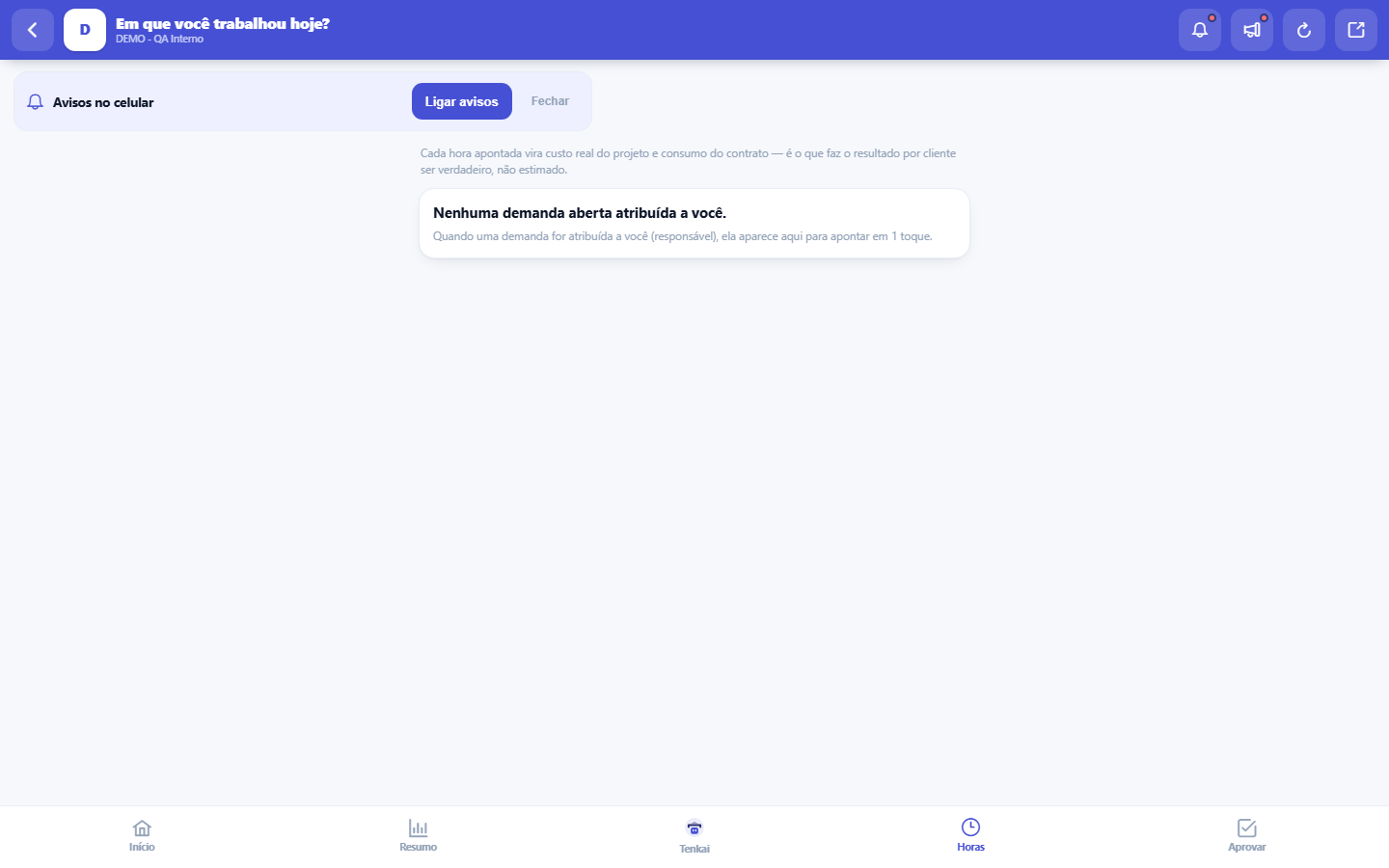
One-tap time logging: pick the task, confirm the time, done — made for the end of the working day, not the end of the month.
The screen
The real screen, in the theme you picked above.
What you find on this screen
A portrait of the screen, read from the screen itself — it changes when the screen changes.
Available actions
Approve (green)Approve with caveat (yellow)Reject (red)ClockLog
Form fields
Horas trabalhadasHoras apontadas na demanda, que viram custo real do projeto.
DataDia em que as horas foram trabalhadas, usado como competência do apontamento.
Start here
What it's for
An hour logged on the SAME DAY is worth gold: it becomes real cost, contract consumption and reliable margin. Logging from memory (a week later) is a guess — and a guess becomes a wrong margin.
How to
Clock work by cutting bundle
Tap "Cutting bundle" and scan the QR on the pack label (or point the phone camera at the QR, which opens here). The style, size, color and pieces of the pack appear. Choose the operation you did — Tenka suggests the next missing one — say how many pieces and tap "Clock". You cannot clock more pieces than the pack has in the same operation.
Rules
Same rules as the desktop
The logging done here is the same as in the full version, with no shortcut in the rules: it goes through hour approval when it's enabled, consumes the client's contract when the demand is covered by a contract and becomes the project's real cost immediately. The phone only shortens the path — a demand, the hours and save — it doesn't loosen the governance. If a logged entry would be rejected on the big screen, it would be rejected here too, by the same engine.
What appears
Your active tasks and demands, plus the timer you left running (you can start/stop it on the desktop and close it on your phone).
No signal?
This screen needs a connection to save: without a signal, tapping Log doesn't record anything — and the screen warns you instead of pretending it saved. The way out is the Date field: the entry accepts a backdated date, so note down the hours (your phone itself works for that) and log them when the network comes back, pointing to the day the work happened. What doesn't work is relying on memory: hours logged from memory at the end of the week always come out rounded and optimistic.
Bundle ticket blocked by the first piece
If the phone says "approve the first piece", call supervision: they approve the operation's first piece in the Cutting order. It also applies offline; the phone keeps the rule and checks again when the network returns.
No signal? Save on the device
When the phone loses the connection, the "No connection: save on the device" button appears. The bundle ticket or hours entry is kept and uploads by itself when the connection returns; until then, the pending notice stays on screen. If the server already has a different record, the item is flagged for you to decide — nothing is added up or deleted on its own.
Frequently asked questions
Billable or not?
Mark it correctly: a billable hour goes into the invoice/contract consumption; an internal one doesn't. If in doubt, ask the manager — fixing it later creates rework in the approval.
Was this article helpful?
Tenka Academy
Explore the AcademyStep-by-step learning paths for your industry, inside the platform.